Trakpilot New Feature: Export Your Conversion Events Data


We are thrilled to announce a highly requested update to the Trakpilot ecosystem. Starting today, you can take your conversion analysis to the next level with our brand-new Data Export feature.
At Omega Pixels, we know that data is most powerful when it’s flexible. While our dashboard provides a real-time snapshot of your performance, we understand that deep-dive analysis often requires moving data into your own tools, spreadsheets, or custom reports.
Why Use Data Export?
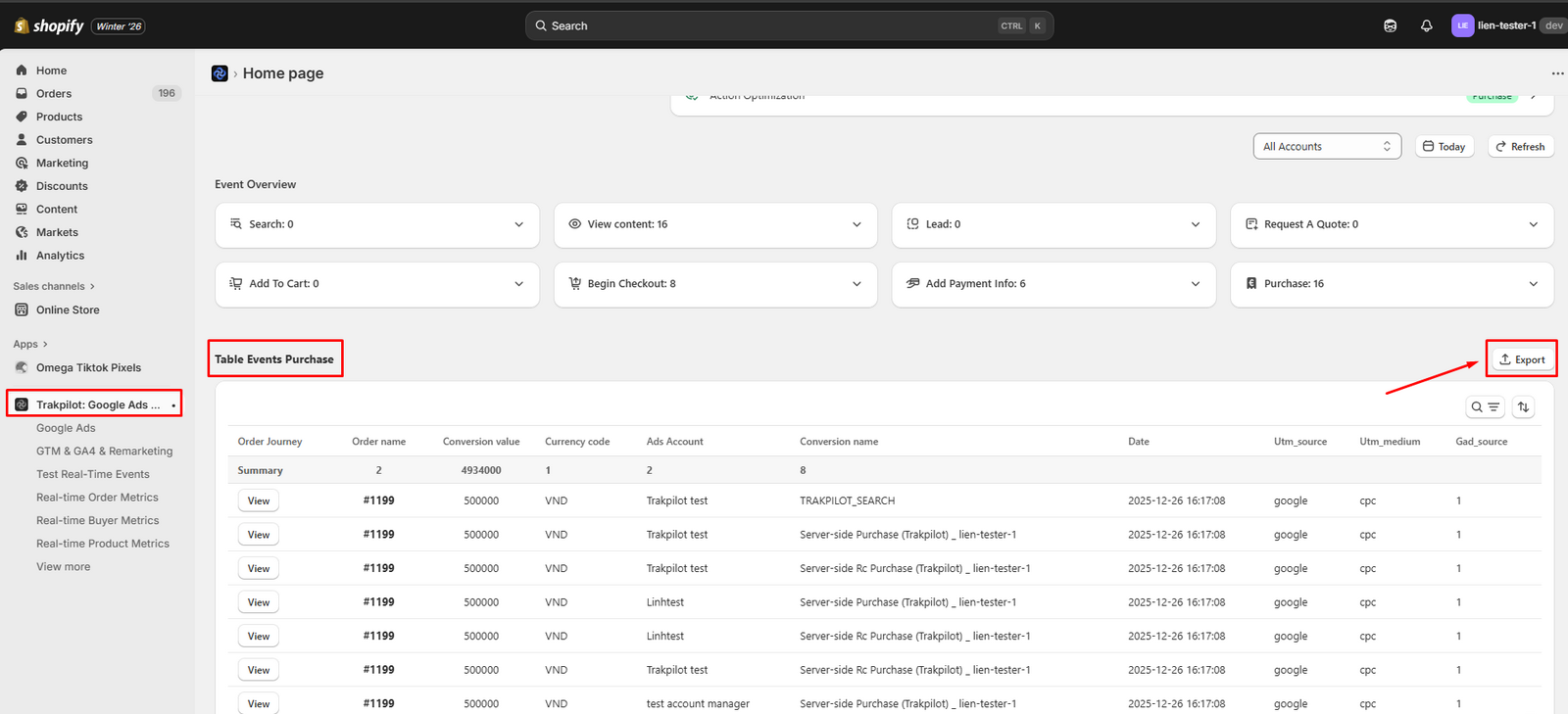
The new Export feature allows you to download your entire list of Conversion Events in CSV format. This means you can now manipulate, filter, and archive your data to uncover hidden patterns in your sales funnel.
With every export, you get access to vital data points, including:
Detailed Customer Journeys: See the specific path (Order Journey) taken before a conversion.
Financial Metrics: Track order values and currency codes accurately.
Traffic Attribution: Analyze UTM sources, mediums, and Google Ads account data.
Performance Timing: Precise event dates based on your configured timezone.
Your Step-by-Step Export Guide
Ready to get started? Follow these four simple steps to pull your data:
Access the Dashboard: Log in to Trakpilot and locate the Conversion Events Table.
Trigger the Export: Click the Export icon (the arrow pointing out of a box) located in the top right corner of the table.
Monitor Progress: The system will begin processing. You can see the live progress (e.g., Exporting 50%) right next to the button.
Download: Once the process hits 100%, your
conversion_events.csvfile will automatically download to your computer.
👉 Learn how to use the Data Export feature
⚠️ Important Notes & Limits
To ensure the best performance for all Trakpilot users, we have implemented the following export guidelines:
Under 5,000 Records: Exports will process normally and instantly.
Over 5,000 Records (Multi-day): If your selected date range exceeds 5,000 records, you will receive a notification. Simply narrow your date range to under 5,000 records to proceed.
High Volume (Single Day): If you have more than 5,000 orders within a single day, our automated system requires a manual assist. Please contact our support team at [email protected] and we will generate the file for you.
As always, if you have questions, just email us or live chat with us anytime. We’re here to help.
Trakpilot from Omega Pixels

Shopify Conversion Tracking: A Complete Guide for Accurate Ad Data
Omega TikTok Pixel: New Conversion Analytics is here

Top TikTok Apps for Shopify Could Double Your Conversions

Deduplication in Facebook Pixel: How to Fix Duplicate Events and Track Data Correctly
Shopify Conversion Tracking: A Complete Guide for Accurate Ad Data
Omega TikTok Pixel: New Conversion Analytics is here
Deduplication in Facebook Pixel: How to Fix Duplicate Events and Track Data Correctly

Omega TikTok Pixels Now Speaks Your Language: Introducing Multi-Language Support
Shopify Analytics Discrepancies: What’s Actually Happening?
Shopify Conversion Tracking: A Complete Guide for Accurate Ad Data
Omega TikTok Pixel: New Conversion Analytics is here
Deduplication in Facebook Pixel: How to Fix Duplicate Events and Track Data Correctly
Omega TikTok Pixels Now Speaks Your Language: Introducing Multi-Language Support