Google Ads Conversion Adjustment for Refunds on Shopify


A sale can look great in Google Ads, until that order is refunded or cancelled. Before this update, the Purchase conversion stayed in Google Ads at its original value, even after you gave the money back. Smart Bidding kept counting revenue you never kept, and your ad budget followed it.
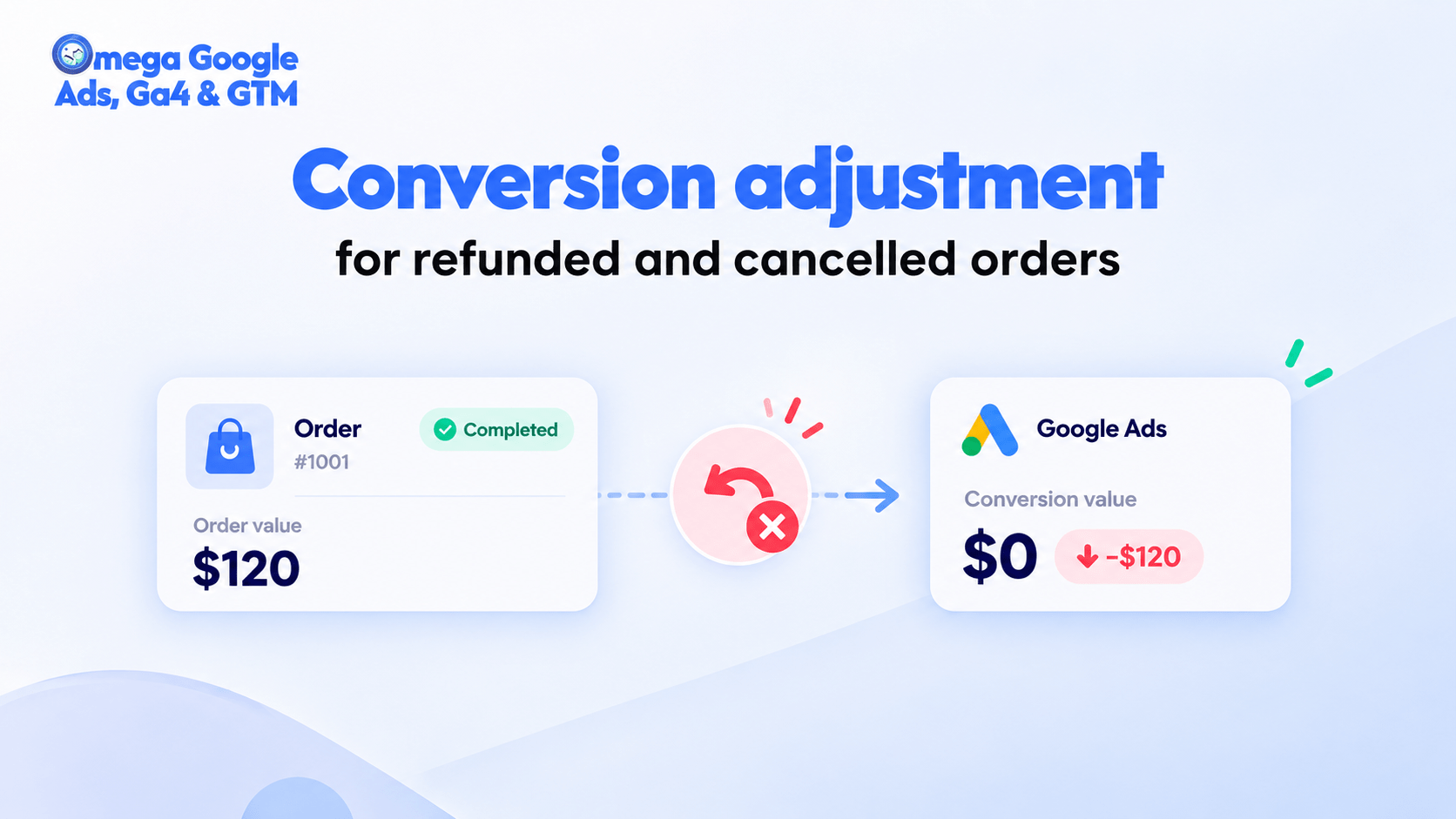
Google Ads conversion adjustment fixes this in Omega Google Ads. When you record a refund or cancellation in Shopify, Omega updates the conversion in Google Ads, so Google optimizes on the revenue you actually keep.
Google Ads Conversion Adjustment Now Runs Automatically in Omega
Omega Google Ads now sends a correction to Google Ads when an order from a Google ad is refunded or cancelled in Shopify. The conversion value then matches what you received. It applies to orders that came from a Google ad and already had their Purchase conversion sent to Google Ads. Organic orders are not affected.
- Runs on every plan: there is nothing to turn on, and you cannot turn it off.
- Works from Shopify data: Omega reads the refund or cancellation you record in Shopify, then updates Google Ads.
- Does not use your quota: adjustments do not count toward your monthly Purchase conversion limit.
- Shows up in Google Ads only: the Omega app has no new screen, and the Purchase Events Table does not list adjustments.
Which Refunded and Cancelled Orders Get a Conversion Adjustment?
Omega Google Ads decides by the money, not by the Shopify label. Here is how the four main cases work for orders that came from a Google ad:
- Partial refund: The conversion value goes down to the amount you kept. The order stays a conversion.
- Full refund, or cancelled and refunded: The conversion value goes to 0.
- Cancelled before payment: The conversion value goes to 0.
- Cancelled, payment kept: No adjustment. You kept the money, so it still counts as a sale.
Two more rules apply:
- Shipping-only refunds: if your conversion value does not include shipping, a shipping refund changes nothing.
- Refunds above the conversion value: the new value is 0. It never goes below zero.
Conversion value settings matter. Omega calculates the new value with the same settings you chose for conversion value: shipping, tax, and discounts included or not. A refund for something outside your conversion value does not change it.
Why Refund Adjustments Give Google Ads Better Data to Optimize From
Google Ads bidding learns from the conversions and values you send. If a refunded order keeps its full value, the system treats it as a good result and looks for more like it. A correction lets bidding learn from the revenue you kept.
- Revenue that matches your books: conversion value reflects what you received, not what the cart showed at checkout.
- Less budget on orders you reverse: a refunded sale no longer trains your campaigns as a win.
- Cleaner value-based bidding: with a correct value, strategies such as target ROAS are almost unaffected by the change.
Expect lower numbers in Google Ads. Conversion value can now read lower than before. That is the correct number. It changes gradually, because only orders sent after the release are adjusted, and only after 24 hours.
When Omega Sends the Adjustment to Google Ads
- 24-hour wait: Google only accepts an adjustment 24 hours or more after the original conversion. If you refund sooner, Omega waits, then sends.
- One adjustment per order: after several refunds in a row, Omega sends one adjustment with the final value. If the value did not change, it sends nothing.
- 54-day limit: Google accepts adjustments up to 54 days after the conversion. Omega records a later refund internally and skips it.
- Orders sent after October 16: older orders are not corrected.
- Retries: after a temporary Google error, Omega retries up to 5 times. After a permanent error, such as a disconnected Google Ads account, it records the failure and does not retry.
- Several Google Ads accounts: if an order went to more than one account, each account is adjusted separately. One failure does not block the others.
Google Ads API vs Data Manager API: What Changes in Your Conversion Count
Omega sends each adjustment the same way it sent the original conversion. A store can have conversions on both routes at once, and the result differs on a full refund:
- Sent through the Google Ads API: a partial refund lowers the value and keeps the count. A full refund, or a cancel with refund, retracts the conversion, so both the count and the value go down.
- Sent through the Data Manager API: a partial refund lowers the value and keeps the count. A full refund sets the value to 0, but the conversion count does not go down. This is a limit of the Google API, not an Omega error.
What this means for bidding: value-based strategies such as target ROAS are almost unaffected, because the value is correct. Count-based strategies such as target CPA or Maximize conversions still count a cancelled order sent through the Data Manager API as one conversion with zero value.
Step-by-Step: Check Your Refunded Orders for Conversion Adjustment
Quick setup (3 steps)
- Record every refund and cancellation in Shopify. Omega only knows what Shopify tells it. It sends the adjustment from that record.
- Mark failed cash on delivery (COD) orders. If a customer refuses the parcel and you change nothing in Shopify, Omega treats the order as a successful sale and does not adjust it. Omega does not guess or detect failed deliveries.
- Check the result in Google Ads. Look at your Purchase conversion value 24 hours or more after the refund. The change appears in Google Ads, not in the Omega app.
For the full rules, including partial refunds and both sending routes, read the conversion adjustment guide.
Start Using Google Ads Conversion Adjustment Today
Conversion adjustment is live in Omega Google Ads, GA4 & GTM. You do not need to change a setting. Keep your refunds and cancellations accurate in Shopify, and Omega passes the correction to Google Ads. If you need help, chat with us live and we will work it out with you.
Stop training your ads on refunded orders
Omega Google Ads adjusts refunded and cancelled orders for you. Install the app and keep your Google Ads data close to the revenue you kept.
Install Omega Google Ads
- 1 Google Ads Conversion Adjustment Now Runs Automatically in Omega
- 2 Which Refunded and Cancelled Orders Get a Conversion Adjustment?
- 3 Why Refund Adjustments Give Google Ads Better Data to Optimize From
- 4 When Omega Sends the Adjustment to Google Ads
- 5 Google Ads API vs Data Manager API: What Changes in Your Conversion Count
- 6 Step-by-Step: Check Your Refunded Orders for Conversion Adjustment
- 7 Start Using Google Ads Conversion Adjustment Today
- 8 Stop training your ads on refunded orders
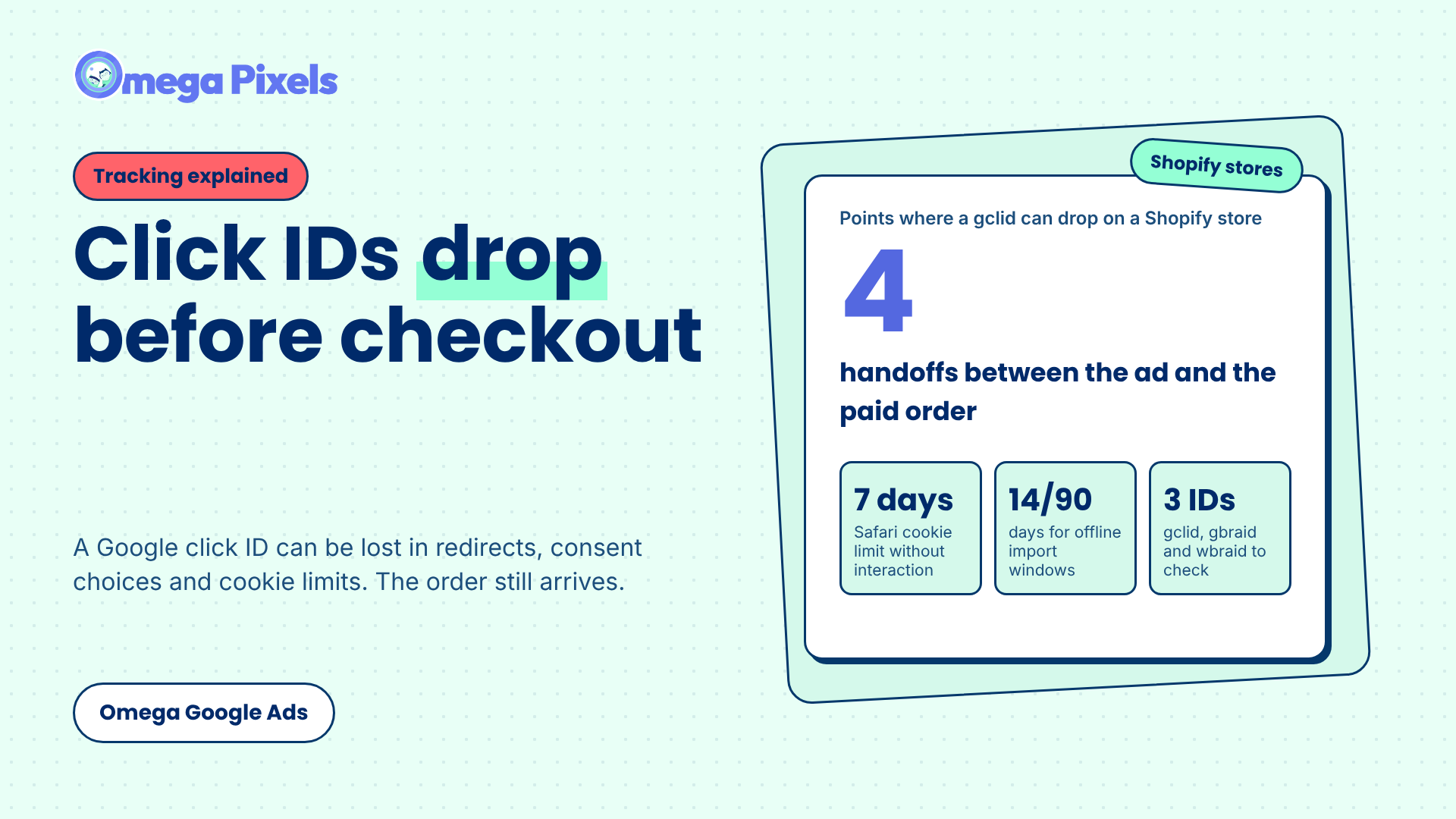
Where Google Click IDs Get Lost Between the Ad and Checkout
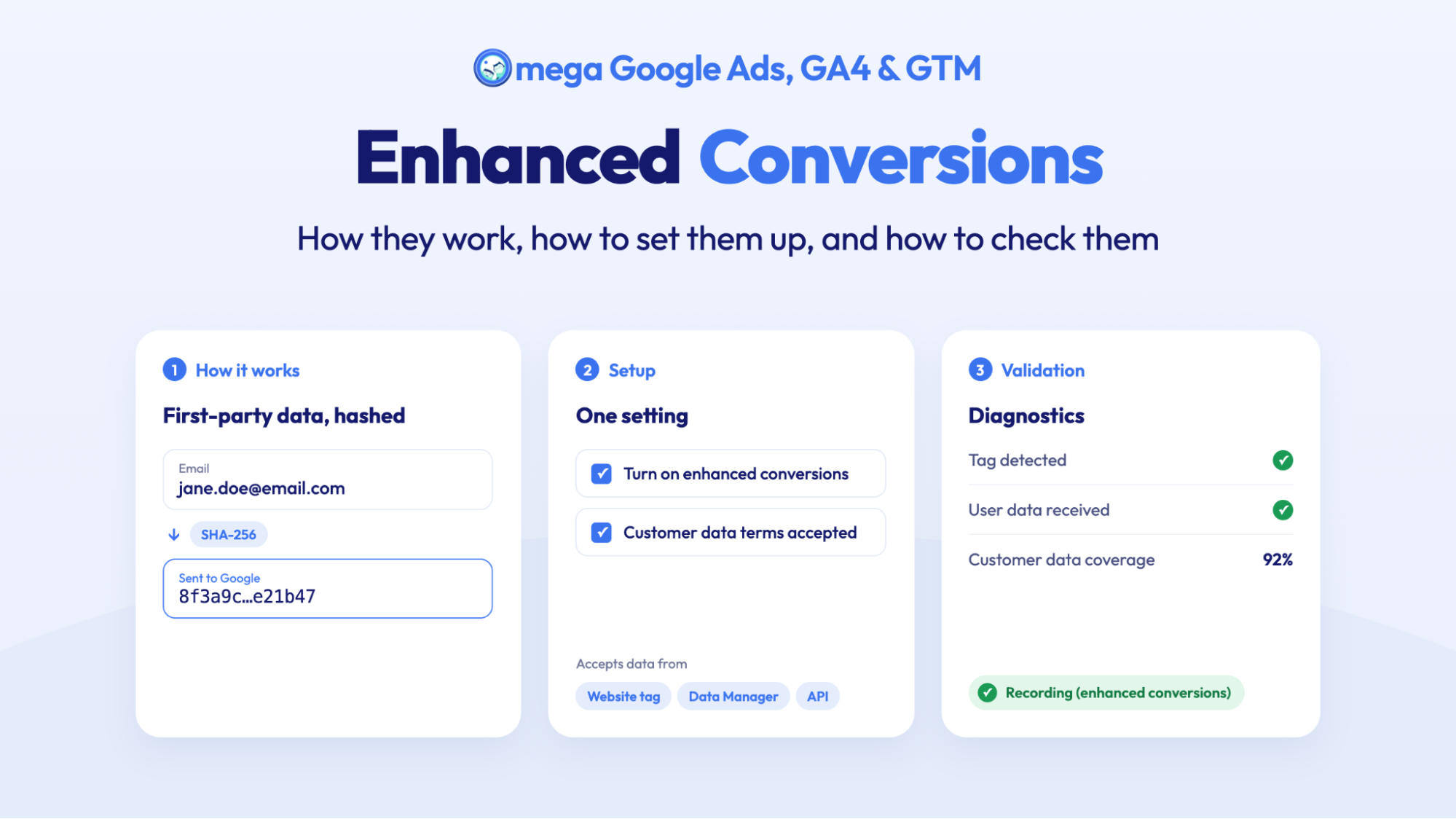
Enhanced Conversions in Google Ads: Turned On Isn’t the Same as Working
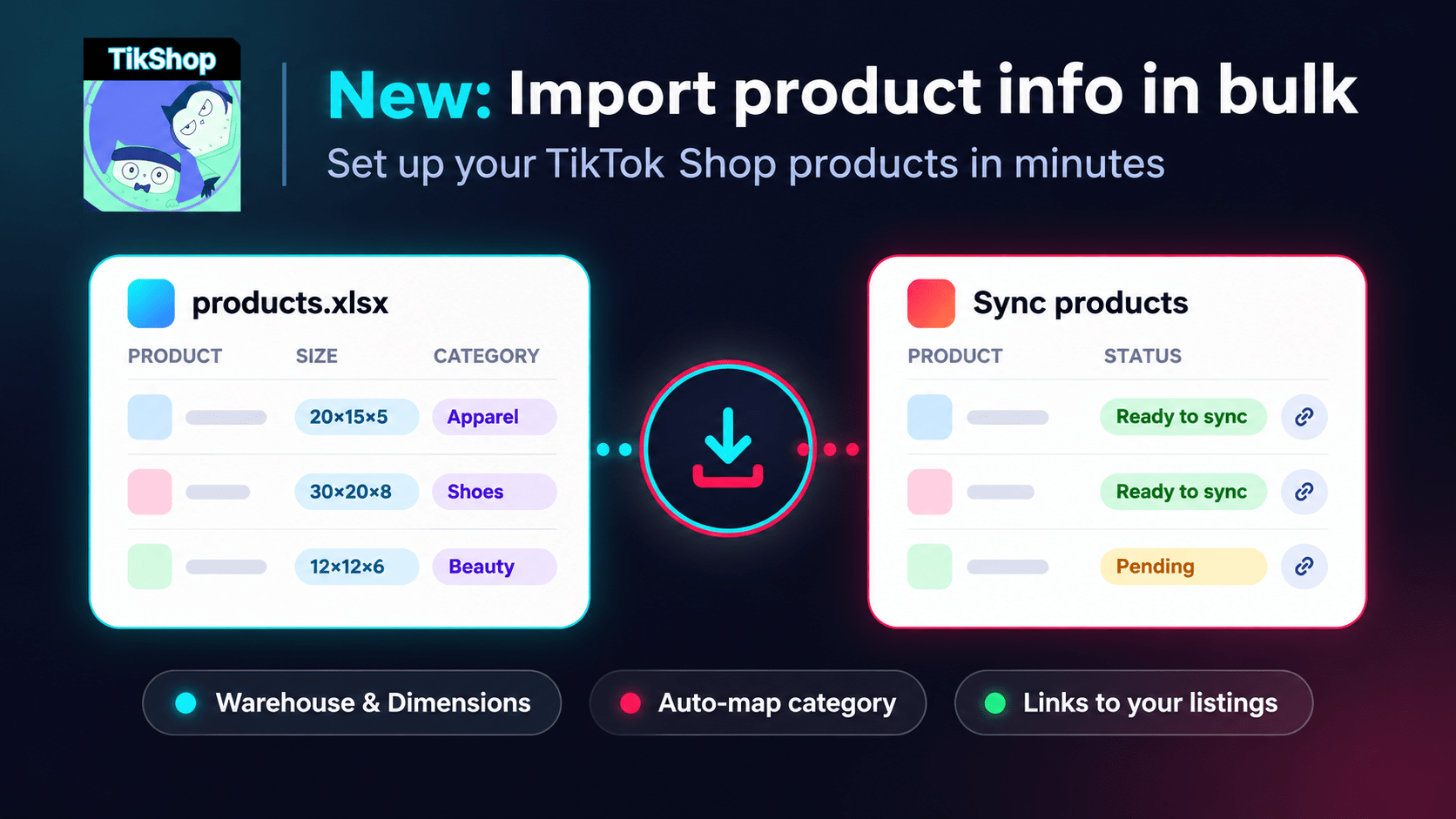
Bulk Import Product Info to TikTok Shop from Wix
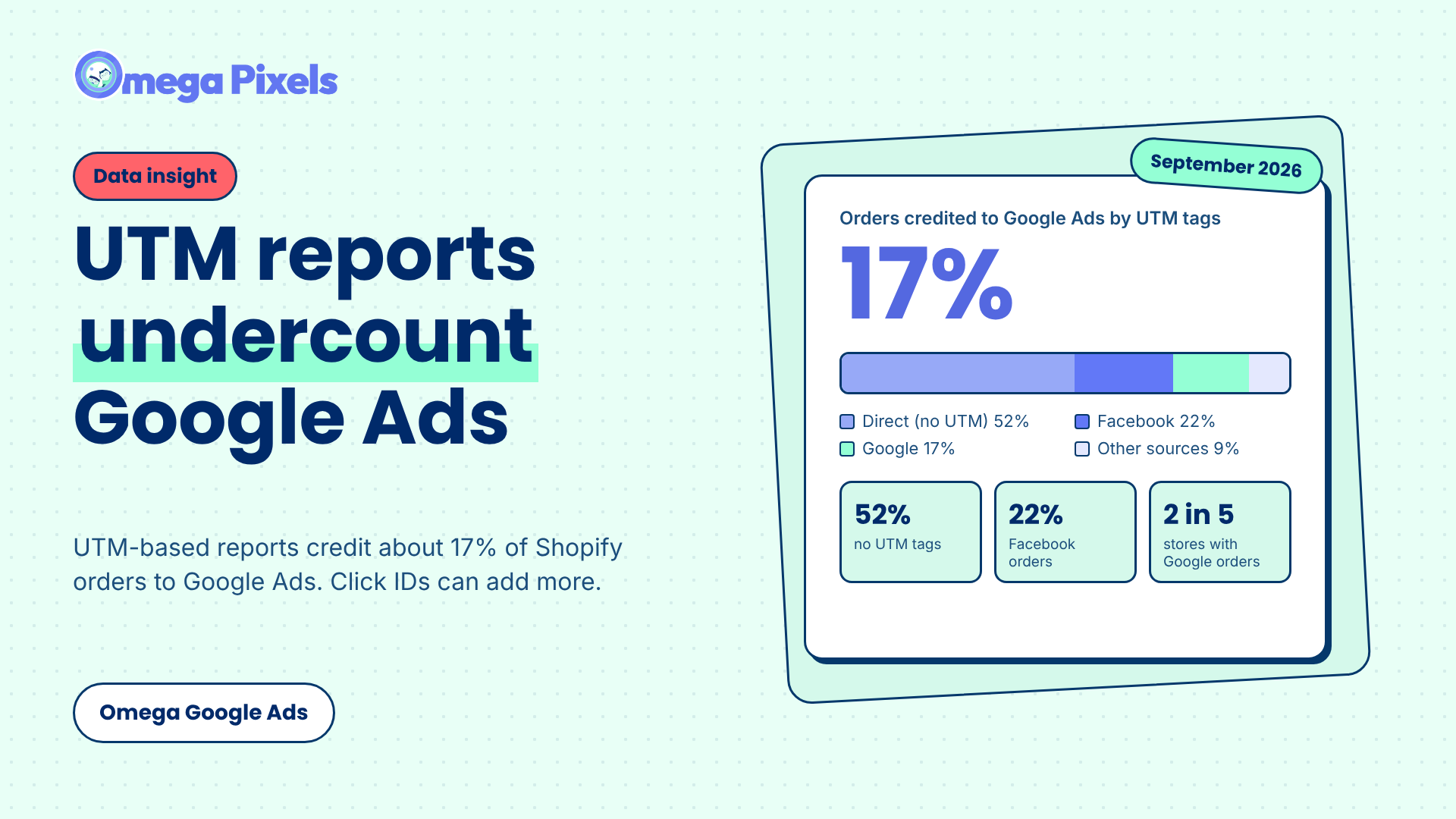
Google Ads Shopify Orders: How Many Are Tracked?
Bulk Import Product Info to TikTok Shop from Wix
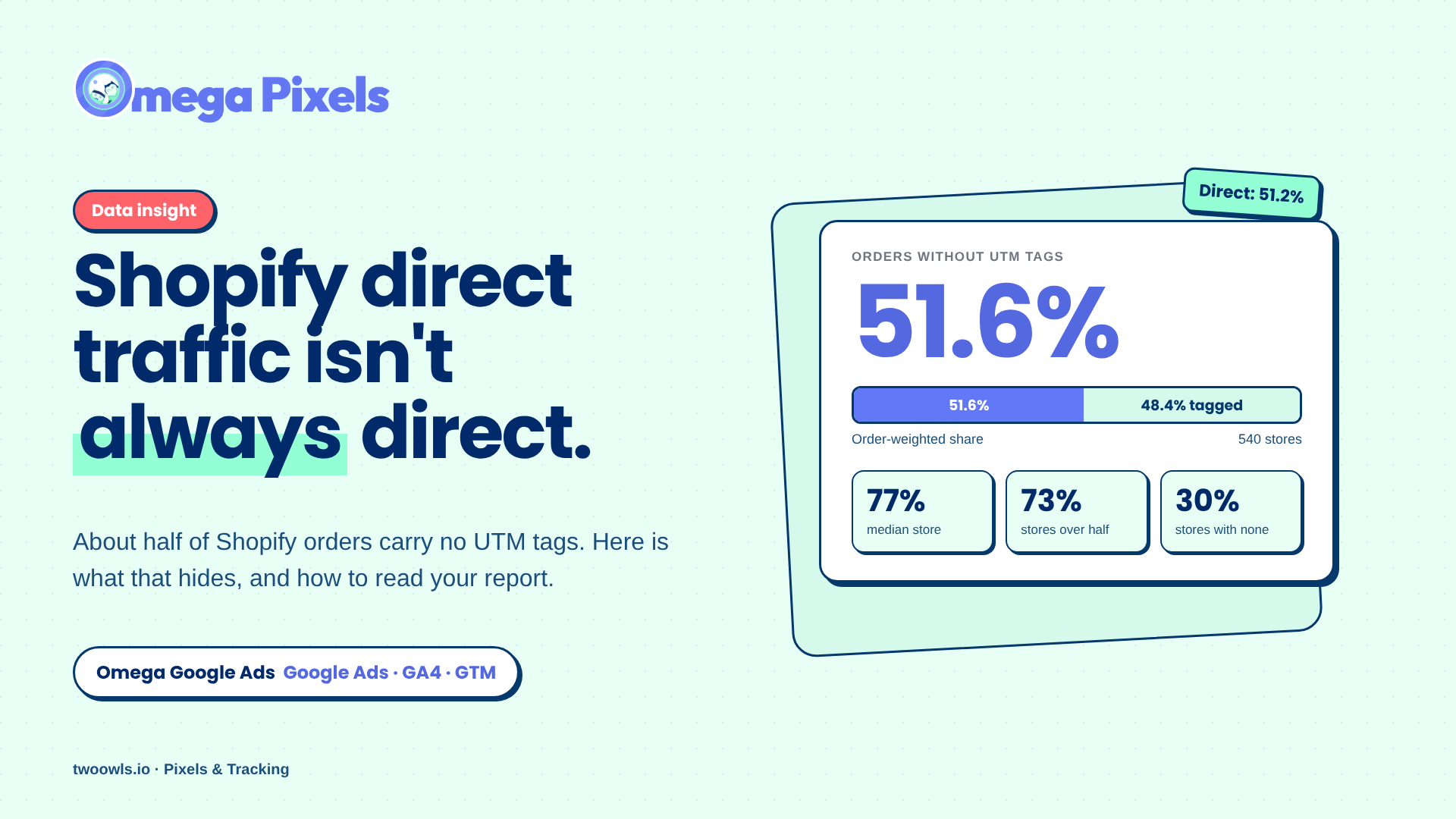
Shopify Direct Traffic Isn't Always Direct
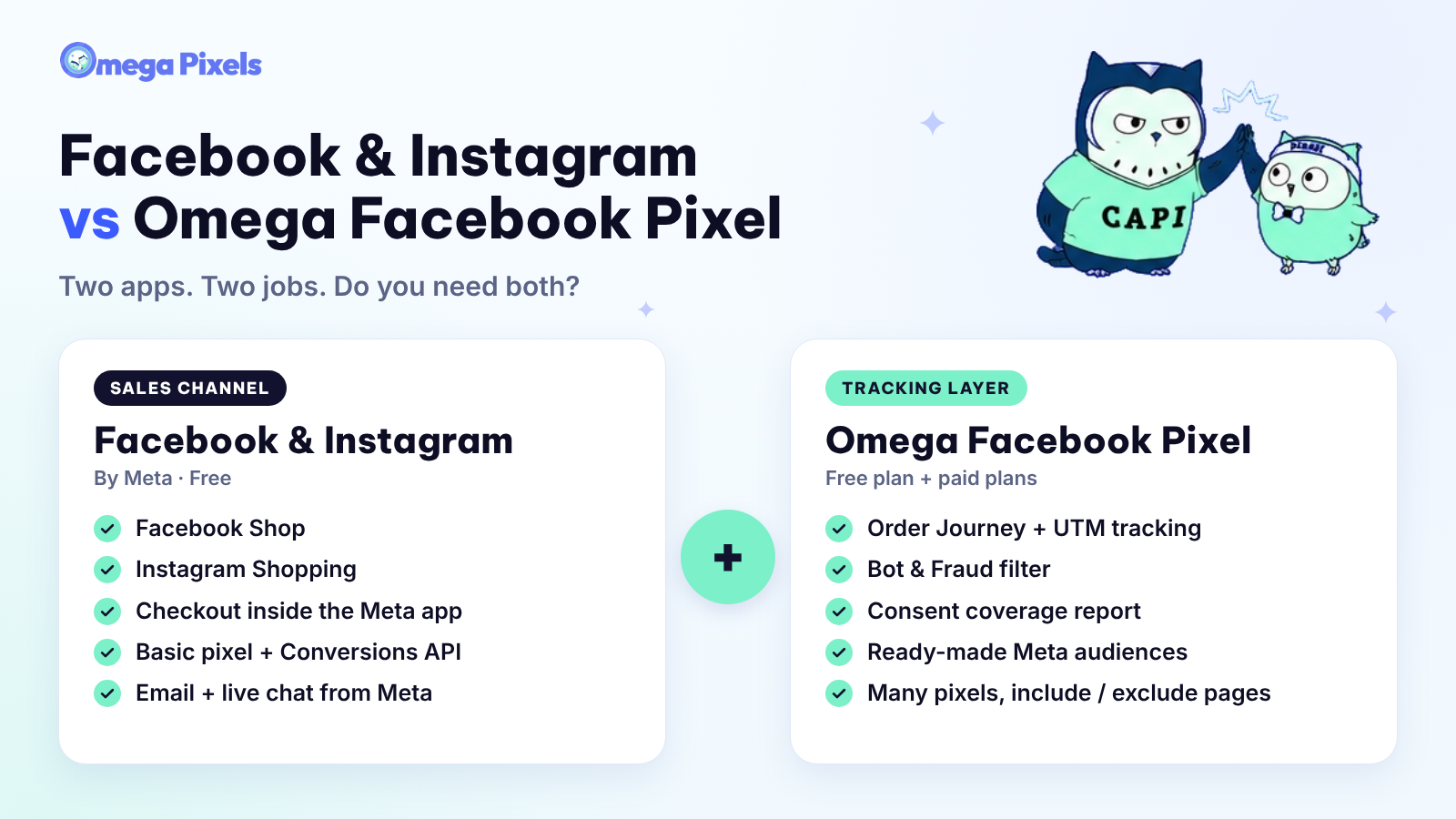
Why Pay for Omega Facebook Pixel When Meta’s Facebook & Instagram App Is Free?
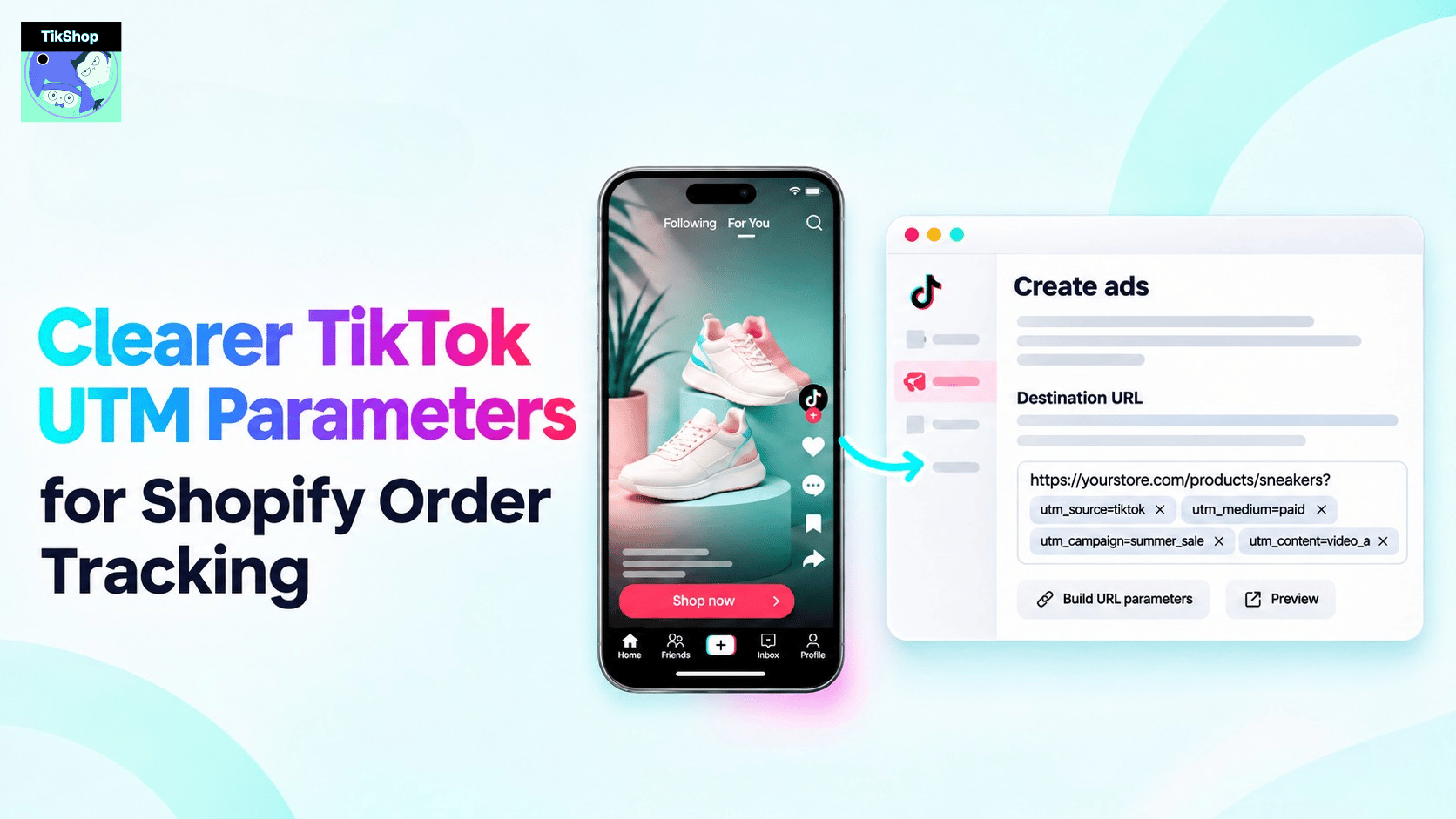
Clearer TikTok UTM Parameters for Shopify Order Tracking

New in Omega TikTok Pixel: Connect your catalog to a pixel
Bulk Import Product Info to TikTok Shop from Wix
Shopify Direct Traffic Isn't Always Direct
Why Pay for Omega Facebook Pixel When Meta’s Facebook & Instagram App Is Free?
Clearer TikTok UTM Parameters for Shopify Order Tracking