Remove Deleted Instagram Posts From Shopline Automatically


You delete an Instagram post, but it keeps showing on your Shopline store. Old promos, outdated prices and content you no longer want public stay live in your shoppable feed until you clean them up by hand.
Omega Instagram Feed for Shopline now closes that gap. The app can remove deleted Instagram posts from Shopline storefronts on the next sync, and it scans your posts from all time instead of only the last 6 months.
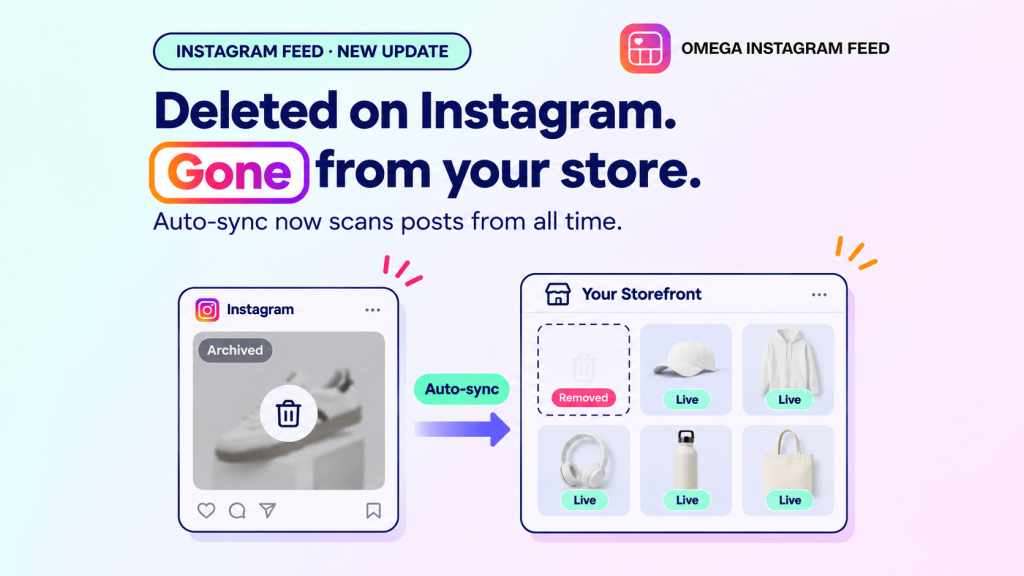
Omega Instagram Feed Now Syncs All Posts and Clears Deleted Ones
Before this update, a post that you deleted or archived on Instagram stayed on your storefront. Posts older than 6 months were never fully checked. Both problems are fixed.
- No more 6-month limit: Auto sync and Manual sync now scan your posts from all time.
- Automatic removal: deleted or archived posts disappear from your storefront on the next sync.
- Nothing to clean up by hand: your Shopline feed follows what is live on your Instagram account.
- Already live: the update is available now for Shopline merchants using the app.
Why You Should Remove Deleted Instagram Posts From Shopline Storefronts
A feed that shows content you already took down looks careless, and it can cost you in small ways.
- No outdated prices or promos: a post you removed because the offer ended no longer sits on your store.
- Fewer confused customers: shoppers stop asking about a post that no longer exists on Instagram.
- Control over what is public: content you decided to pull from Instagram does not linger on your storefront.
- A trustworthy brand: your store and your Instagram profile tell the same story.
Which Instagram Posts the Shopline Feed Checks
The check covers every kind of post the app can show in your feed:
- Your own posts: posts you publish yourself.
- Tags and collabs: posts from other accounts that tag you or collab with you.
- Mentions and Meta imports: posts that mention you, plus posts imported via Meta.
How Auto Sync Detects Deleted and Archived Instagram Posts
Instagram does not send a "this post was deleted" signal right away. So the app cannot react the moment you delete something. Instead, it re-checks your posts on your Auto-sync schedule and removes any post that is no longer live on Instagram.
Quick setup (3 steps)
- Open Settings in Omega Instagram Feed.
- Choose how often Auto-sync runs: every 2 hours, every 8 hours, daily or weekly.
- In a hurry? Click Manual sync and the app checks everything right now, without waiting for the next scheduled run.
Your schedule decides how fast the storefront reflects a deletion. A shorter interval means a deleted post disappears sooner.
Limits to Know About Instagram Feed Auto Sync
- Not real time: because of how Instagram works, a deleted or archived post stays visible until the next Auto-sync or Manual sync.
- Storefront only: the update removes posts from your Shopline store. It never changes anything on your Instagram account.
- Your schedule sets the delay: pick a shorter Auto-sync interval if you want changes to show up faster.
Keep Your Shopline Instagram Feed in Sync Today
The update is live for Shopline merchants. Open Omega Instagram Feed, check your Auto-sync schedule in Settings, and run a Manual sync to see your storefront match your Instagram profile.

- 1 Omega Instagram Feed Now Syncs All Posts and Clears Deleted Ones
- 2 Why You Should Remove Deleted Instagram Posts From Shopline Storefronts
- 3 Which Instagram Posts the Shopline Feed Checks
- 4 How Auto Sync Detects Deleted and Archived Instagram Posts
- 5 Limits to Know About Instagram Feed Auto Sync
- 6 Keep Your Shopline Instagram Feed in Sync Today
- 7 Keep your Shopline feed matched to Instagram
Verify Google Ads Tracking on Shopify in One Click with Omega Google Ads
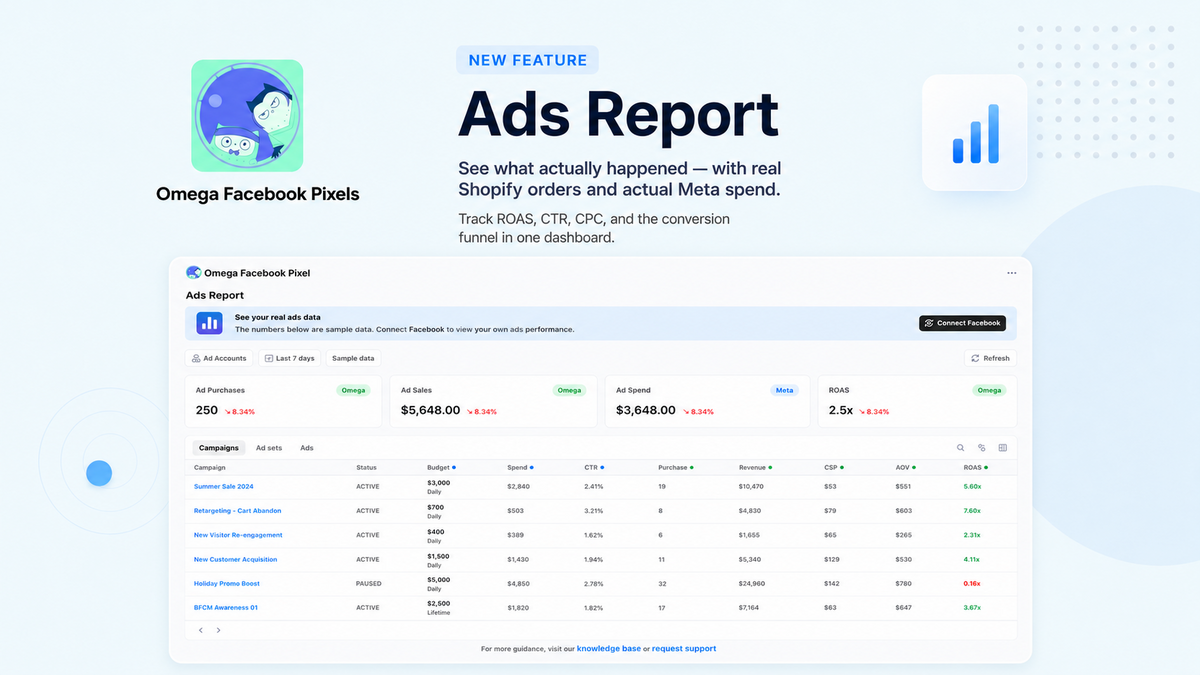
Meet the New Real-Time Ads Report by Omega Facebook Pixels
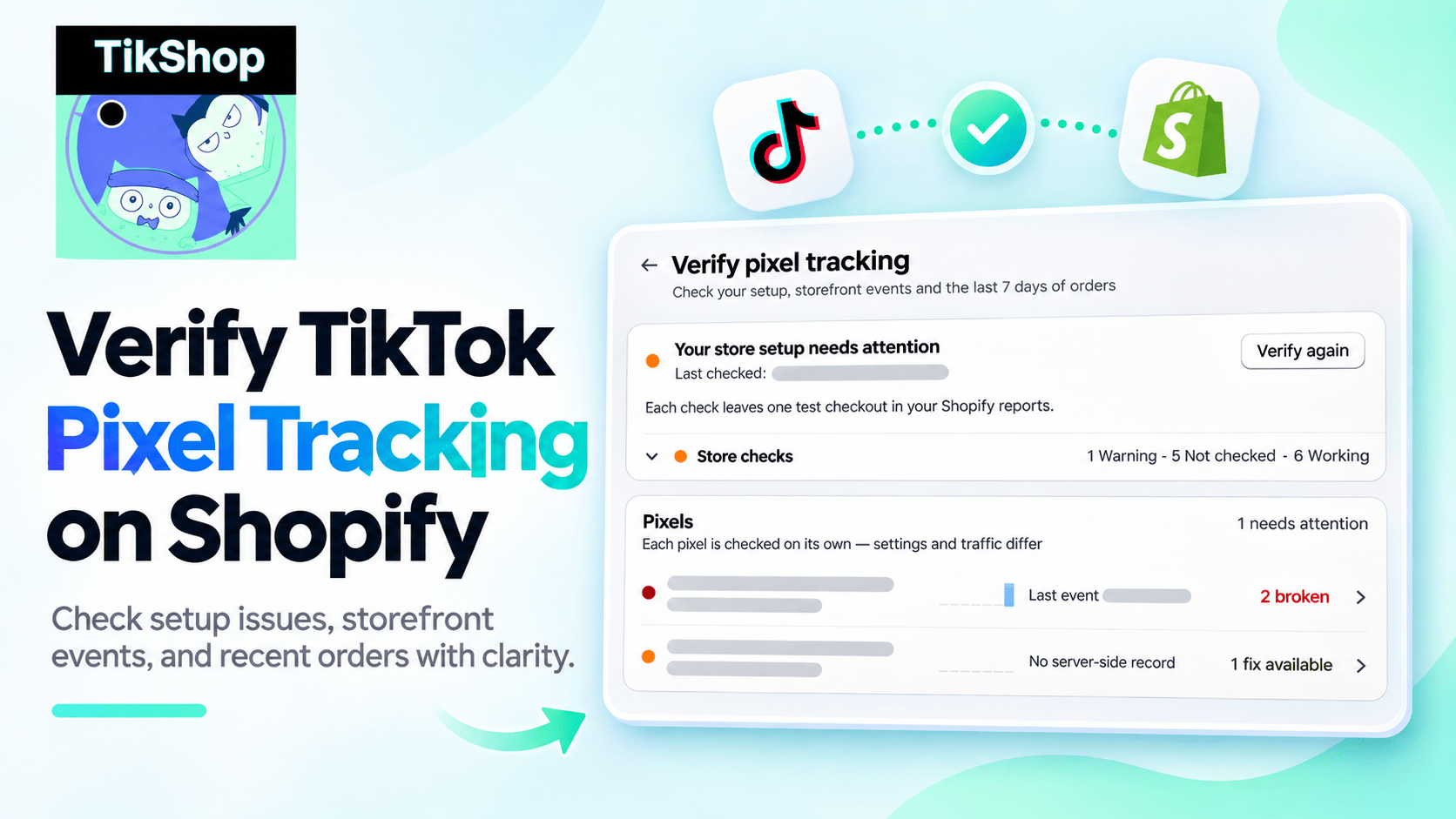
Verify TikTok Pixel Tracking on Shopify in One Check with Omega TikTok Pixels
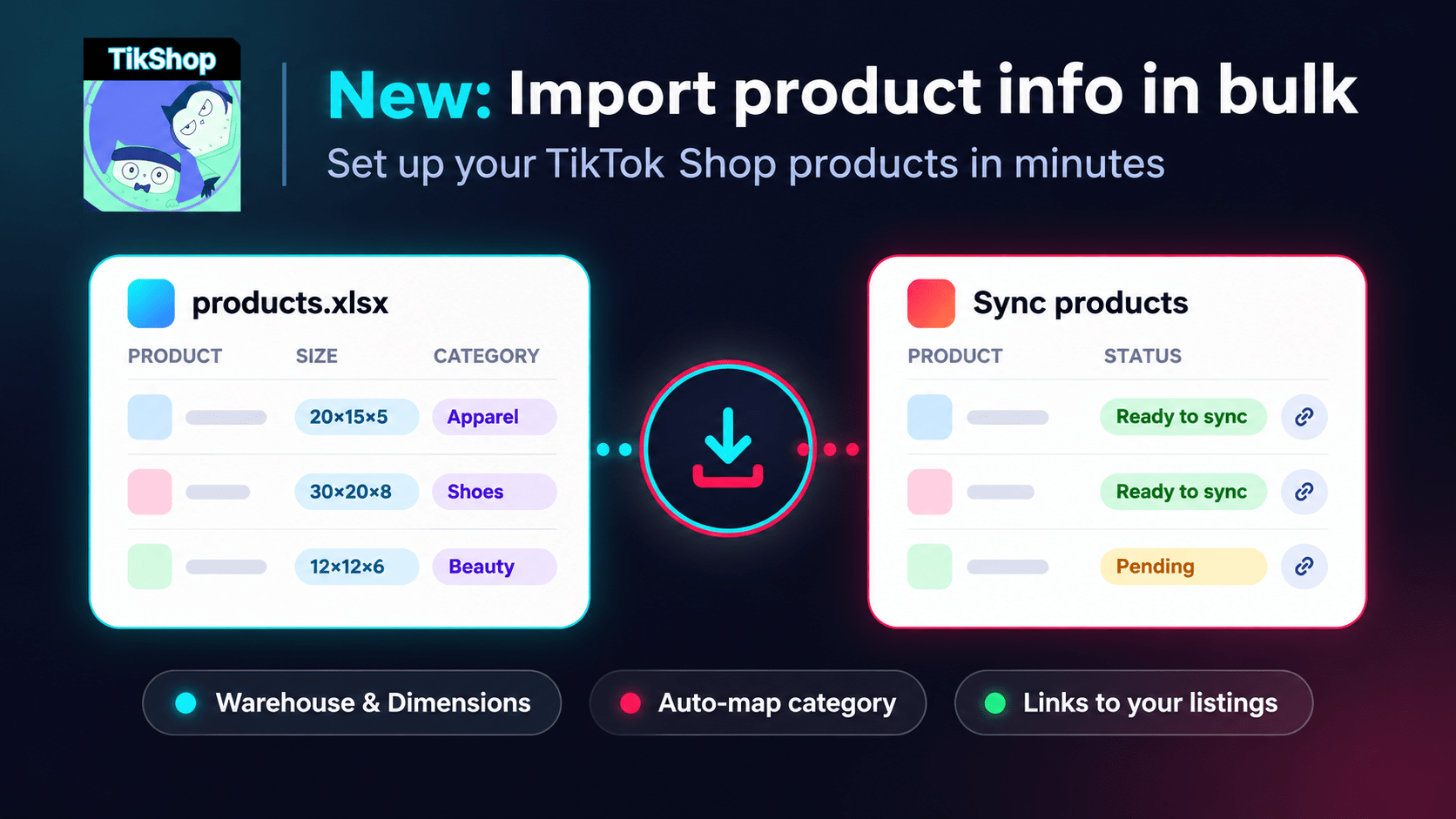
Bulk Import Product Info to TikTok Shop from Wix
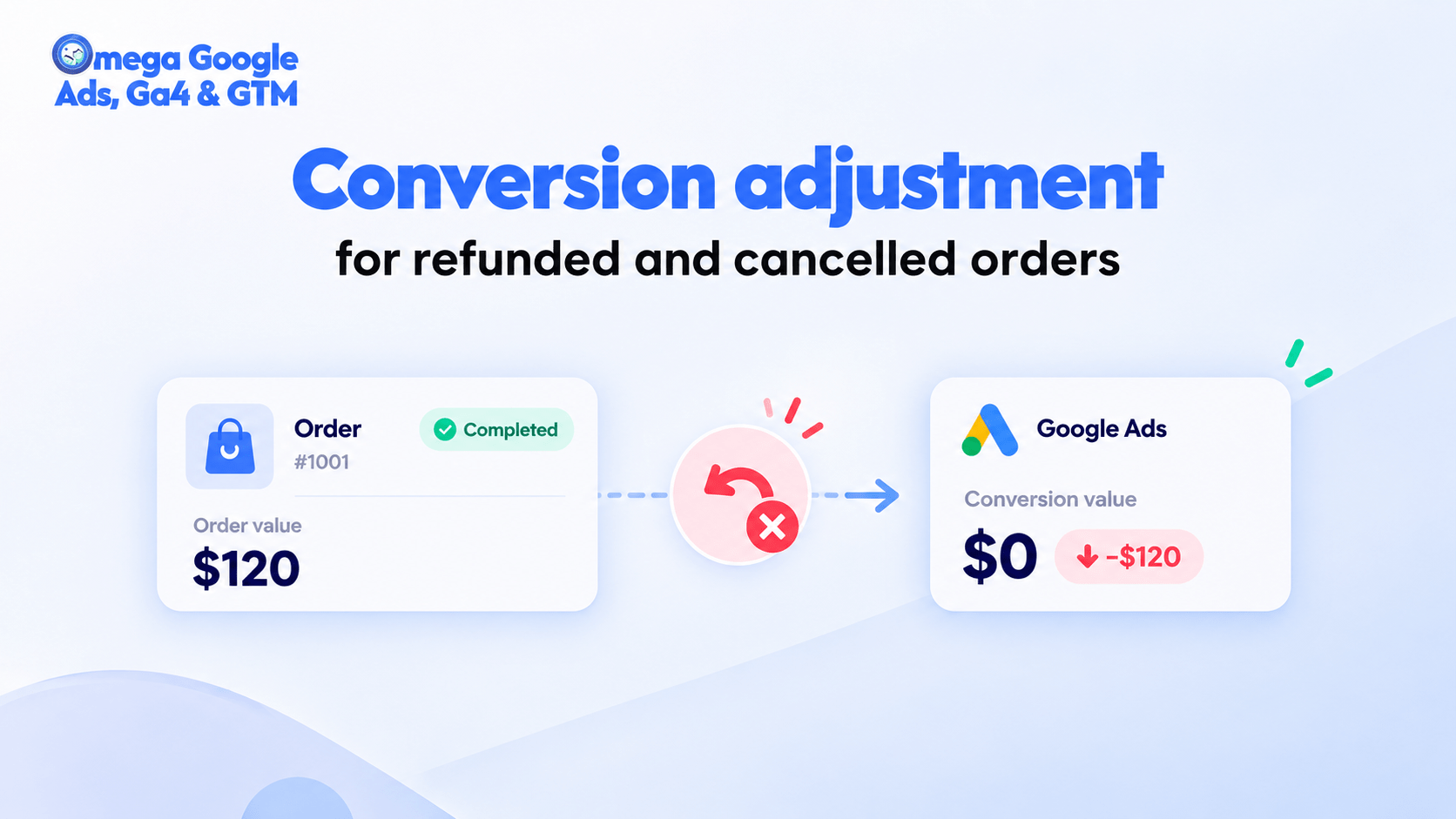
Google Ads Conversion Adjustment for Refunds on Shopify
Verify Google Ads Tracking on Shopify in One Click with Omega Google Ads
Meet the New Real-Time Ads Report by Omega Facebook Pixels
Verify TikTok Pixel Tracking on Shopify in One Check with Omega TikTok Pixels
Bulk Import Product Info to TikTok Shop from Wix