Verify Google Ads Tracking on Shopify in One Click with Omega Google Ads


Google Ads tracking can break without anyone noticing. A lost Google permission, a disabled Ads account or a theme change that switches off the app embed, and your orders stop reaching Google Ads while your campaigns keep spending. Until now, the app did not flag any of this, so most merchants only found out when their ad numbers started to look wrong.
Omega Google Ads, GA4 & GTM now lets you verify Google Ads tracking with one button. Verify tracking checks 20 setup conditions that decide whether your orders are received, sent to Google and accepted correctly. Then it shows a checklist of what needs attention and exactly how to fix it.
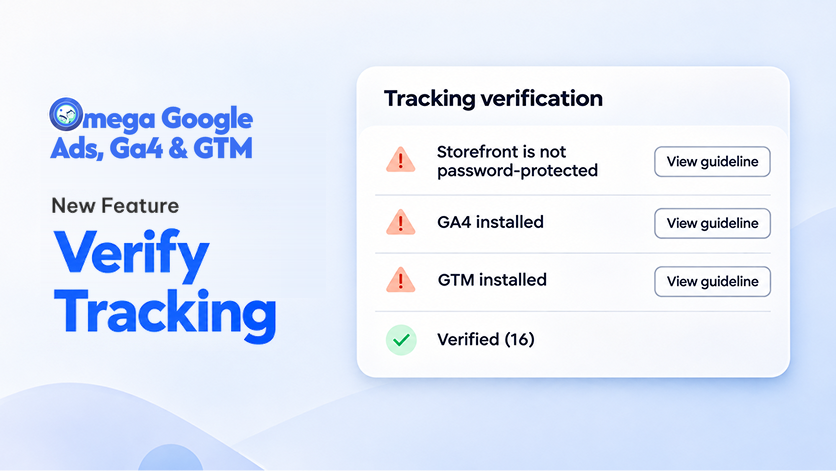
Verify Tracking Now Checks 20 Google Ads Setup Conditions in One Click
Instead of opening Shopify, Google Ads and GA4 settings one by one, you get a single answer to the question "where is my tracking broken?"
- Where to find it: Business Insights -> Signal Quality, on the Signal health score card.
- What it checks: 7 conditions for receiving orders, 8 for sending them to Google, 3 for Google accepting them and 2 for match quality.
- What you get: a checklist with every item marked Needs attention or Verified, plus fix steps for each problem.
- Who can run it: you, or our support team on your store when you ask for help. You both see the same result.
- Plans: 17 of the 20 checks work on every plan, including Free. The GA4 installed, GA4 purchase event enabled and GTM installed checks need Starter or above.
Why a Google Ads Tracking Checklist Protects Your Ad Spend
- Catch silent failures early: if auto tagging is off, orders carry no ad click ID and cannot be matched to your ads. The checklist flags it the next time you run a check, not weeks later in a report.
- Stop double counting: a second Primary Purchase conversion action counts the same order twice and inflates your results. Verify tracking checks for duplicates.
- Improve your match rate: Customer Data Terms and Enhanced conversions do not block conversions, but they decide how many orders Google can match to a click.
- Fix in the right order: problems are listed in the order the data flows, receive -> send -> accept -> quality, so you start with the root cause.
How to Read the Google Ads Tracking Checklist
The Tracking verification window has three parts: items that need attention at the top, items not checked yet or locked on your plan in the middle, and Verified (n) collapsed at the bottom. Each row tells you what to do next:
- View guideline: you can fix this yourself. The guideline opens inside the row with up to 3 steps and one button that takes you to the right settings page.
- Restored automatically: the order webhook and web pixel show "Omega is restoring this automatically." No action needed, just run the check again later.
- How to fix: only the duplicate Purchase conversion action works this way. Click it and Omega sends the details to our support team in live chat.
- Not checked yet: Omega needs a valid Google connection to read this item. It is not counted as a problem.
- Last checked {date} at {time}: the latest run could not read this item, so it still shows the previous result.
- Paid plan badge: the item is locked on your plan and is not counted as a problem.
An item Omega Google Ads cannot read never turns red just because it could not be read. And a broken root item, such as the Google connection, does not turn the items that depend on it red. Only the root item shows as a problem, so you know where to start.
The 20 Checks Behind Verify Tracking
Stage 1: Does Omega Google Ads receive your orders?
Order webhook is registered, Web pixel is registered, App embed on the active theme, Storefront is not password protected, Google Ads tag installed on the store, GA4 installed and GTM installed.
Stage 2: Can Omega Google Ads send orders to Google Ads?
Google connection is valid, Google account has a Google Ads account, Permissions granted are sufficient, Access level is Standard or Admin, Google Ads account is active, Auto tagging is on, Purchase conversion action is ready and Sending to the connected Ads account.
Stage 3: Does Google accept the conversions correctly?
No duplicate Purchase conversion action, GA4 purchase event enabled and Remarketing tag is active.
Quality: how well are orders matched to ad clicks?
Customer Data Terms accepted and Enhanced conversions enabled. These two do not stop conversions, they lower how many orders Google can match to a click.
Step-by-Step: Run Verify Tracking on Your Shopify Store
Quick setup (4 steps)
- In Omega Google Ads, go to Business Insights -> Signal Quality.
- On the Signal health score card, click Verify tracking. The button shows Verifying while Omega checks all 20 items, then the Tracking verification window opens.
- Start at the top. Most checks depend on Google connection is valid, so fix that first. Open View guideline on each red item and follow the steps.
- Click Verify tracking again to confirm. Every click runs a new check, with no waiting time between checks.
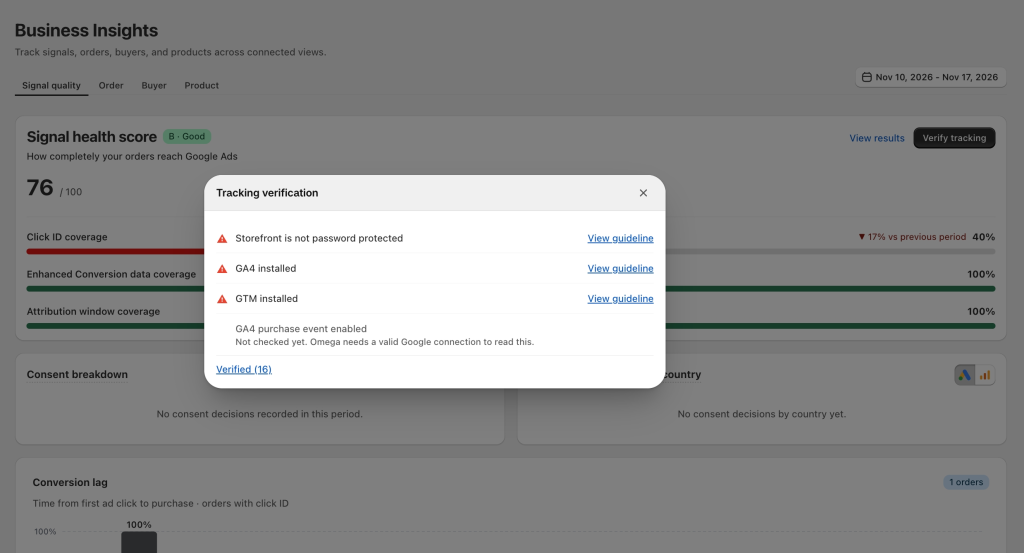
Reopen your last result with View results
After your first check, a View results link appears just left of the button. It opens the last saved result with the line "Checked {date} at {time}" without running a new check. The date range selector at the top of the screen does not affect the checklist, because it shows your current setup, not a period of data.
What Verify Tracking Does and Does Not Do
- It checks setup, not numbers: a green result means your configuration is right. It does not mean your reported numbers are right.
- It does not resend past orders: fixes help new orders only. Orders Google already rejected are not recovered. Check their delivery status in the Purchase Events Table.
- It runs only when clicked: there is no background check and no alert, so run it yourself after setup changes.
- It does not change your score: the Signal health score, coverage numbers and Recommendations card are calculated separately.
- Stores with several markets: the checklist shows one line per item for the whole store. Google Ads tag, GA4 and GTM show Verified if Global or any market has them turned on, which does not mean every market is configured.
- Remarketing tag: this check reads the data Omega observed in the last 7 days, not your market settings.
Start Verifying Your Google Ads Tracking Today
Verify tracking is live in Omega Google Ads, GA4 & GTM. Open Business Insights -> Signal Quality and click the button. For every check and its fix steps, read the Verify tracking setup guide.
If anything on your checklist is unclear, chat with us live in the app. We are happy to help you get your tracking back on track.
Find Out Where Your Google Ads Tracking Breaks
Run 20 setup checks in one click and get clear fix steps for Google Ads, GA4 and GTM.
Install Omega Google Ads
- 1 Verify Tracking Now Checks 20 Google Ads Setup Conditions in One Click
- 2 Why a Google Ads Tracking Checklist Protects Your Ad Spend
- 3 How to Read the Google Ads Tracking Checklist
- 4 The 20 Checks Behind Verify Tracking
- 5 Step-by-Step: Run Verify Tracking on Your Shopify Store
- 6 What Verify Tracking Does and Does Not Do
- 7 Start Verifying Your Google Ads Tracking Today
- 8 Find Out Where Your Google Ads Tracking Breaks
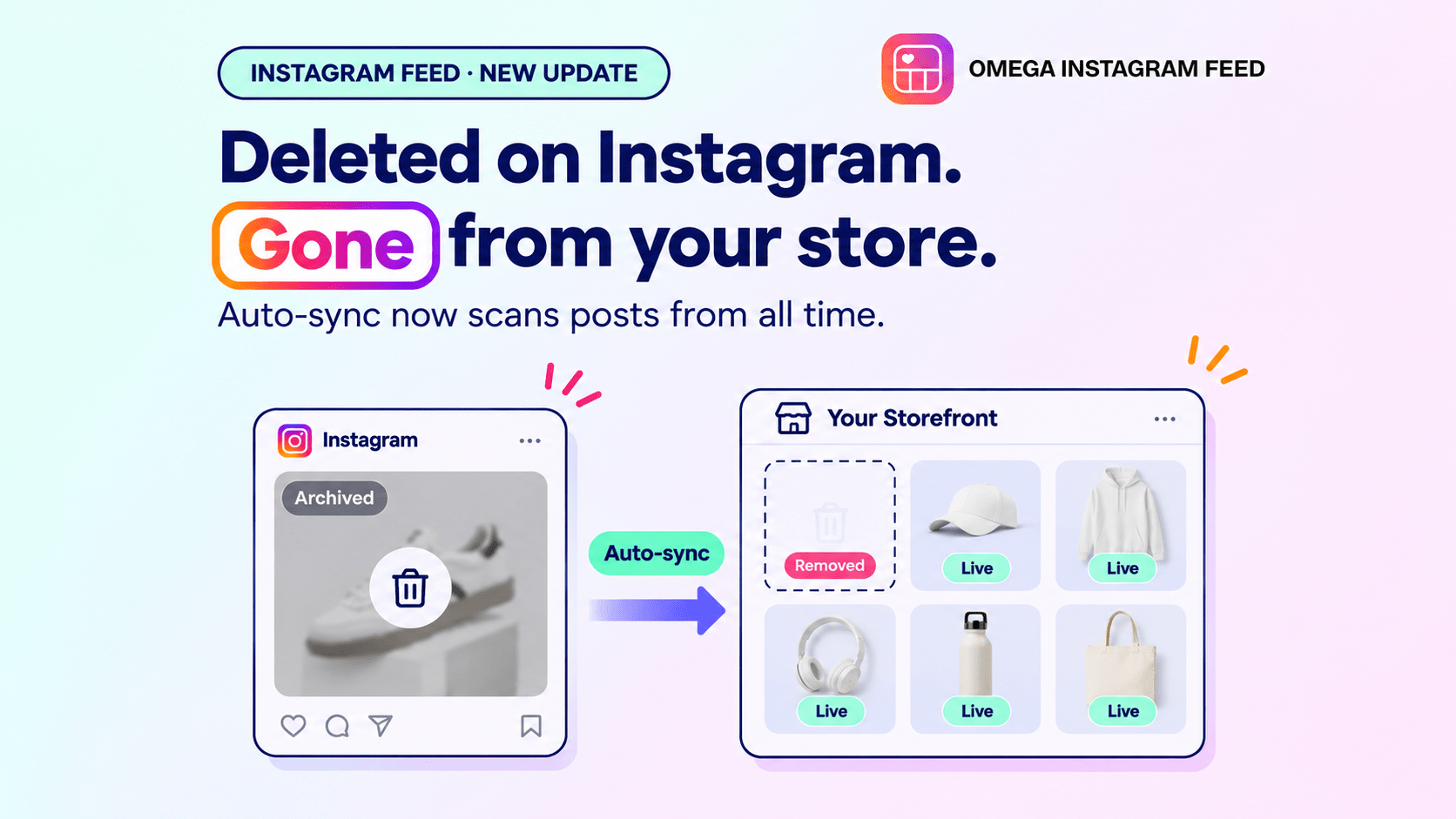
Remove Deleted Instagram Posts From Shopline Automatically
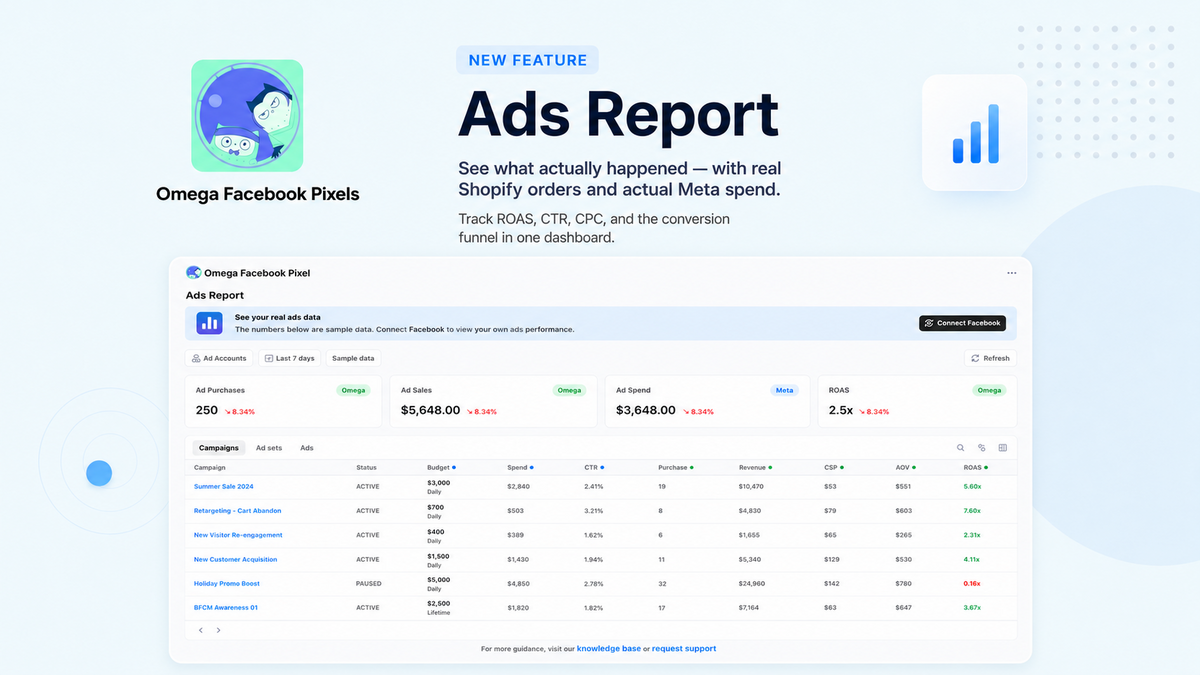
Meet the New Real-Time Ads Report by Omega Facebook Pixels
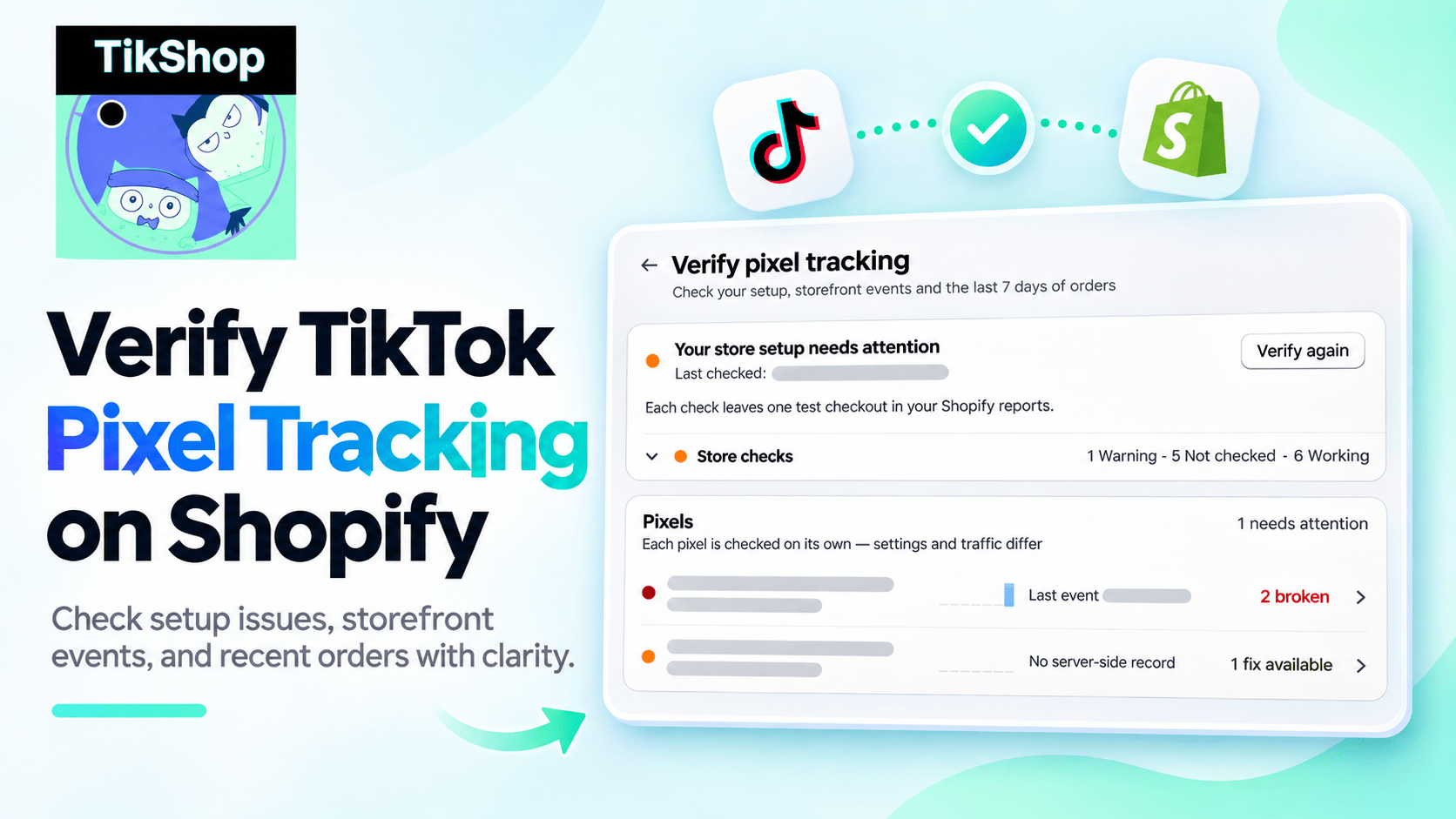
Verify TikTok Pixel Tracking on Shopify in One Check with Omega TikTok Pixels
Bulk Import Product Info to TikTok Shop from Wix
Google Ads Conversion Adjustment for Refunds on Shopify
Remove Deleted Instagram Posts From Shopline Automatically
Meet the New Real-Time Ads Report by Omega Facebook Pixels
Verify TikTok Pixel Tracking on Shopify in One Check with Omega TikTok Pixels
Bulk Import Product Info to TikTok Shop from Wix