Verify TikTok Pixel Tracking on Shopify in One Check with Omega TikTok Pixels


TikTok Ads Manager reports fewer purchases than Shopify, and you can't tell why. The cause might be the app embed, a duplicate pixel in your theme, an expired connection or a purchase event sent without the right value. Finding it usually means checking settings in three places and guessing which one matters.
Omega TikTok Pixel now has a built-in way to verify TikTok pixel tracking. One automatic check reviews your store and every pixel. It tells you what works, what is broken and what is costing you credited sales, and each result has a button that takes you straight to the fix.
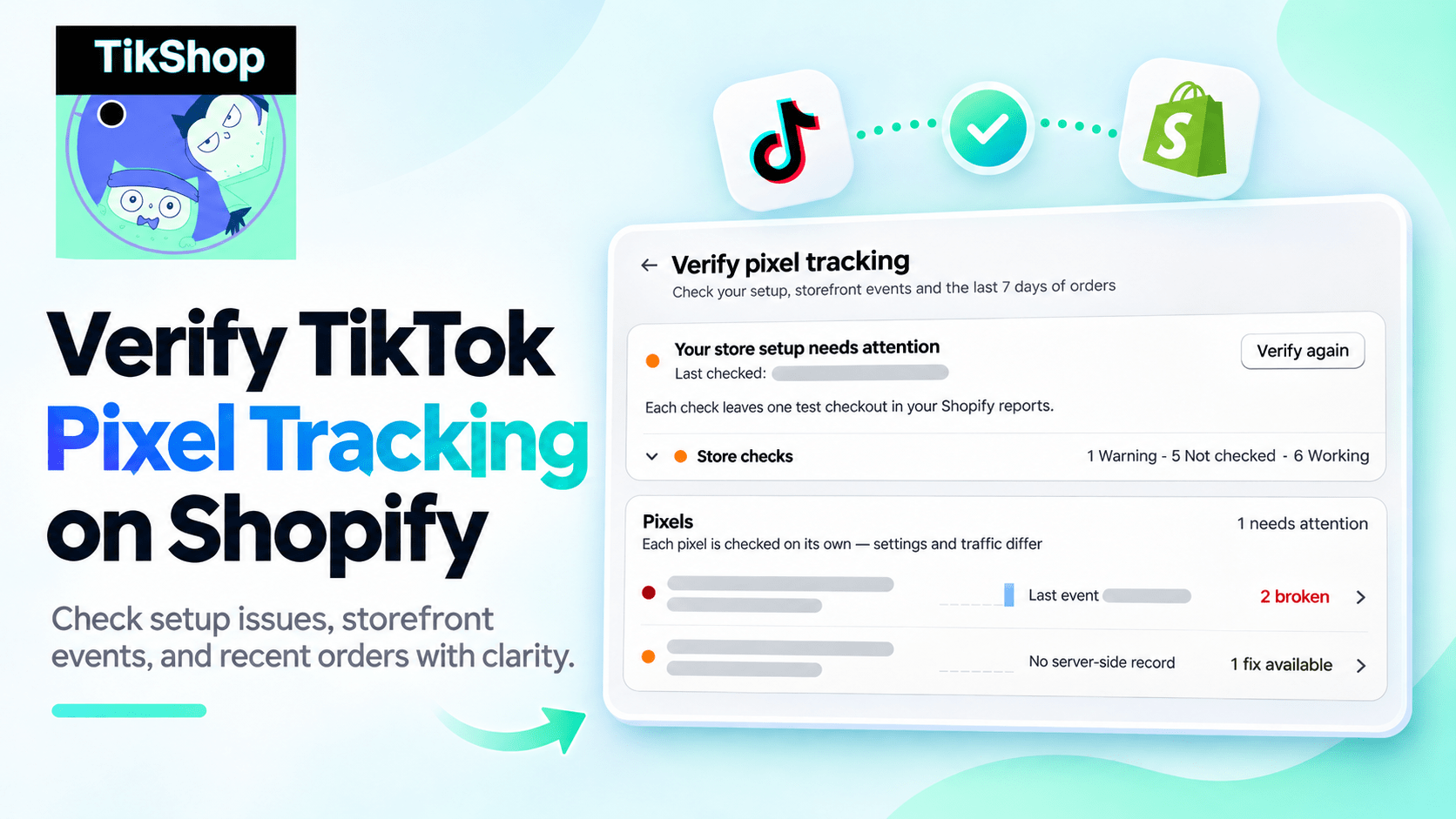
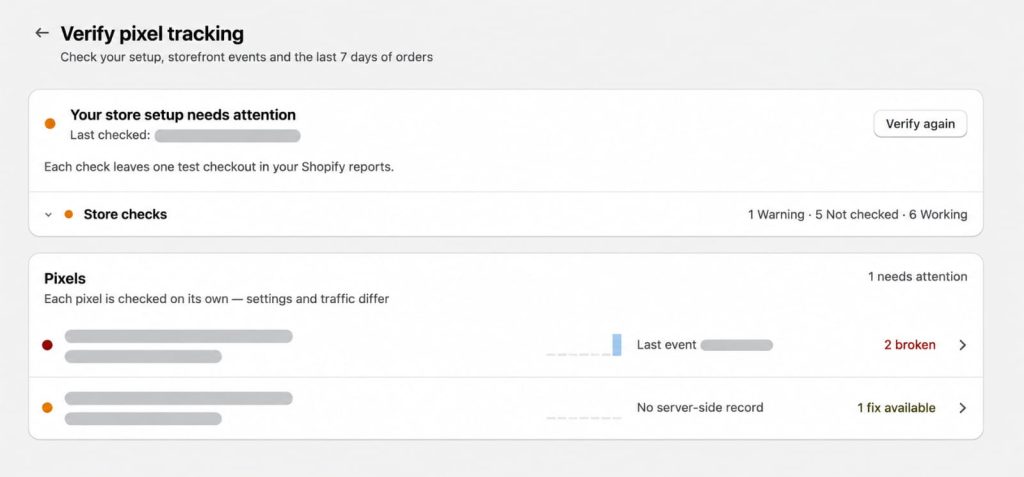
Verify Pixel Tracking Now Checks Your Whole TikTok Setup in One Report
The check runs in about a minute or two and gives you a report you can return to at any time.
- Store and pixel checks together: settings shared by every pixel come first, then each pixel's connection, events and match quality.
- Clear status for every item: each check says Broken, Fix to get more sales credited, Working, Not checked or Paused, so you know what to do next.
- One button per fix: it opens the right place, whether that's your theme editor, the Pixel page, Shopify settings or TikTok Events Manager.
- Pixels that need attention first: if you run two or more pixels, the list puts problem pixels at the top.
- Available on every plan, including Free: on the Free plan, pixels are Browser only, so checks that need a record of sent events show Not checked.
Why Verifying TikTok Pixel Tracking Protects Your Ad Results
TikTok optimizes your campaigns based on the conversions it receives. When tracking breaks without anyone noticing, the algorithm learns from incomplete data and your reported ROAS drifts from what Shopify shows.
Catch lost purchase data
See if any orders sent in the last 7 days were rejected by TikTok, and confirm that Purchase fires with the right value and currency.
Stop double-counted sales
The check flags other apps or theme code that load the same TikTok pixel, which would count each sale twice.
Get more sales credited
It confirms orders carry the TikTok click ID and the buyer's hashed email and phone, so TikTok can match more sales to your ads.
Line up your reports
It compares your ad account time zone with your store's, so the same day's sales land on the same date in both reports.
What the TikTok Pixel Check Reviews
The report goes from general to specific. The store card at the top covers what every pixel depends on: tracking switched on in the app, the app embed active in your live theme, Shopify's web pixel registered and your customer privacy setting. If one of these is broken, a red banner explains it and the pixel checks pause until it's fixed, because nothing can reach TikTok in the meantime.
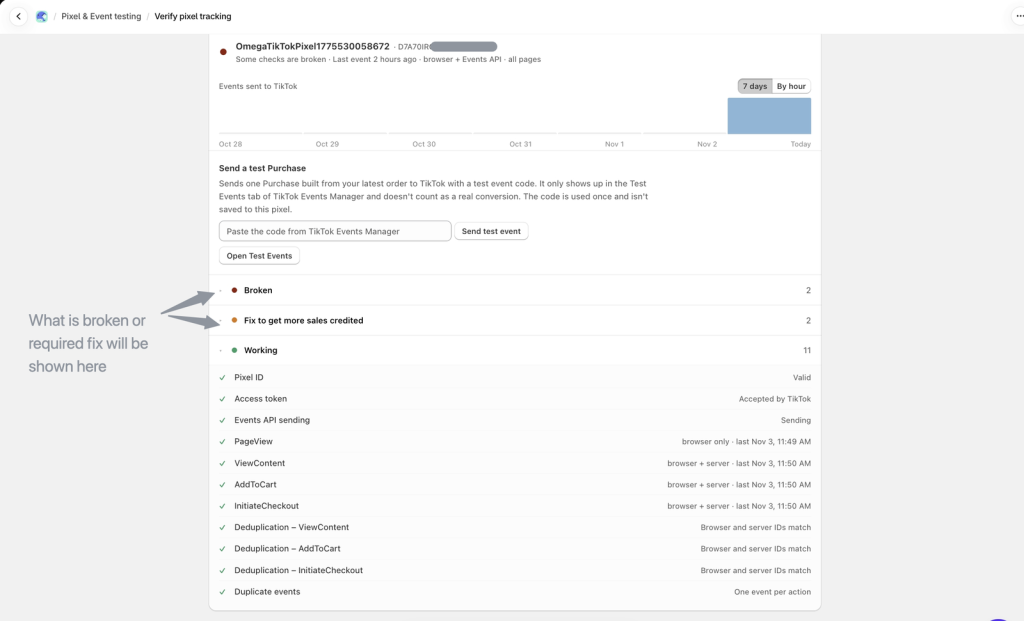
Below the store card, each pixel gets its own details. You'll see a chart of events reaching TikTok per day or per hour, plus checks for the pixel ID, the access token, Events API sending, the core shopping events from PageView to Purchase, and deduplication between browser and server events.
Not checked is not an error. It means the check ran but couldn't reach a conclusion yet. Common reasons are no orders in the last 7 days or a password-protected storefront.
How to Verify TikTok Pixel Tracking in Omega TikTok Pixel
Quick setup (3 steps)
- In Omega TikTok Pixel, go to Pixel and click Verify pixel tracking. Start a new check, or open your last report.
- Review the store card first, then open each pixel. If you have one pixel, you go straight to its details.
- Click the button on any row that needs attention. After fixing it, click Check again to get fresh results.
Just installed the app? The last onboarding step includes Verify pixel tracking, so you can confirm your setup before you launch a campaign.
Hover over any check name to see what it means. If you click Contact support on a row, the chat opens with a message that already names the check and its result, so you don't have to explain the problem again.
What the Check Does and Doesn't Do on Your Store
- No real orders: the check browses your storefront up to the start of checkout and stops. It never places an order or enters contact information.
- One test checkout per run: each check leaves one test checkout in your Shopify reports.
- Events Manager lags behind: TikTok takes about 2 hours to show new events in Events Manager and up to 16 hours for the event breakdown. A check can say Working before TikTok displays the data.
- Browser only pixels have no chart: without Events API, events go straight from the shopper's browser to TikTok, so the app can't confirm delivery. Events API is available on paid plans.
- Selected-product pixels: a pixel set to track specific products only sends AddToCart or Purchase when the cart contains them, so missing events there aren't always an error.
Want to watch a single event fire with its values? Use Live event testing alongside the check. Verify pixel tracking tells you what's wrong, and Live event testing lets you confirm the fix in real time.
Start Verifying Your TikTok Pixel Tracking Today
Verify pixel tracking is live now for all Omega TikTok Pixel users. Open Pixel -> Verify pixel tracking and run your first check before you scale your next campaign, or after you change themes or install a new app.
For a full list of checks and what each result means, read the Verify pixel tracking guide in our help center. Our team is available through 24/7 live chat if you want a second look at your results.
Check your TikTok pixel tracking in minutes
Find broken tracking, duplicate pixels and missed matches before they cost you credited sales.
Try Omega TikTok Pixel
- 1 Verify Pixel Tracking Now Checks Your Whole TikTok Setup in One Report
- 2 Why Verifying TikTok Pixel Tracking Protects Your Ad Results
- 3 What the TikTok Pixel Check Reviews
- 4 How to Verify TikTok Pixel Tracking in Omega TikTok Pixel
- 5 What the Check Does and Doesn’t Do on Your Store
- 6 Start Verifying Your TikTok Pixel Tracking Today
- 7 Check your TikTok pixel tracking in minutes
Bulk Import Product Info to TikTok Shop from Wix
Google Ads Conversion Adjustment for Refunds on Shopify
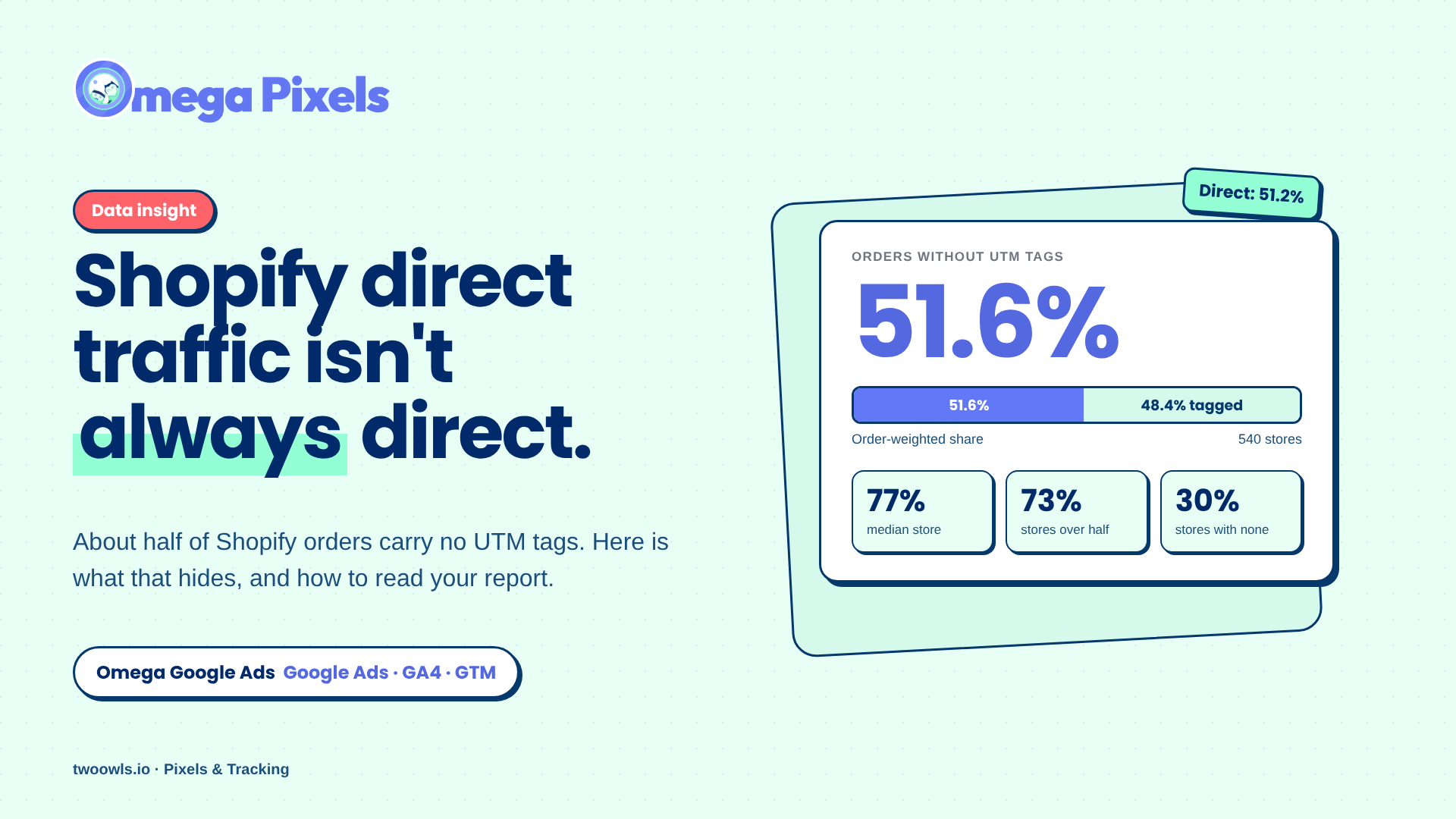
Shopify Direct Traffic Isn't Always Direct
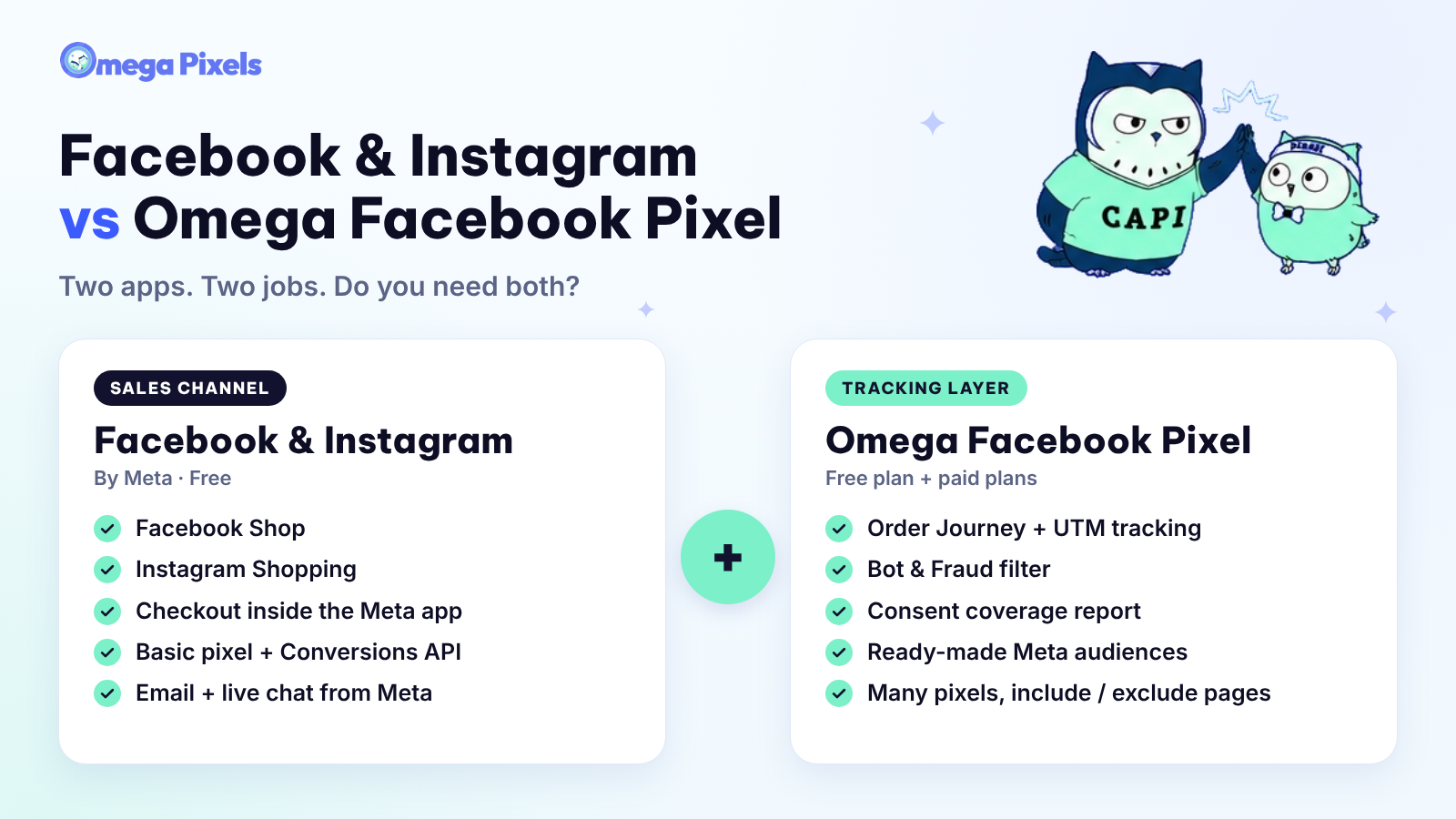
Why Pay for Omega Facebook Pixel When Meta’s Facebook & Instagram App Is Free?
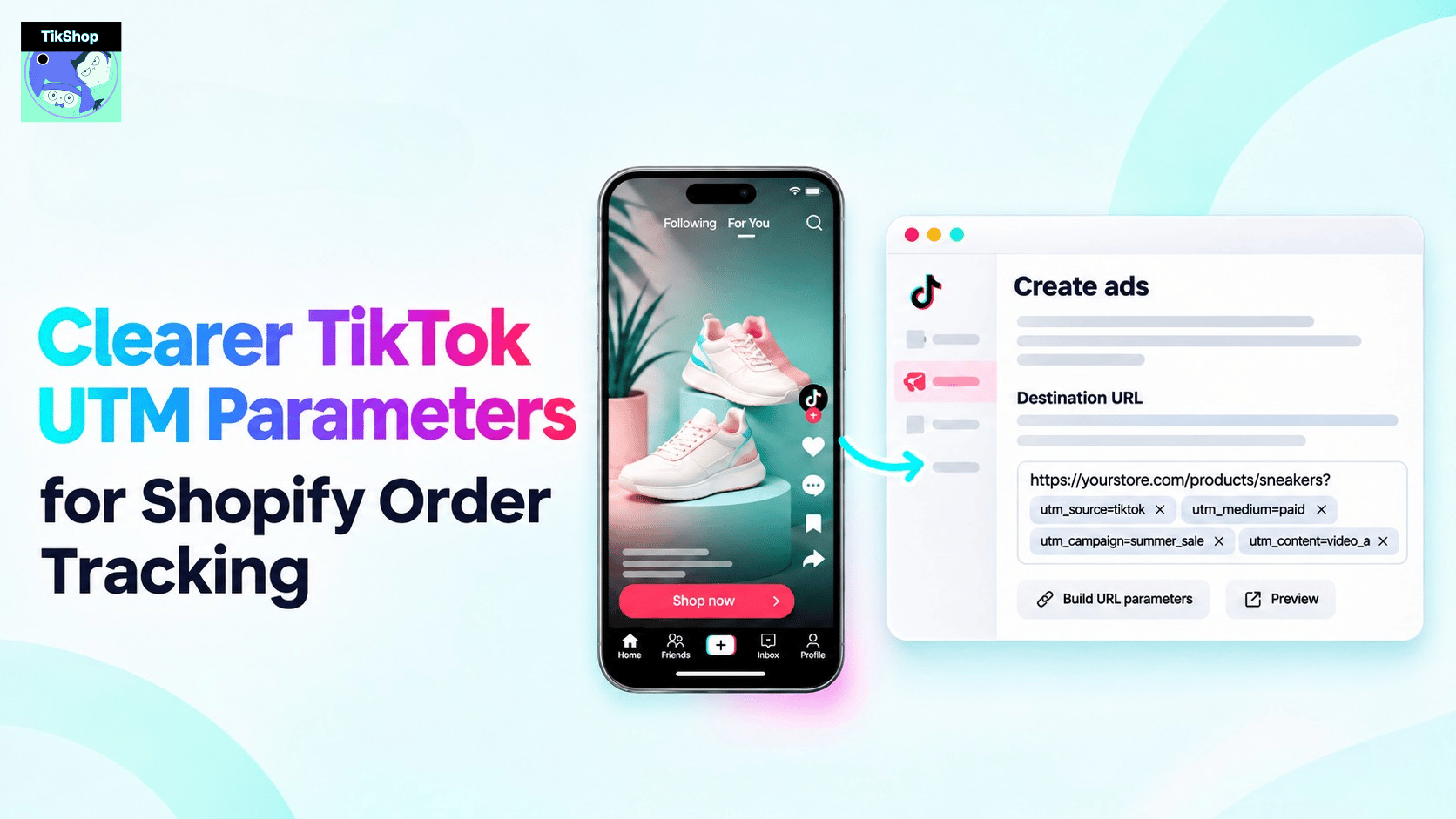
Clearer TikTok UTM Parameters for Shopify Order Tracking
Bulk Import Product Info to TikTok Shop from Wix
Google Ads Conversion Adjustment for Refunds on Shopify
Shopify Direct Traffic Isn't Always Direct
Why Pay for Omega Facebook Pixel When Meta’s Facebook & Instagram App Is Free?