Omega Google Ads Now Shows Your Real Shopify Google Ads ROAS


Google Ads reports its own results. But how much of that turns into real orders in your store? Until now, you had only Google's numbers to go on, and they include view-through conversions, other devices and Google's attribution model. That makes your Shopify Google Ads ROAS hard to check against what you actually sold.
The old Cost per acquisition box had the same problem: it divided your ad spend by every buyer in your store, including people who never clicked an ad. Now Omega Google Ads works these numbers out from your own Shopify orders, right in the Order and Buyer tabs you already use. You can see how much revenue Google Ads brings back for every dollar you spend, how much of your store it accounts for, and whether it comes from new or returning customers.
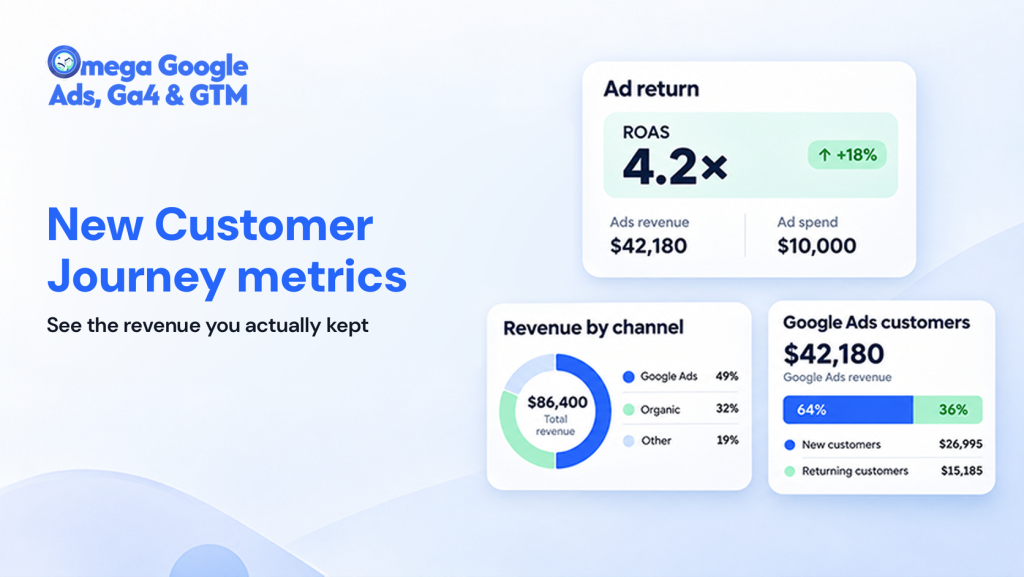
Shopify Google Ads ROAS Now Comes From Your Real Orders
The update adds four sets of metrics. They sit in the screens you already use, so there is no new tab to learn.
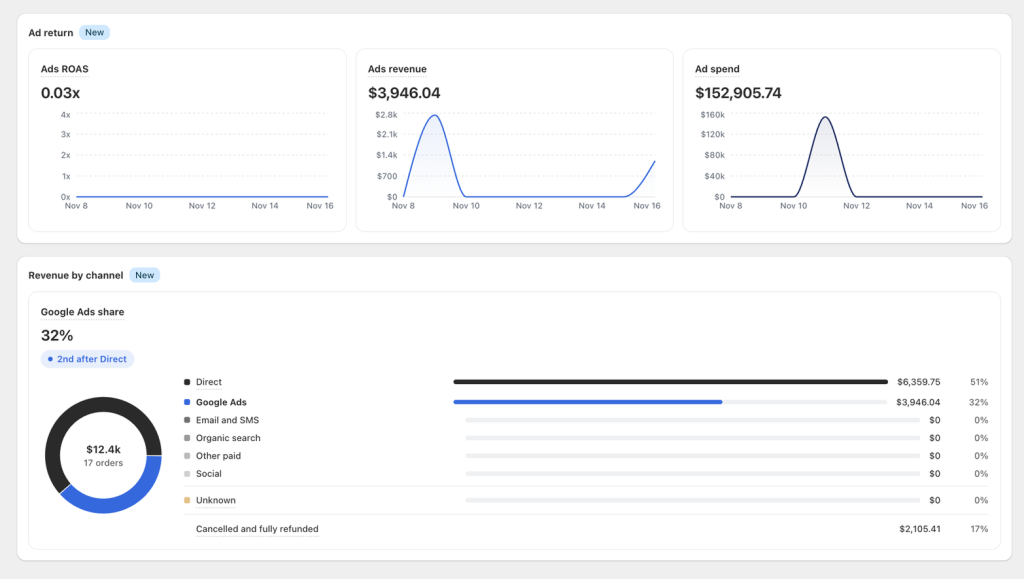
- Ad return (Order tab): Ads ROAS, Ads revenue and Ad spend, with a chart you can hover to see all three for any point in time.
- Revenue by channel (Order tab): your Google Ads share of store revenue, a rank chip such as Top channel or 2nd after Direct, and a donut chart across 7 channels.
- CPA (Google Ads) (Buyer tab): replaces the old Cost per acquisition box in the same spot, and divides ad spend only by buyers who came from Google Ads.
- Google Ads customers (Buyer tab): the share of Ads revenue from first-time buyers, plus a table that compares AOV, refund rate and cancel rate with all your orders.
- Plan availability: the Order tab metrics show for everyone. The Buyer tab data is for the Professional plan and above. Free and Starter see demo data there.
Why Order-Based Google Ads Revenue Gives You a Clearer ROAS
Google's ROAS and the one in Omega Google Ads answer different questions. The one in Omega Google Ads is built to match the orders you can see in Shopify.
- Revenue you actually kept: cancelled and fully refunded orders are left out of Ads revenue, buyers and new customer share, so ROAS and channel share are not inflated.
- A CPA that means something: for example, $3,900 in ad spend across 139 Google Ads buyers gives a CPA of $28.06. The old box would have divided by every buyer in the store.
- Budget decisions by channel: seeing that Google Ads is, say, 2nd after Direct tells you how much of your store depends on paid search.
- New vs returning revenue: knowing whether Google Ads brings first-time buyers or mostly repeat customers helps you judge whether the spend grows your customer base.
Expect your Ads ROAS here to be lower than in Google Ads. That is normal: Omega Google Ads counts only real Shopify orders, while Google also counts things like view-through conversions.
What You See on the Order and Buyer Tabs
Ad return and Revenue by channel on the Order tab
- Ads ROAS: Ads revenue divided by Ad spend. For example, $12,480 in Ads revenue and $3,900 in Ad spend give an Ads ROAS of 3.20x.
- Ads revenue: revenue from orders that came from a Google Ads click, counted the same way as Total revenue.
- Ad spend: campaign cost from every Google Ads account connected to Omega, from the same cost source as POAS.
- 7 channels: Direct, Google Ads, Email and SMS, Organic search, Other paid, Social and Unknown, sorted by revenue with Unknown always last. The center of the donut shows total revenue and the order count for the period.
- Cancelled and fully refunded line: sits under Unknown and holds revenue from orders that ended with no money received. The 7 channels plus this line add up to Total revenue.
CPA (Google Ads) and Google Ads customers on the Buyer tab
- CPA (Google Ads): Ad spend divided by unique buyers with at least one Google Ads order that has revenue in the period, new or returning.
- New customer share: Ads revenue from first purchases divided by Ads revenue. For example, $4,182 out of $12,480 is 34%. A stacked column chart splits new and returning revenue over time.
- Google Ads orders vs all orders: a side-by-side table of New customer share, AOV, Refund rate and Cancel rate for the same period.
Every new card shows the change against the previous period of the same length. Green means good and red means bad, whatever the sign: higher is better for Ads ROAS, Ads revenue, Google Ads share and New customer share, and lower is better for CPA (Google Ads). Hover a metric name to see its definition and formula.
How to Start Tracking Google Ads Revenue in Shopify
Quick setup (4 steps)
There is nothing to switch on for the new cards themselves. They appear on their own. These steps make sure every number has data behind it.
- Open Omega Google Ads in your Shopify admin and go to the Order tab to find Ad return and Revenue by channel.
- If Ads ROAS and Ad spend show Not enough data, connect your Google Ads account. Ads revenue still shows a number without it, because it comes from your orders.
- Turn on the FC Purchase and RC Purchase events in Omega -> Market & Events -> Conversion Events. New customer share and the first and repeat purchase split rely on these events.
- Open the Buyer tab to see CPA (Google Ads) in the top row and the Google Ads customers section below it.
Hiding cards you don't need (optional)
Open the Metrics menu. The Order tab has new Ad return and Revenue by channel groups, and the Buyer tab has Google Ads customers. Uncheck any card and click Apply. If you uncheck every card in a section, the whole section hides. If you saved your own metrics list before, nothing breaks: the new cards appear selected by default.
Which Orders Count as Google Ads Orders
All Google Ads metrics use one set of orders. An order counts as a Google Ads order when its landing URL has:
- A click ID:
gclid,gbraidorwbraid, or - Paid UTM tags:
utm_source=googletogether withutm_medium=cpc.
An order with only utm_source=google and no click ID is not a Google Ads order. An order with both a click ID and UTM tags counts once.
- One channel per order: Google Ads orders are assigned first, then the rest follow the same channel logic as the UTM report in Shopify Flow. That is why the Google Ads row can differ from that report on purpose. The other channels should match.
- Refund and cancel rates: cancelled orders stay in the base of these rates. With 100 Google Ads orders and 4 cancelled, the Cancel rate is 4%.
- Unconnected ad accounts: Ad spend only includes Google Ads accounts connected to Omega. If another account is running, its orders can still count in Ads revenue, and ROAS will look higher than it really is.
- What stays the same: all existing numbers, charts and tables on both tabs are unchanged except the CPA box. The daily table column keeps the name Cost per Acquisition (CPA) for now.
- Conversions sent to Google: unchanged. These metrics only read your orders and your Google Ads cost.
See Your Google Ads Revenue Today
The new metrics are live now on the Order and Buyer tabs of Omega Google Ads. Open the app and pick a date range to see the revenue your ads actually brought in. For every formula and rule, read the full guide in our Help Center. If you need help reading the numbers, chat with our team live in the app.
Measure Google Ads ROAS on real Shopify orders
Ads ROAS, revenue by channel and Google Ads CPA, counted from the orders in your store.
Install Omega Google Ads
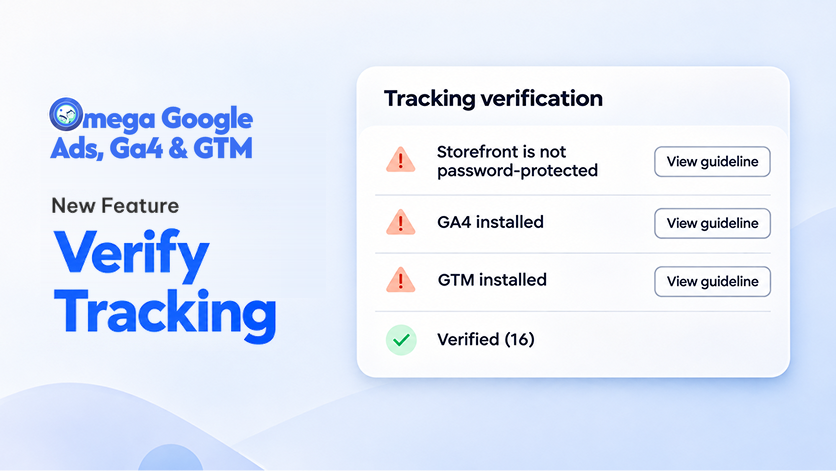
Verify Google Ads Tracking on Shopify in One Click with Omega Google Ads
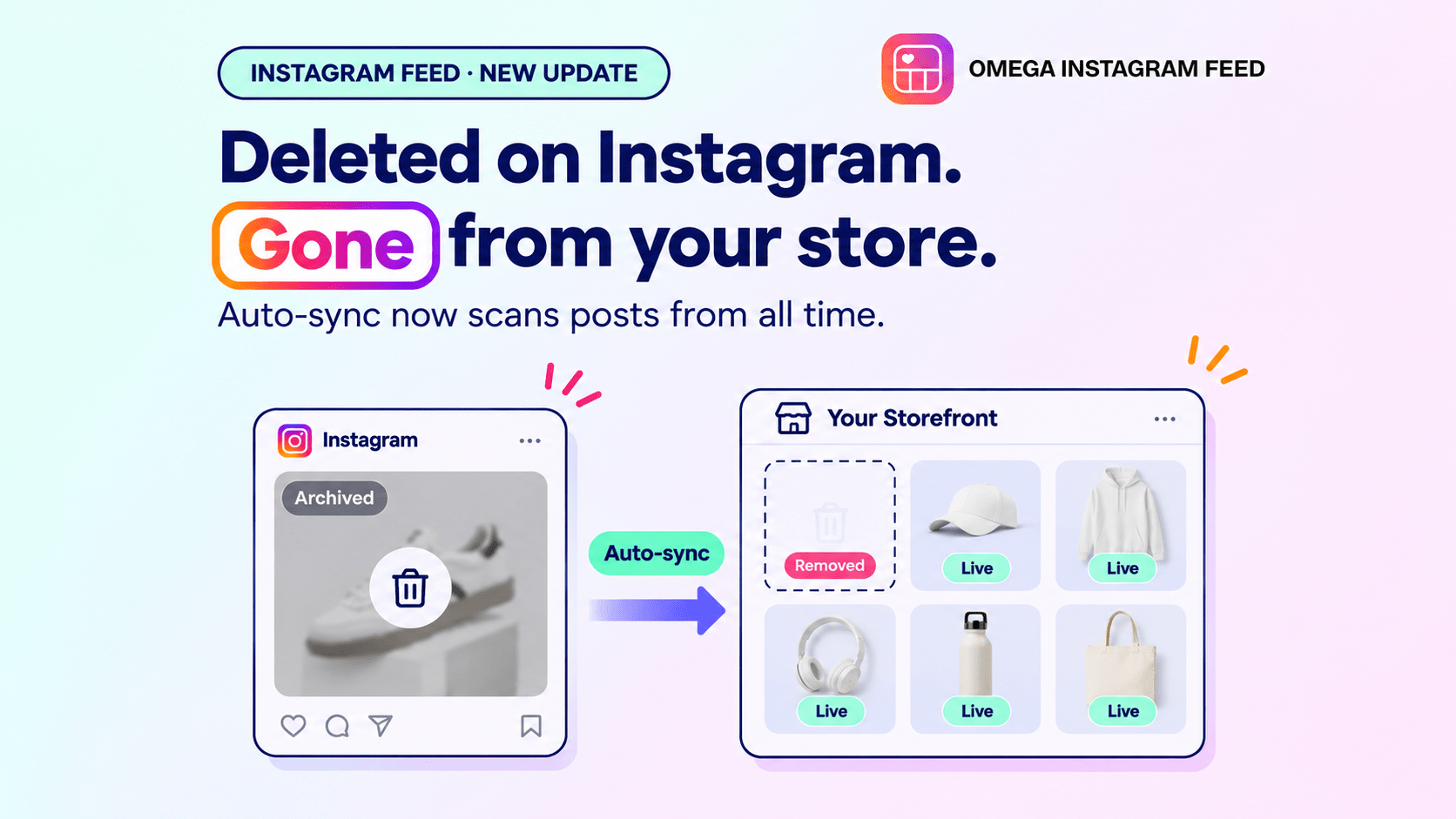
Remove Deleted Instagram Posts From Shopline Automatically
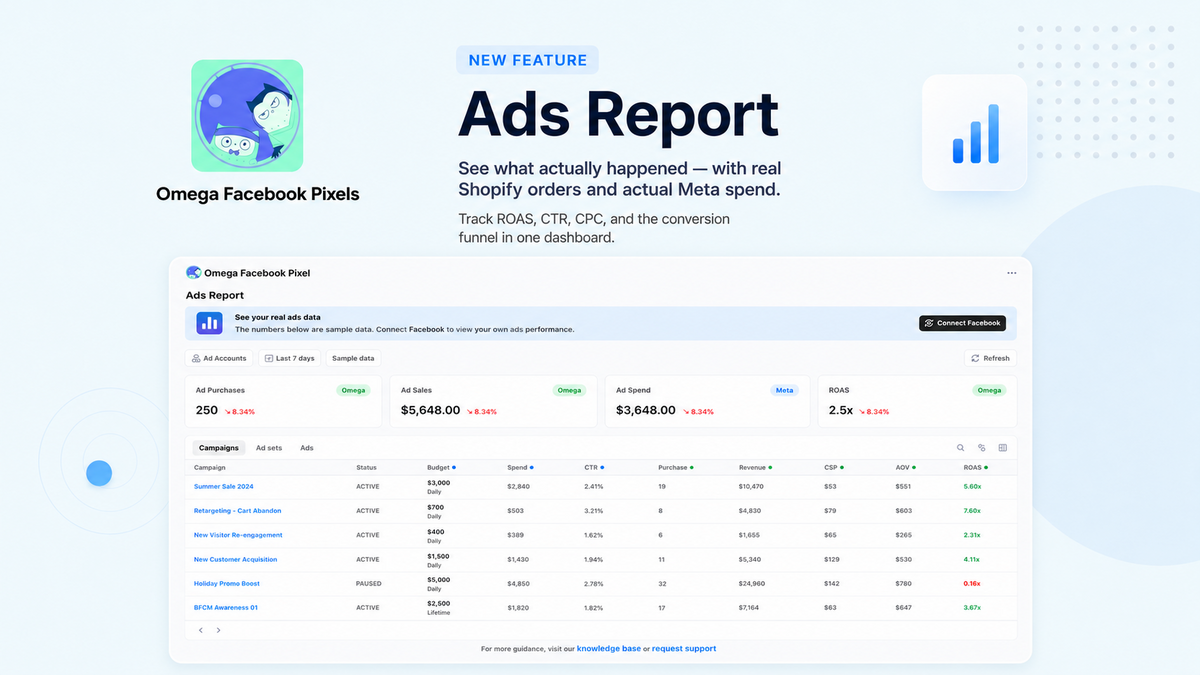
Meet the New Real-Time Ads Report by Omega Facebook Pixels
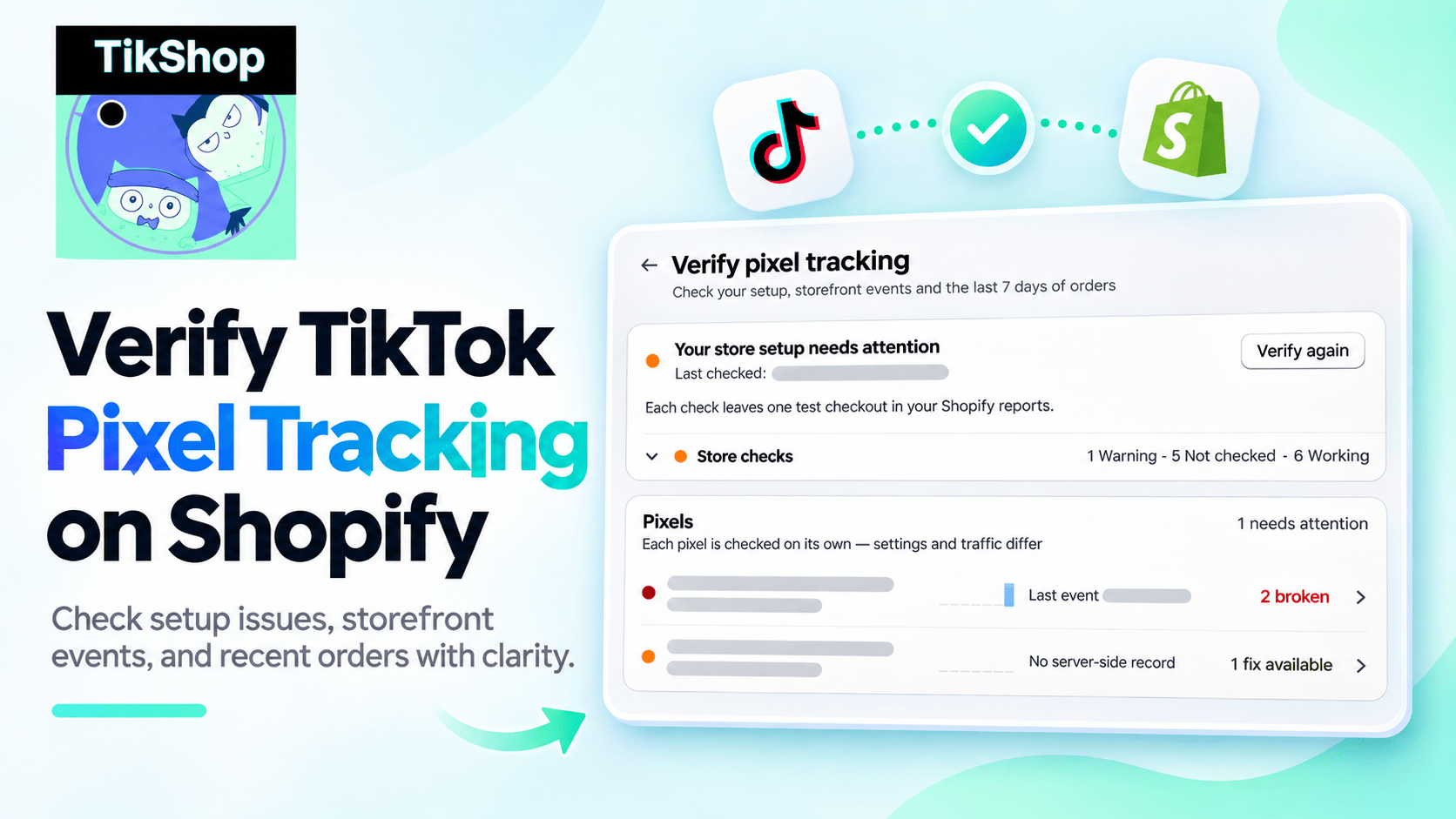
Verify TikTok Pixel Tracking on Shopify in One Check with Omega TikTok Pixels
Bulk Import Product Info to TikTok Shop from Wix
Verify Google Ads Tracking on Shopify in One Click with Omega Google Ads
Remove Deleted Instagram Posts From Shopline Automatically
Meet the New Real-Time Ads Report by Omega Facebook Pixels
Verify TikTok Pixel Tracking on Shopify in One Check with Omega TikTok Pixels