New in Omega TikTok Pixel: Connect your catalog to a pixel


Dynamic Showcase Ads only work when TikTok can match a product view on your store to an item in your catalog. When your catalog and your pixel are set up in separate places, TikTok has no clear signal about which pixel's events belong to which catalog, and retargeting by product gets unreliable.
Omega TikTok Pixel now lets you connect TikTok pixel to catalog directly inside the app. Pick a pixel, choose the Product ID format it sends, and save. TikTok then knows which events to match against which products, so your catalog-based ads can show shoppers the exact items they looked at.
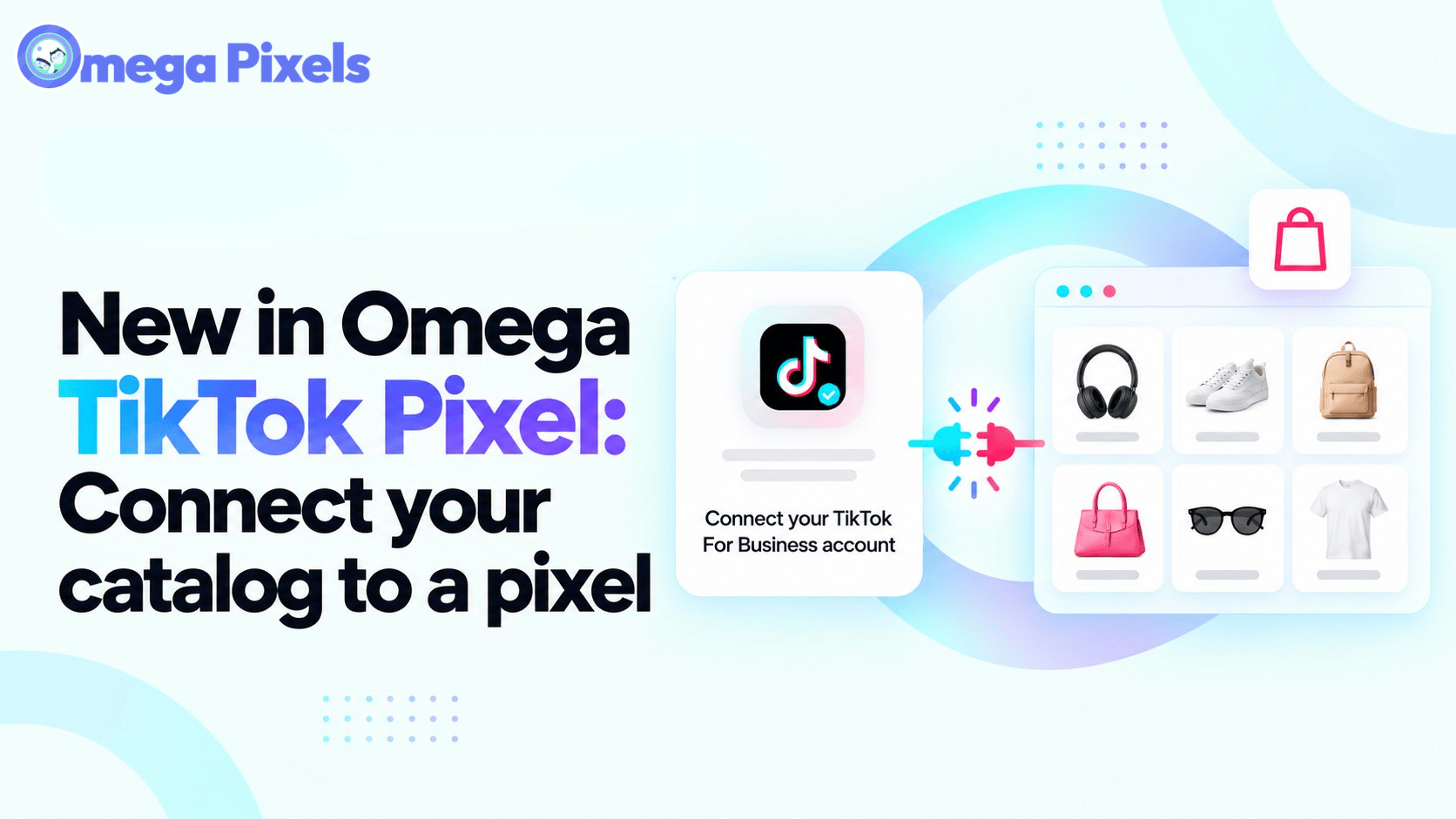
TikTok Catalog Pixel Connection Now Lives Inside Omega TikTok Pixel
The new Pixel connection setting sits next to the catalog settings you already use: catalog name, default location, currency, products and upload schedule. Here is what you can do with it:
- Pick a pixel from your Business Center: choose a pixel owned by an Ad account under the same TikTok Business Center account as your catalog.
- Set the Product ID format: tell TikTok which identifier your pixel sends: Shopify product ID, Shopify variant ID or SKU. The default is Shopify variant ID.
- See connections at a glance: a new Connected pixel column in the Catalog list shows the pixel attached to each catalog. Hover over a pixel name to see its Pixel ID.
- Catch problems early: a status icon appears next to the pixel if it was deleted or its access token needs to be reconnected.
- Reuse one pixel across catalogs: the same pixel can be connected to as many catalogs as you need.
Connecting a pixel is optional. Your catalog can still be created, updated and synced without one. Connecting or disconnecting a pixel does not change your synced products or your Automatic Upload settings.
Why Matching Pixel Events to Catalog Items Drives TikTok Retargeting
Dynamic Showcase Ads and Product Sales Ads retarget shoppers by product. That only works if TikTok can line up two things: the product view your pixel reports, and the matching item in your catalog. The pixel connection and the Product ID format are what make that match possible.
- Clear event ownership: TikTok knows which pixel's events belong to which catalog, instead of guessing across setups.
- Accurate product matching: a matching Product ID format lets TikTok tie each view to the exact catalog item.
- Product-level retargeting: shoppers see the products they actually viewed, not a generic set from your store.
- One place to manage it: catalog sync, pixel tracking and the link between them all live in Omega TikTok Pixel.
Before You Connect: TikTok Business Center Permissions
On TikTok, a catalog and a pixel live in different places. Your catalog is owned by a Business Center account, while your pixel is owned by an Ad account that belongs to that Business Center. That makes the connection a permission question. A pixel only appears in the list when all three of these are true:
- Business Center access: the Business Center account that owns the catalog has Admin permission over the Ad account that owns the pixel.
- Your account access: the TikTok account you signed in to the app with has Admin permission on that Ad account.
- Pixel set up in the app: the pixel is already added in Omega TikTok Pixel.
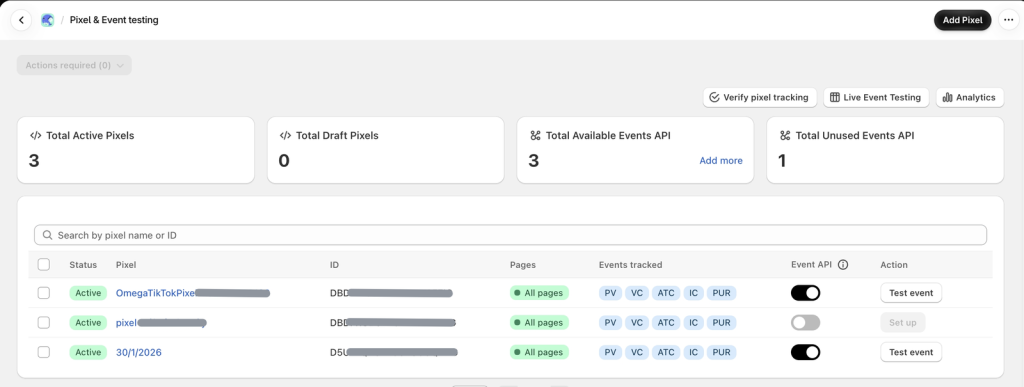
The first two permissions are granted in TikTok Business Center, not in the app. If you are not sure, ask whoever administers your Business Center.
How to Connect TikTok Pixel to Catalog: Step by Step
Quick setup from the Catalog list (3 steps)
- Open the Catalog list and find the catalog you want to connect.
- Click + Connect pixel.
- Pick a pixel from the list. It is saved straight away with the default Product ID format, Shopify variant ID.
Choose a different Product ID format (optional)
- Open the catalog by clicking its name or the edit icon. You can also start from Setup Catalog or Update Catalog.
- Go to the Pixel connection section.
- Pick an option under Product ID format: Shopify product ID, Shopify variant ID or SKU.
- Click Save.
Tip: the format has to match the identifier your catalog publishes to TikTok. If they don't match, TikTok can't tell which catalog item a shopper viewed. Not sure? Keep the default and check your catalog items in TikTok Catalog Manager to confirm they use the same identifier.
Pixel Status Warnings and Disconnecting a Pixel
If something goes wrong with a connected pixel, an icon appears next to its name in the Catalog list. Hover over it to see what happened:
- Red circle - pixel deleted: the pixel was removed in TikTok Ads Manager or in the app and no longer receives events for this catalog. Open the catalog and connect a different pixel.
- Yellow triangle - access token expired: events stop until the TikTok account is reconnected. Reconnect your TikTok Business account and the icon clears on its own.
To disconnect, open the catalog, click Disconnect next to the Pixel field in the Pixel connection section, confirm in the dialog and click Save. Keep in mind that disconnecting stops Dynamic Showcase Ads from retargeting product views for that catalog, and running campaigns may pause until a pixel is connected again. Your catalog, synced products and upload schedule stay as they are.
Start Connecting Your TikTok Pixel and Catalog Today
Pixel connection is live now in Omega TikTok Pixel. Open the Catalog list and click + Connect pixel, or find Pixel connection in Setup Catalog or Update Catalog. For the full walkthrough, read our Automated TikTok Catalog help article. If you need a hand getting started, our team is available through in-app chat.
Match Every Product View to Your TikTok Catalog
Connect your pixel, set the Product ID format and let Dynamic Showcase Ads retarget shoppers with the products they viewed.
Try Omega TikTok Pixel
- 1 TikTok Catalog Pixel Connection Now Lives Inside Omega TikTok Pixel
- 2 Why Matching Pixel Events to Catalog Items Drives TikTok Retargeting
- 3 Before You Connect: TikTok Business Center Permissions
- 4 How to Connect TikTok Pixel to Catalog: Step by Step
- 5 Pixel Status Warnings and Disconnecting a Pixel
- 6 Start Connecting Your TikTok Pixel and Catalog Today
- 7 Match Every Product View to Your TikTok Catalog
11+ ChatGPT ads examples for online stores (with copy templates)
ChatGPT ads: What they are, how they work, and what advertisers need to know in 2026
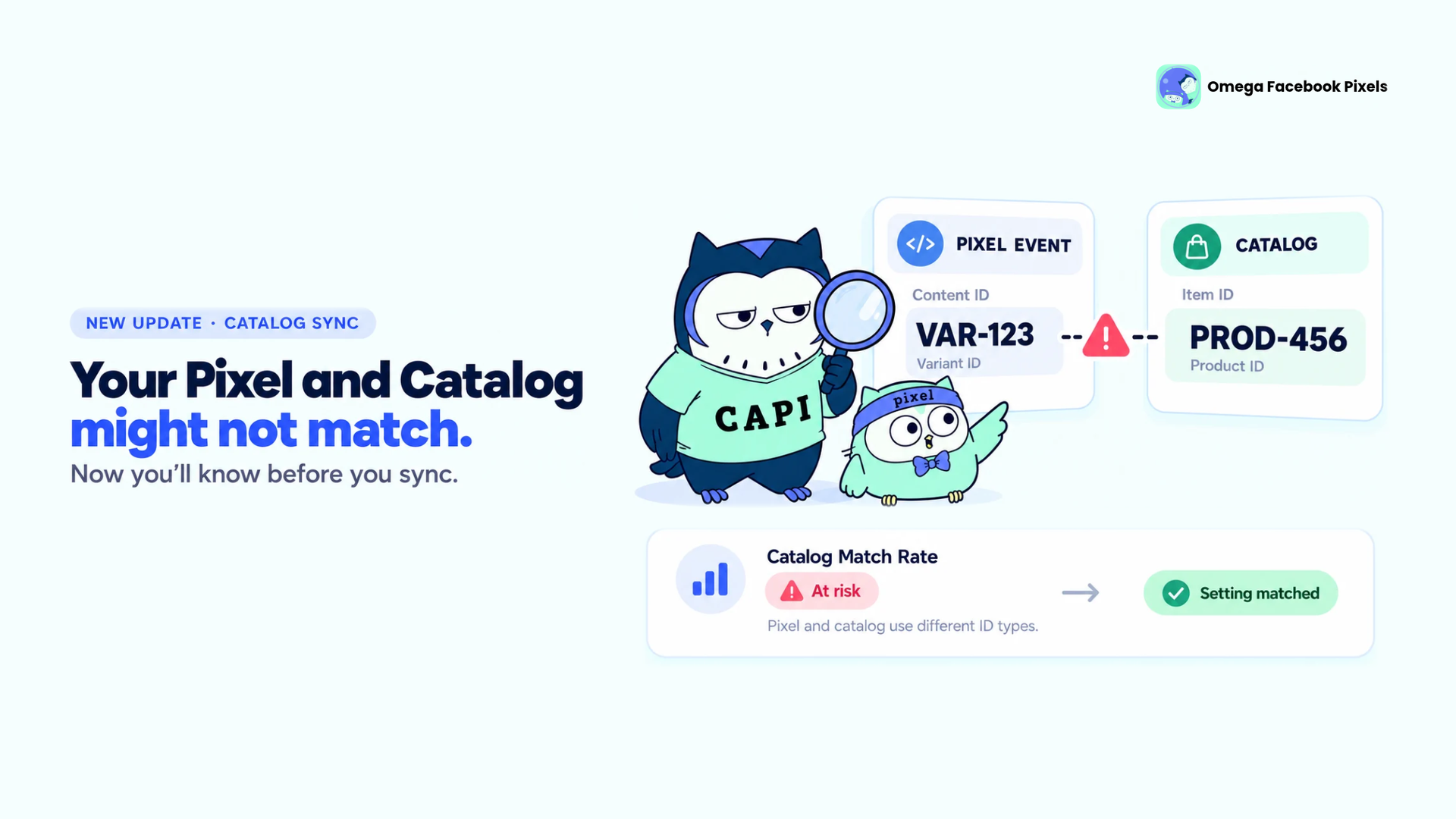
Omega Facebook Pixels Catches Catalog and Pixel Mismatches Before Your Match Rate Drops
11+ ChatGPT ads examples for online stores (with copy templates)
Omega Facebook Pixels Catches Catalog and Pixel Mismatches Before Your Match Rate Drops
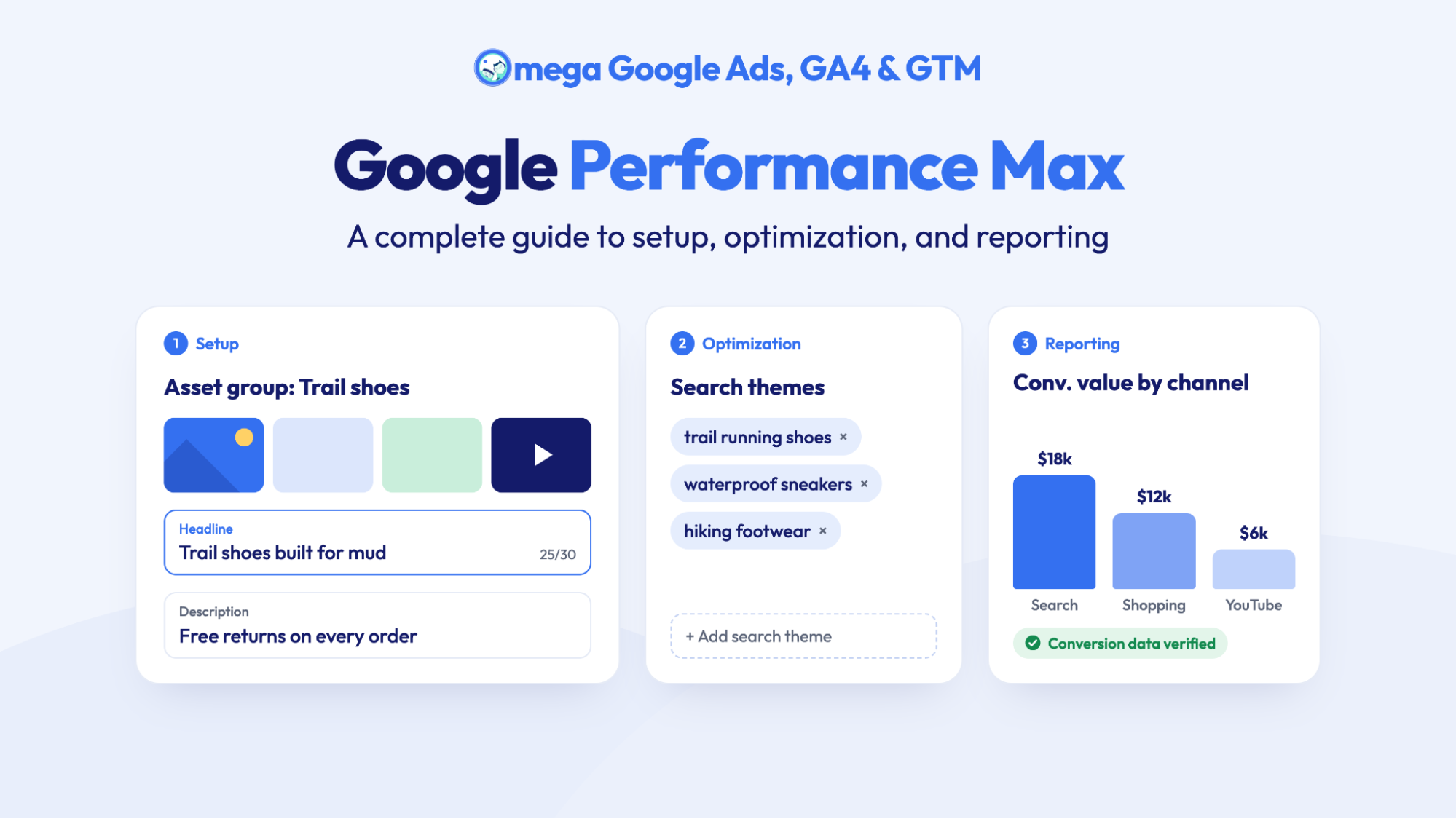
Google Performance Max: A complete guide to setup, optimization, and reporting
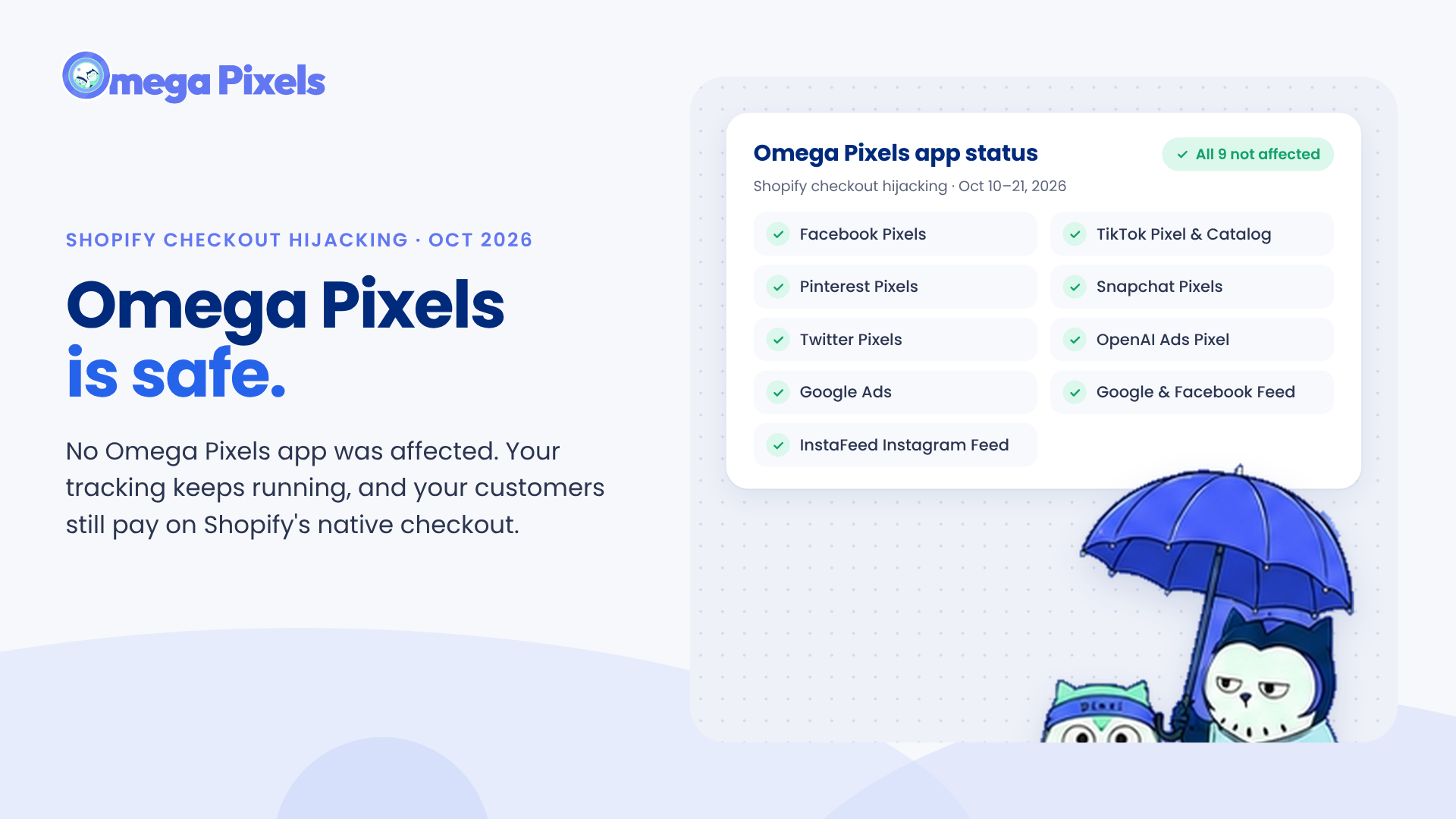
Are Omega Pixels Safe After the Shopify Checkout Hijacking? Yes, Here's Why
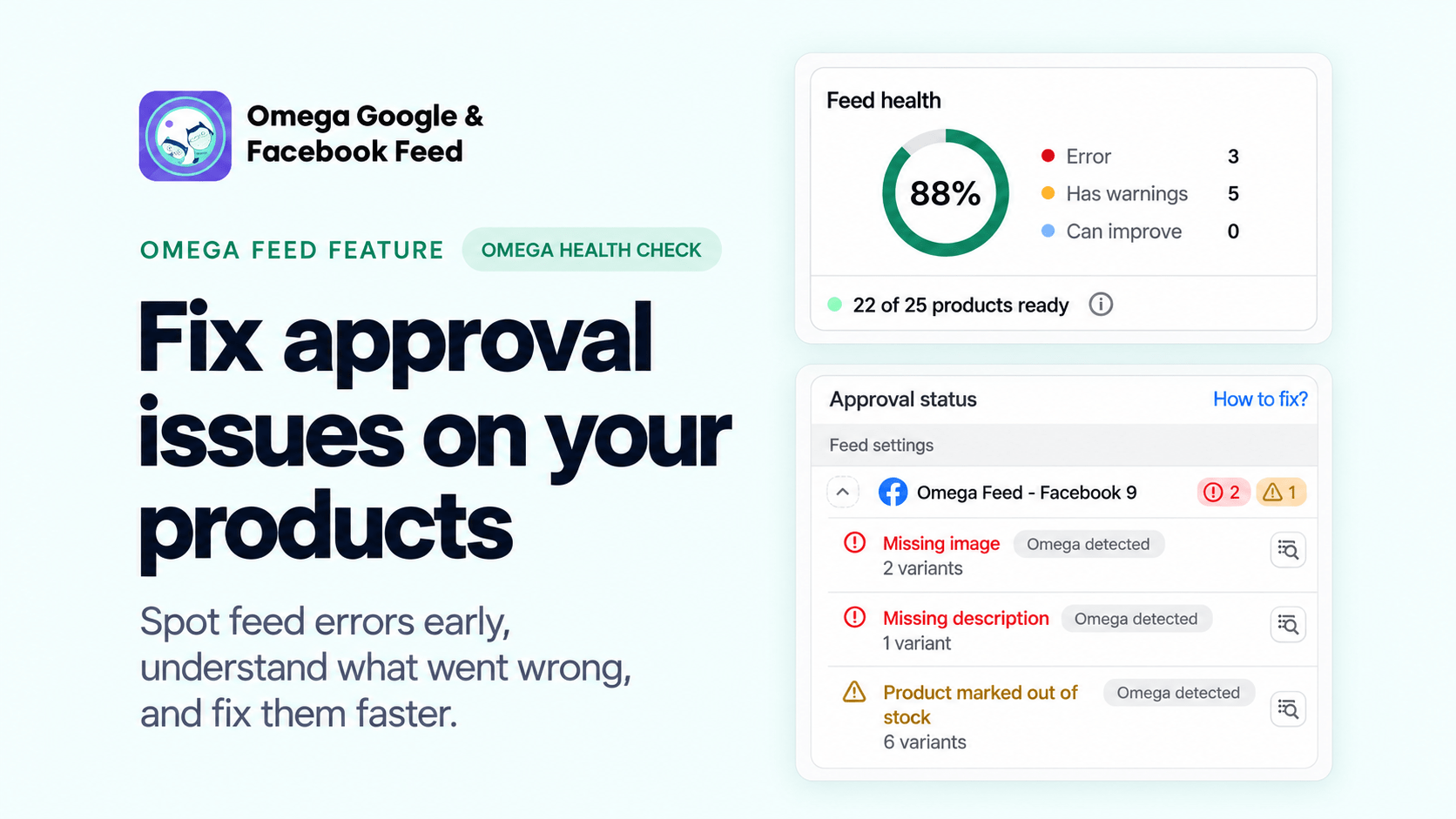
Fix Shopify Product Feed Errors Before You Submit
11+ ChatGPT ads examples for online stores (with copy templates)
Omega Facebook Pixels Catches Catalog and Pixel Mismatches Before Your Match Rate Drops
Google Performance Max: A complete guide to setup, optimization, and reporting
Are Omega Pixels Safe After the Shopify Checkout Hijacking? Yes, Here's Why