Omega Facebook Pixels Catches Catalog and Pixel Mismatches Before Your Match Rate Drops


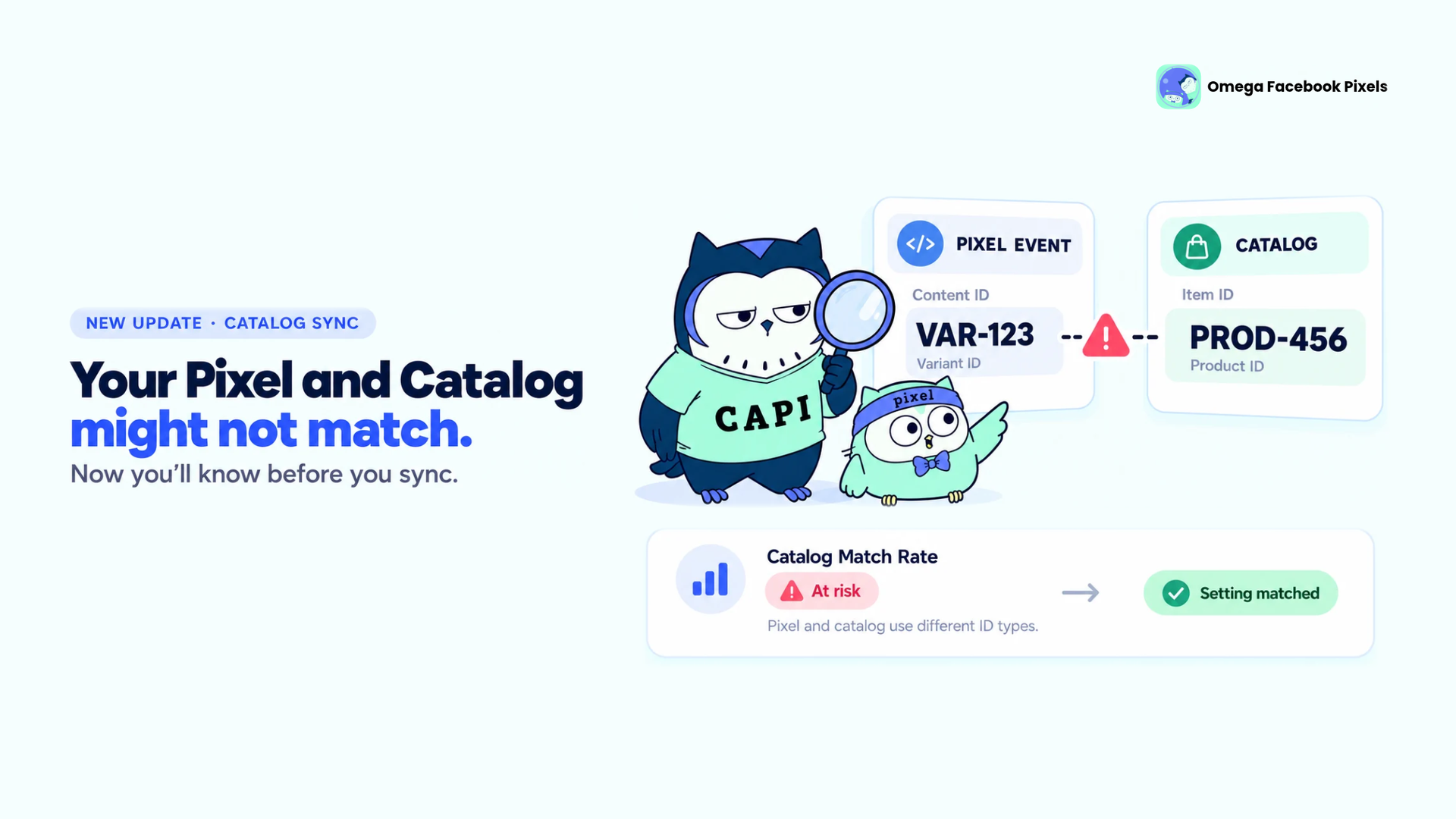
If your pixel sends one product ID and your catalog sends another, Meta can't match a single product. Your Meta catalog match rate drops to near zero, dynamic ads stop showing the right products, and most store owners never notice. The pixel still fires, events still arrive and the catalog still syncs.
Omega Facebook Pixels has redesigned the Create and Update forms for catalogs and feeds to close that blind spot. A new Summary panel shows whether your catalog matches your pixel while you set it up, before you save, so a mismatch gets fixed in the form instead of weeks later in Commerce Manager.
Meta Catalog Match Rate Now Shows in the Catalog Form
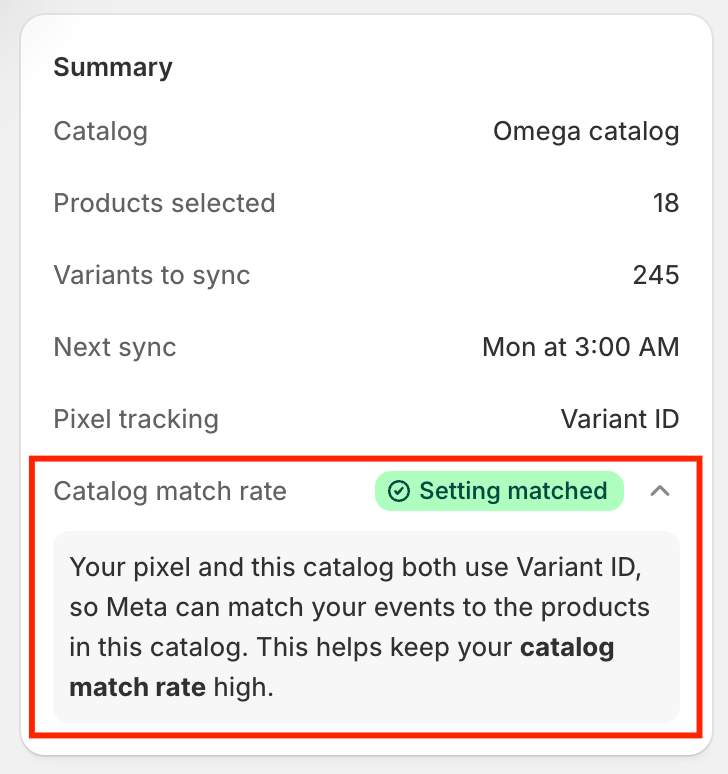
The Summary panel sits on the right side of the catalog form and updates as you change settings. It shows everything that decides whether Meta can connect your pixel events to your products.
- Catalog overview: catalog name, number of selected products, number of variants that will sync, and the next sync time.
- Pixel ID type: whether your pixel currently sends a Variant ID or a Product ID.
- Catalog match rate status: Setting matched when your pixel and catalog line up, At risk when something is off (with the reason shown right below), and Not checked when no pixel is selected yet.
- Product preview: one sample product built with your exact settings, so you see how many items Meta receives and how the title, price and image will look.
- Availability: live on all plans. Plan-gated options such as Daily sync and main image only stay on the same plans as before.
Why a Pixel and Catalog ID Mismatch Breaks Dynamic Ads
For Meta to show someone the exact product they just viewed, your pixel and your catalog have to name that product the same way. The pixel sends its ID based on a store-wide setting in Settings. The catalog sends its ID based on how you sync variants. Those live on two different screens, so they drift apart easily.
Catching a mismatch in the form means retargeting keeps showing the right products, and you fix the problem before ad performance slips, not after.
How the Catalog Match Rate Check Compares Pixel and Catalog IDs
Once a catalog has a pixel selected, Omega checks two things:
- ID type: the pixel and catalog use the same kind of ID.
- Product coverage: the pixel tracks at least one product in the catalog.
Omega shows At risk only when no product matches, and the warning never blocks saving. Which settings match:
- Each variant as a separate item: matches Variant ID.
- Each product's variants as one group: matches both Variant ID and Product ID.
- Only the first variant: matches when its Item ID uses the same ID type as the pixel.
Meta recommends Variant ID, so events match the exact product people view and buy.
A Clearer Facebook Catalog Sync Form for Shopify
- Three separate choices: variant sync, Item ID and Item title. Invalid combinations are locked with a reason.
- What to exclude: $0 variants, products without images, gift cards, or specific collections, tags and products.
- Product link domain: pick any connected domain. Your Shopify primary domain is preselected. All plans.
Set Up Meta Catalog Sync with the New Form
Quick setup (6 steps)
- Go to Catalog feed -> Create catalog.
- Click Click to choose a pixel and select your store's pixel.
- Set What to sync and What to exclude.
- Choose variant sync, Item ID and Item title, watching the match status.
- Set price, Product link domain, images, category and When to sync.
- Check Summary and Preview, then click Save.
Fix an At risk status
- ID mismatch: change the variant sync or Item ID, or the pixel's ID in Settings -> Event settings.
- Products not tracked: add tracked products to the catalog, or set the pixel to track all pages.
For the full walkthrough, see the Direct catalog sync guide and Catalog match rate: keep your pixel and catalog in sync.
Catalog Match Rate Rules, Limits and Notes
- Feeds aren't checked: Omega can't see which catalog or pixel a feed is used with.
- Pixel ID changes apply to every catalog: no warning appears, but mismatched catalogs show At risk when reopened.
- Existing catalogs: open with their saved settings and show their match status right away.
- Changing Item ID: old items are removed after the next sync. Both may appear briefly.
- Live counts: product and variant numbers always reflect your current store.
- $0 exclusion: skips only the $0 variant, not the whole product.
- Settings only: rejected products, events missing IDs or other apps can still lower the rate. Contact support if so.
Start Checking Your Catalog Match Rate Today
The new form is live for every merchant using Catalog or Feed in Omega Facebook Pixels. Open any catalog from Catalog feed to see its status, starting with catalogs you created before this update.
Keep Your Pixel and Catalog in Sync
See your catalog match rate before you save, not after your dynamic ads slip.
Install Omega Facebook Pixels
- 1 Meta Catalog Match Rate Now Shows in the Catalog Form
- 2 Why a Pixel and Catalog ID Mismatch Breaks Dynamic Ads
- 3 How the Catalog Match Rate Check Compares Pixel and Catalog IDs
- 4 A Clearer Facebook Catalog Sync Form for Shopify
- 5 Set Up Meta Catalog Sync with the New Form
- 6 Catalog Match Rate Rules, Limits and Notes
- 7 Start Checking Your Catalog Match Rate Today
- 8 Keep Your Pixel and Catalog in Sync
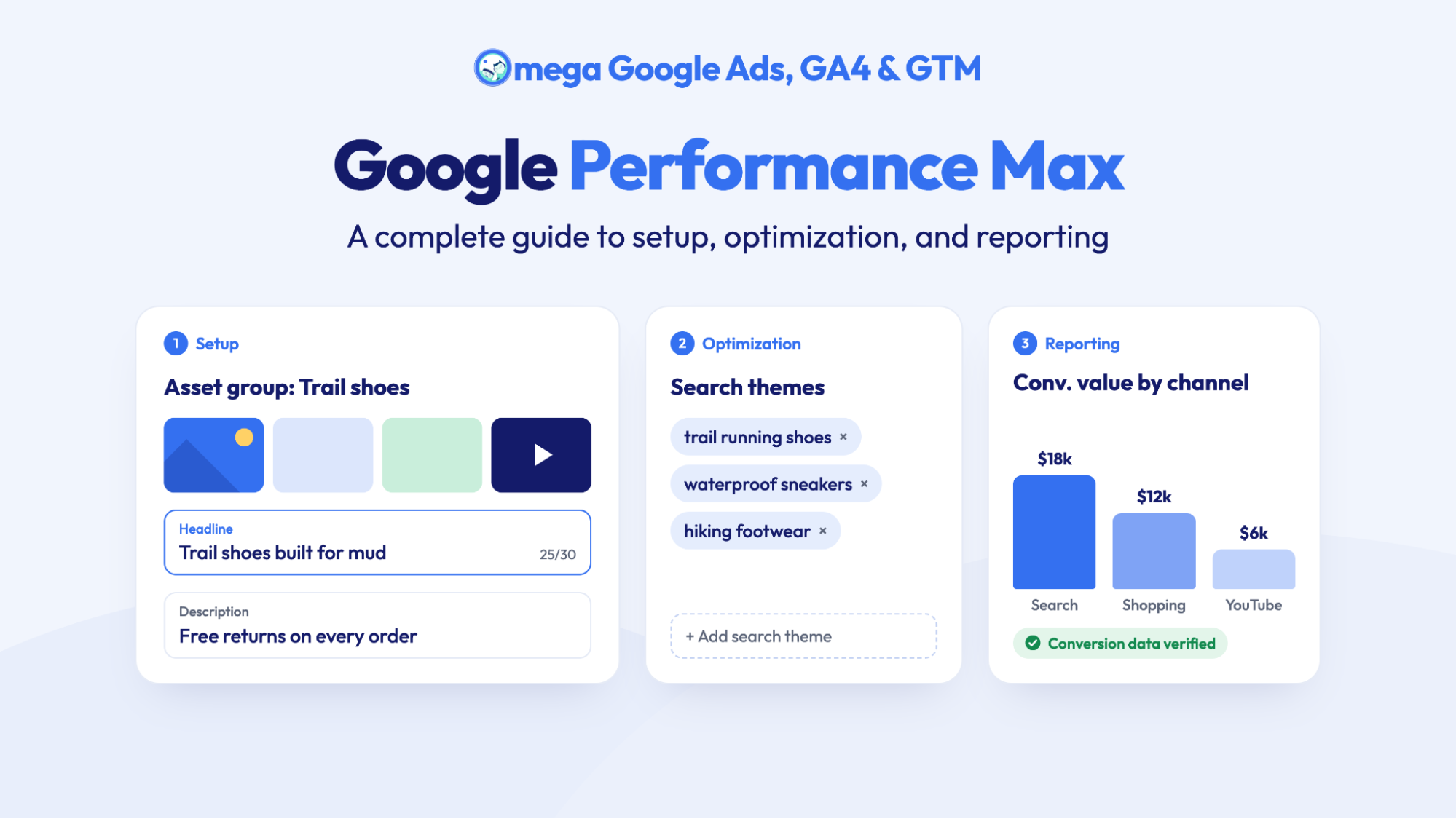
Google Performance Max: A complete guide to setup, optimization, and reporting
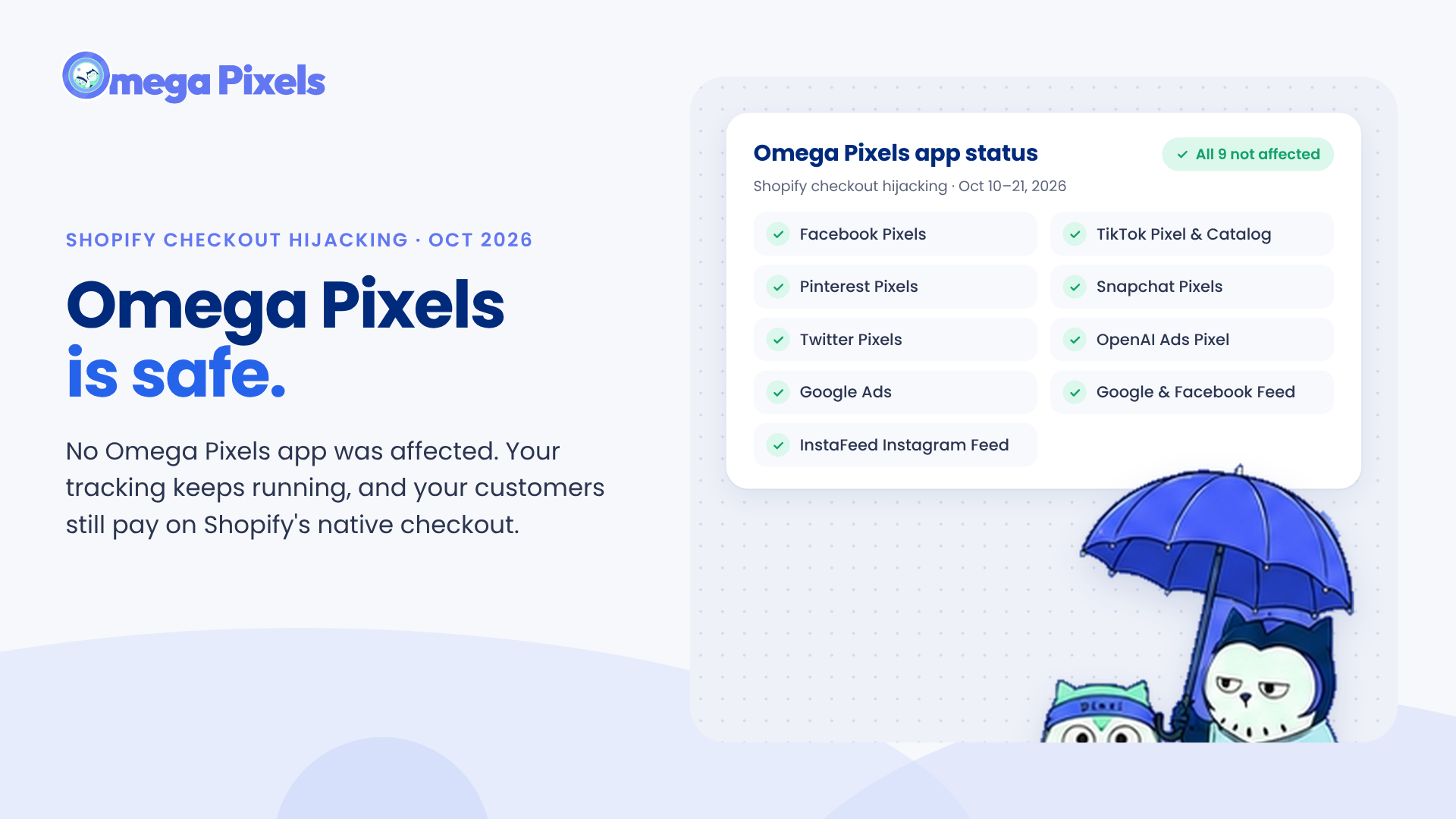
Are Omega Pixels Safe After the Shopify Checkout Hijacking? Yes, Here's Why
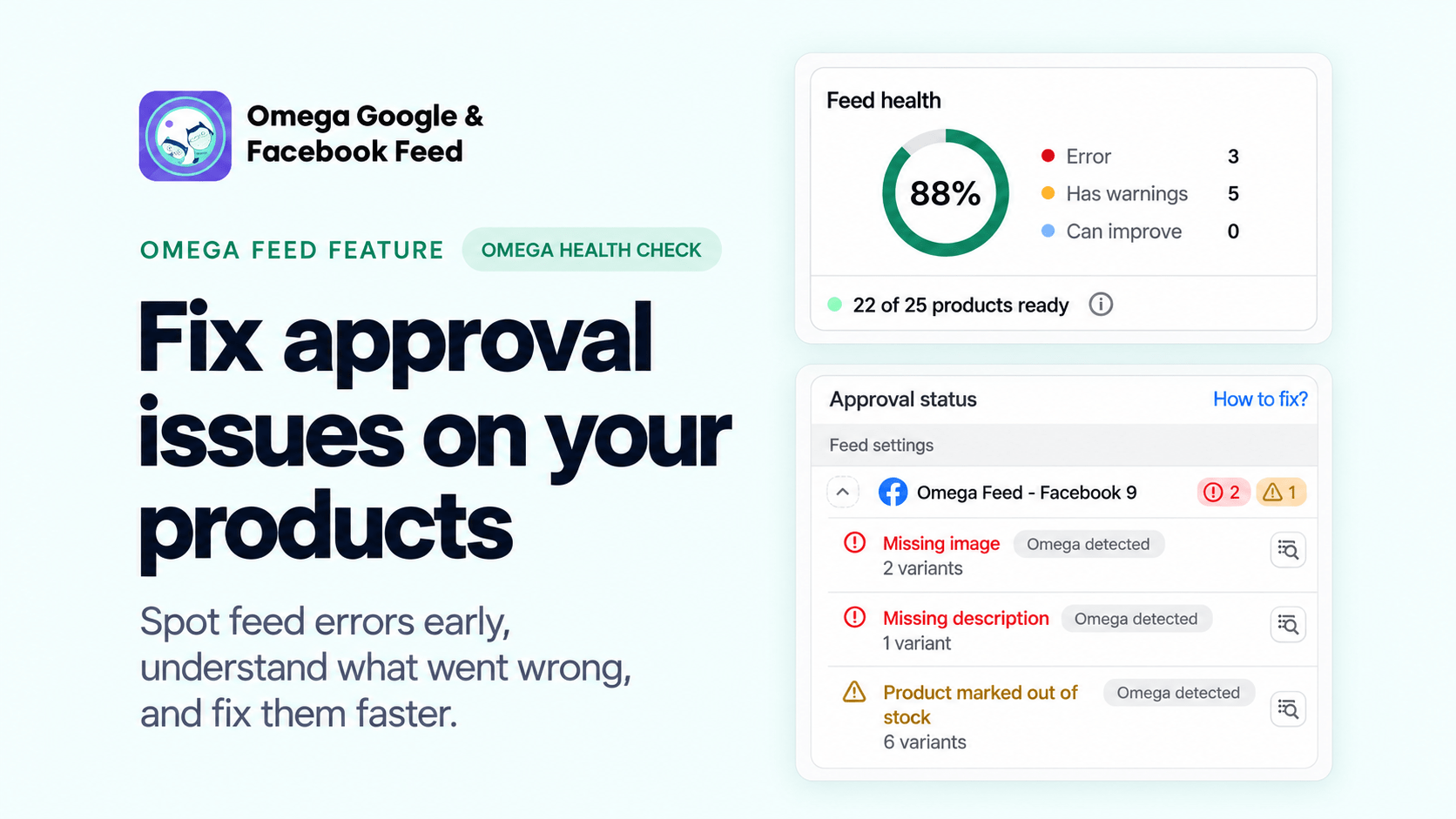
Fix Shopify Product Feed Errors Before You Submit
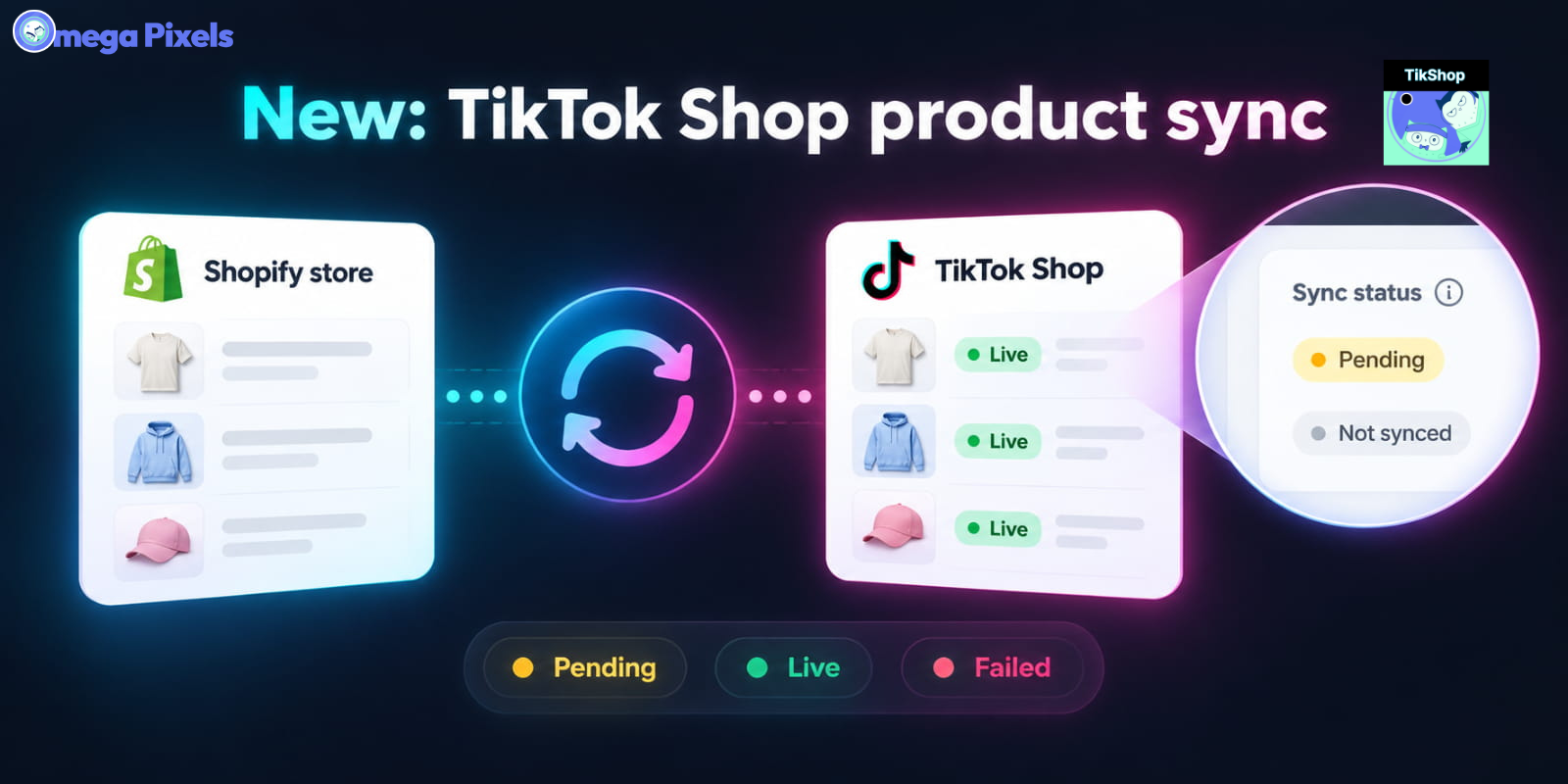
Sync Shopify Products to TikTok Shop directly with Omega TikTok Pixels
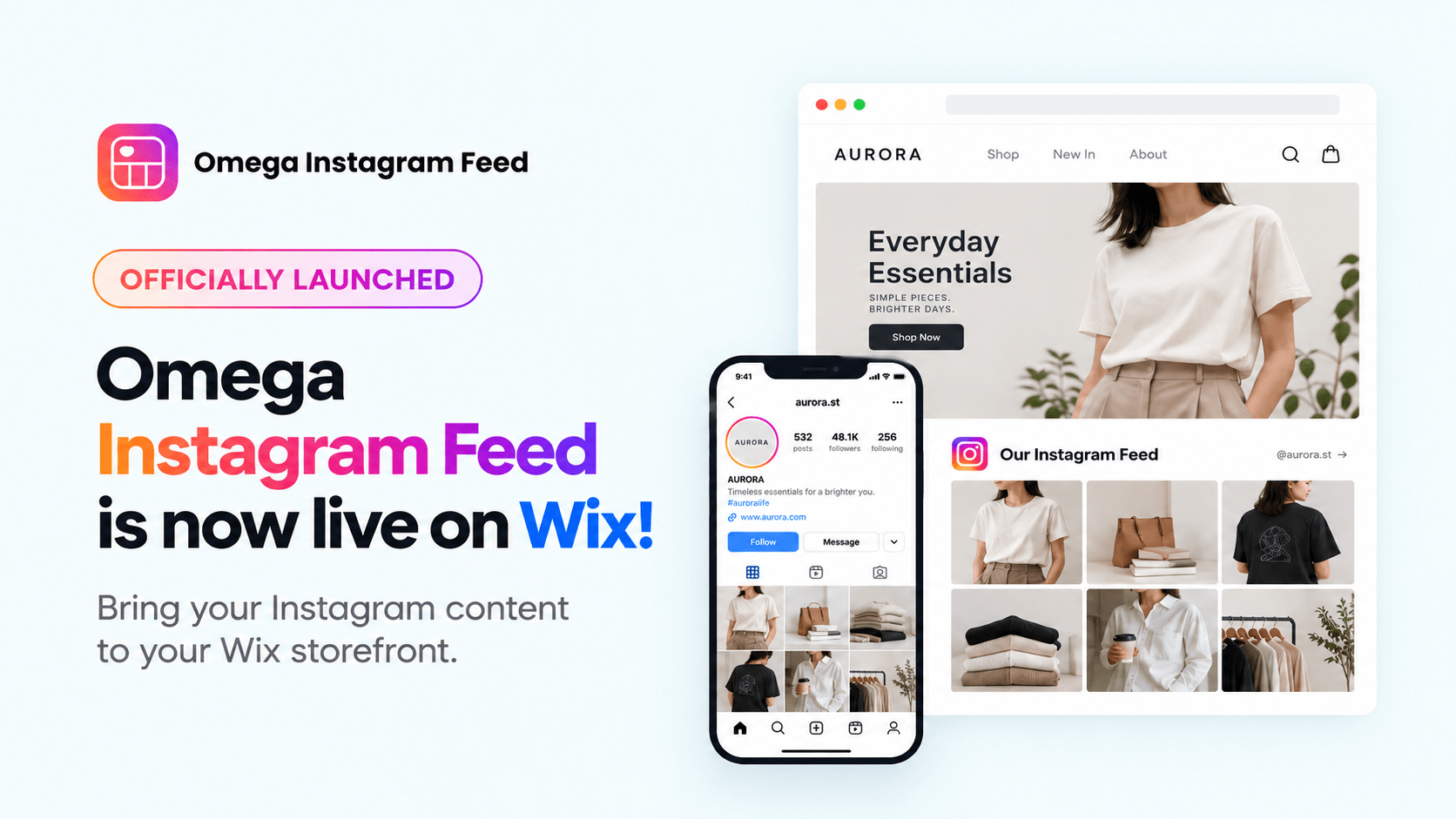
Transform Wix Storefronts with Shoppable Instagram Galleries: Omega Instagram Feed Launch
Google Performance Max: A complete guide to setup, optimization, and reporting
Are Omega Pixels Safe After the Shopify Checkout Hijacking? Yes, Here's Why
Fix Shopify Product Feed Errors Before You Submit
Sync Shopify Products to TikTok Shop directly with Omega TikTok Pixels