Enhanced Conversions in Google Ads: Turned On Isn’t the Same as Working


Enhanced conversions in Google Ads help Google connect more of your conversions back to the ads that drove them. When a customer completes a purchase or submits a form, your conversion tag can send a hashed version of details such as their email address, and Google can match it with signed-in Google accounts to link that conversion to an ad interaction. This helps when browser privacy features, consent choices, or switching between devices make standard tracking less reliable. Enhanced conversions do not create new sales. They help Google measure and attribute the ones that actually happened.
This guide explains how Google enhanced conversions work, what changed in 2026, and how to set them up for online purchases and for leads that close later in a CRM. It also covers how to check the results, because turning the setting on and getting reliable data from it are two different things.
What are enhanced conversions in Google Ads?
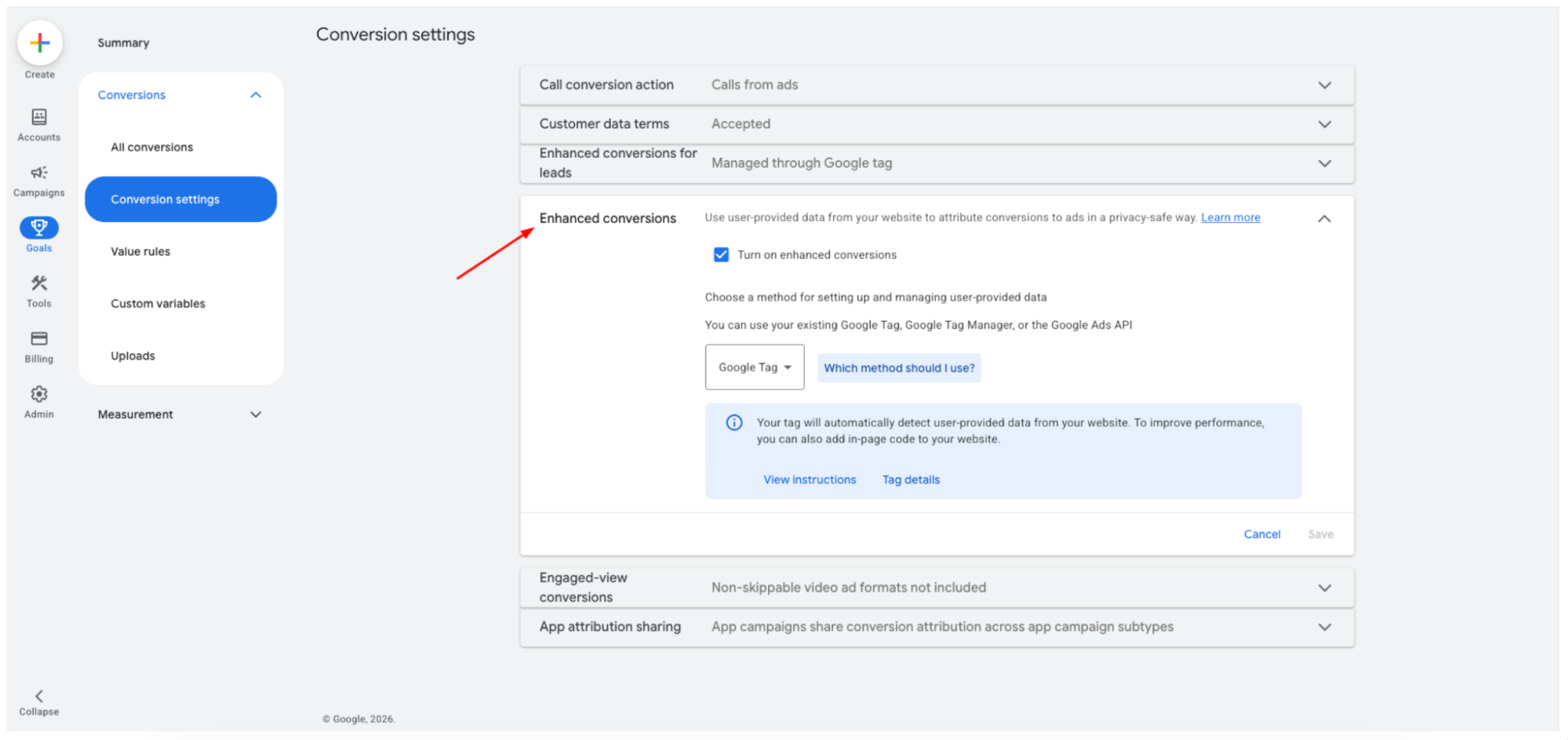
Google describes enhanced conversions as a feature that can improve the accuracy of conversion measurement and unlock more powerful bidding. It supplements your existing conversion tracking by sending hashed first-party conversion data, from your website tags or your imported offline events, to Google in a privacy-safe way.
The data comes from details customers give you when they convert. That can include an email address, name, home address, or phone number, collected at checkout or on a lead form. Before anything is sent to Google, it is hashed with a one-way algorithm called SHA-256, so Google receives a coded version, not the readable details.
Here is how that changes measurement:
| Standard conversion tracking | With enhanced conversions | |
|---|---|---|
| How a conversion is linked to an ad | Click identifiers and cookies | Click identifiers and cookies, plus hashed customer data |
| When cookies are missing or blocked | The conversion may not be connected to the ad | Google may still match it using hashed customer data |
| Conversions across devices | Harder to connect | Can be easier to connect when the customer is signed in to Google and the data matches |
One point is easy to miss. Enhanced conversions add a second way to match a conversion, but they rely on your existing conversion tag to record it first. If that tag is missing, firing twice, attached to the wrong action, or held back because the customer has not given the required consent, enhanced conversions will not fix the problem.
What changed with enhanced conversions in 2026?
If you read an older guide to enhanced conversions, some of its steps may no longer match your Google Ads account. Google has announced two changes this year that affect how the feature is set up, and they are rolling out in phases, so your account may not show all of them yet.
| Before 2026 | Announced in 2026 | |
|---|---|---|
| Settings | Separate settings for web and leads | One combined on/off setting, with existing users moved over automatically as the change rolls out |
| Implementation method | Chosen in the account, such as Google tag, Google Tag Manager, or API | Method selection is being removed; Google Ads accepts customer data from website tags, Data Manager, and API connections at the same time |
| Lead and offline uploads | Google Ads API or Data Manager | Data Manager (in Google Ads, or via the Data Manager API). Since June 15, 2026, integrations that were not already uploading through the Google Ads API can no longer start; existing connections still work, but should plan to move |
For most ecommerce stores, the practical impact is small. If purchases already send customer data through the Google tag, Google Tag Manager, or a tracking app, that setup should keep working under the new setting, and new users can turn enhanced conversions on at the account or conversion action level.
The bigger change affects businesses that upload leads or offline sales from a CRM. Since June 15, 2026, the Google Ads API rejects these uploads from integrations that were not already sending them, so any new connection has to be built on Data Manager. Connections that were already running continue to work, but Google now highly recommends Data Manager for anyone upgrading from offline conversion imports to enhanced conversions for leads.
How do Google enhanced conversions work?
Enhanced conversions follow the same core flow, whether a conversion happens online or is imported later from a CRM. Customer details are collected when someone converts, standardized, hashed, and sent with the conversion. Google then attempts to match the hashed data with signed-in Google users who engaged with your ads and, if it finds a match, attributes the conversion to the relevant ad interaction. The parts below follow that order.
1. What data is collected
Enhanced conversions use details that customers give you directly when they convert. Google works with three main match keys:
- Email address: Google’s preferred match key, and usually the easiest to collect, since most checkouts and lead forms already ask for it.
- Phone number: a useful additional key, especially when some customers leave out their email. It works best when sent alongside email.
- Postal address: first name, last name, postal code, and country are all required for an address to be usable. Street address, city, and region are optional and can improve the match. If any of the four required fields is missing, Google may not be able to use the address, and the diagnostics report can flag it.
All else being equal, sending more valid match keys increases the chance that Google can match a conversion.
Timing depends on the type of conversion. For online purchases, the data has to be available when the conversion fires, usually on the order confirmation page or checkout event. For leads, it is collected at form submission and paired with the conversion later, when the qualified or closed lead is imported from your CRM. Google’s lead setup guidance asks you to make sure first-party customer data, such as an email or phone number, is available on your website lead form.
If your checkout treats phone as optional, or your form never asks for an email, enhanced conversions have less to work with.
2. Normalization and SHA-256 hashing
Before customer data is sent, it has to be put into a consistent format, then hashed. Both steps matter, because a hash only matches when the input is identical. Without normalization, "[email protected]" and "[email protected]" look like the same email to a person but produce completely different hashes.
Google's formatting rules are straightforward for the two most common keys:
| Data | As entered | After normalization |
|---|---|---|
| Email (Gmail) | " [email protected] " | [email protected] |
| Email (other domains) | " [email protected] " | [email protected] |
| Phone (US) | (415) 555-0132 | +14155550132 |
For email, that means removing extra spaces, using lowercase, and removing any periods before the domain name in gmail.com and googlemail.com addresses. Periods in other email addresses stay as they are. Phone numbers use the international E.164 format, with a plus sign and country code and no spaces or symbols.
The normalized data is then hashed with SHA-256, a secure one-way algorithm, which turns it into a fixed string of characters that cannot be reversed into the original details.
In practice, you rarely do this by hand. The Google tag and many tracking apps can normalize and hash supported fields automatically when configured correctly. It matters most when your team builds a custom integration or uploads pre-hashed data from a CRM, where a small formatting mistake can quietly lower the match rate.
If your team uploads data or uses an API, hash email addresses, phone numbers, names, and street addresses before sending them. Country, state, city, and postal code are sent unhashed.
3. How Google matches and attributes conversions
When Google receives the hashed data, it compares it with the hashed customer data of signed-in Google Accounts and attributes matches to ad events, helping measure the conversions your campaigns drove. The comparison looks at accounts that were signed in when the person engaged with one of your ads.
Each conversion then falls into one of three cases:
- Already linked: standard tracking has connected the conversion to an ad click. The hashed data travels with that same conversion event, so it is not counted twice.
- Matched through enhanced conversions: the cookie or click identifier is missing, but the hashed data matches. Google can now link the conversion to the ad, even if the purchase happened on another device.
- No match: the customer was not signed in, or the details do not match. The conversion is handled exactly as it would have been without enhanced conversions.
Two things follow from this. Enhanced conversions only add attribution, so they cannot remove conversions you already see. And because matching depends on Google accounts, results vary between businesses, depending on how many customers use signed-in Google services.
Google only reports privacy-safe conversions, so you will not see which individual customers matched. You will see the effect in your totals, and matched conversions also feed Smart Bidding, which is where much of the benefit shows up.
4. Web conversions vs lead conversions
Enhanced conversions now use one unified setting, but customer data still reaches Google in two different ways, depending on whether the valuable conversion happens on your website or later in your CRM:
| Web conversions | Lead conversions | |
|---|---|---|
| Typical business | Online stores and other sites where customers pay or sign up directly | Services, B2B, and high-value sales closed by phone, email, or in person |
| What counts as a conversion | A purchase, sign-up, or other action the customer completes on your website | A lead that later becomes qualified or turns into a customer |
| When customer data is captured | At the moment of conversion, by your tag | Usually at form submission, by your tag or form integration |
| When the conversion reaches Google | With the conversion event itself | Later, when the qualified or converted lead is imported from your CRM and matched with the hashed form data |
| Main setup tools | Google tag, Google Tag Manager, or an ecommerce tracking app | A tag on the lead form, plus imports through Data Manager (in Google Ads, or via the Data Manager API), by file upload or a connected CRM |
Most ecommerce stores that complete sales at checkout only need the web flow. The lead flow matters when the valuable outcome happens after the form, such as a booked consultation or a signed contract. Some businesses use both, for example, a store that sells online and also handles wholesale inquiries.
The next sections cover each setup separately, starting with online purchases.
5. Consent and customer data terms
Enhanced conversions use personal details, so two sets of requirements apply before customer data is shared with Google: one for your account, and one for each customer.
For your account, you need to confirm that you can comply with Google’s customer data policies for enhanced conversions, then accept the customer data terms in Google Ads. The policies require you to disclose that customer information is shared with third parties for ad measurement on your behalf, and to obtain consent where the law requires it. In practice, that usually means a clear explanation in your privacy policy.
For each customer, consent depends on where they are. Visitors in the EEA, UK, and Switzerland need to give consent before their data is used for advertising, and most sites handle this with a consent banner that passes each visitor’s choice to Google through Consent Mode. When a visitor declines ad data sharing, their customer details should not be sent for enhanced conversions, so those conversions cannot be matched this way. Consent Mode may still allow Google to model some of them.
This has a direct effect on results. A store where many visitors decline consent may see less matching than one where most accept, even with an identical setup. Privacy requirements vary by country and business model, so confirm your setup with your legal or privacy team.
Once consented data reaches Google, the matching step begins.
How to set up enhanced conversions for online purchases
For an online store, setting up enhanced conversions usually takes four steps. Most of the work happens in the first and the last.
1. Check your purchase conversion first. Enhanced conversions supplement an existing conversion action; they do not replace it. Before you change anything, make sure purchases are tracked once per order, with the real order value, that consent signals are in place where required, and that the confirmation page or checkout event can access the customer’s email.
2. Turn on enhanced conversions. In your Google Ads conversion settings, turn on enhanced conversions and accept the customer data terms. New users can turn it on at the account or conversion action level. Accepting the terms is not a formality. Until they are accepted, enhanced conversions do not work, and data sent before acceptance is not processed. The diagnostics report flags this as “Enhanced conversions not in use”.
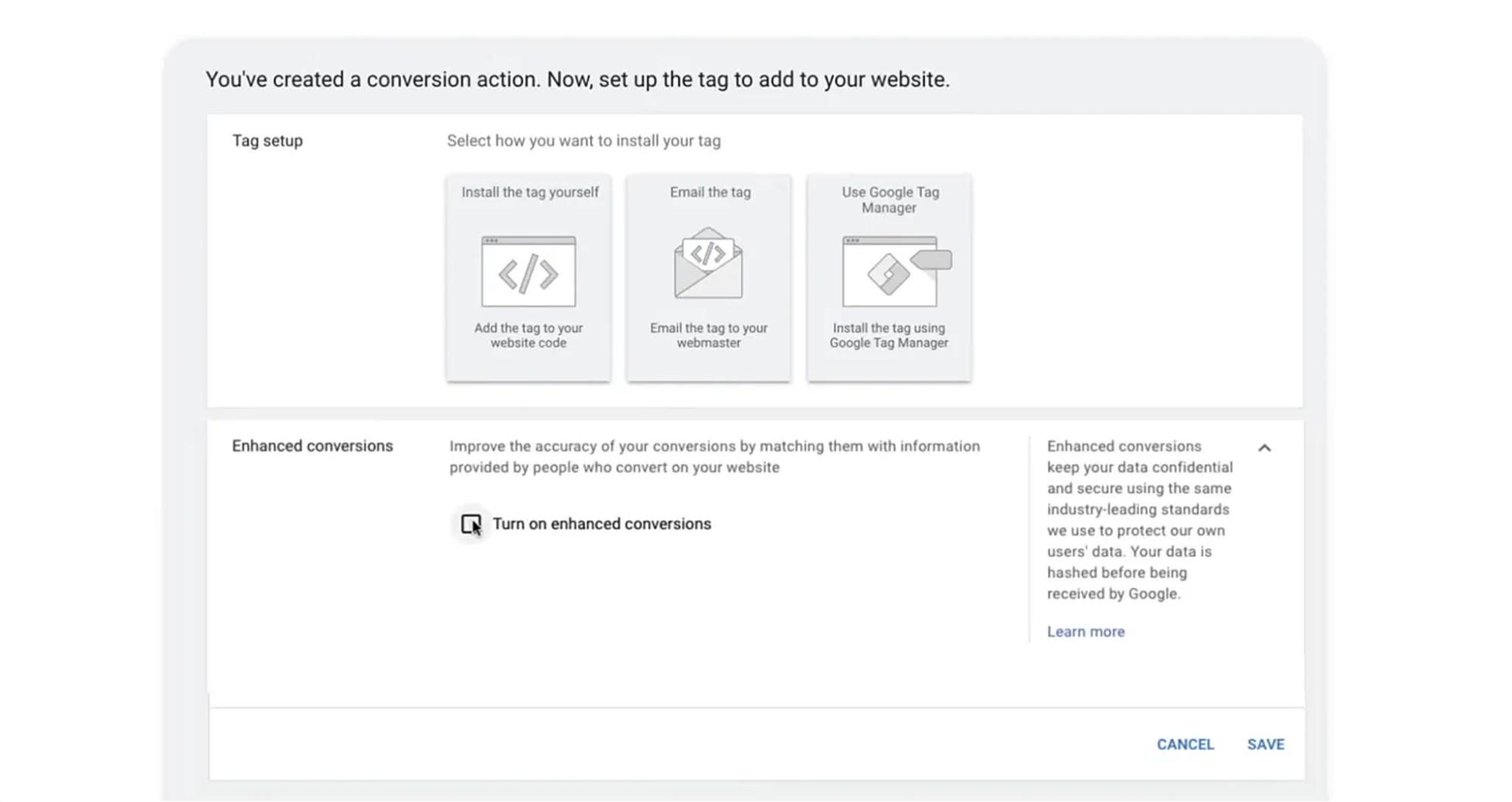
3. Choose how customer data is sent. Pick the option that matches how your store is built:
| Option | Best for | What to know |
|---|---|---|
| Google tag, automatic | Simple sites with a standard checkout | Detects customer details on the page with minimal setup, but gives less control over which fields are captured |
| Google tag, code snippet | Sites with developer support | Sends properly formatted data consistently whenever the conversion tag fires, with more control over the fields used |
| Google Tag Manager | Stores already managing tags in GTM | Uses a user-provided data variable in your existing container |
| Ecommerce platform or tracking app | Shopify and other hosted stores | Can handle data capture, formatting, and hashing for you, depending on the app |
| API connection | Custom checkouts or server-side setups | Can send hashed first-party data up to 24 hours after the conversion |
4. Validate the setup. Place a test order, then check the diagnostics for your purchase conversion action in Google Ads. Look for confirmation that customer data is being received and that there are no formatting errors. Google can take up to 30 days after setup to show the impact of enhanced conversions, so do not judge results in the first week.
For Shopify stores, Omega Google Ads can take care of much of the data-sending step. It can send purchases to Google Ads with enhanced conversions and server-side delivery, including supported Shop Pay and third-party checkout flows, so orders placed through those paths can still carry customer data. These checkout variants are often where a standard tag setup falls short.
It also makes validation easier to keep up. The Signal Health score rates the signals reaching Google from 0 to 100, based on Click ID coverage, Enhanced Conversion coverage, and attribution window coverage. That shows how many purchases include usable customer data, instead of leaving you to assume the setting works, and it stays available after Google’s impact results are no longer shown. Signal Quality is available on all plans, including Free, while other features vary by plan.
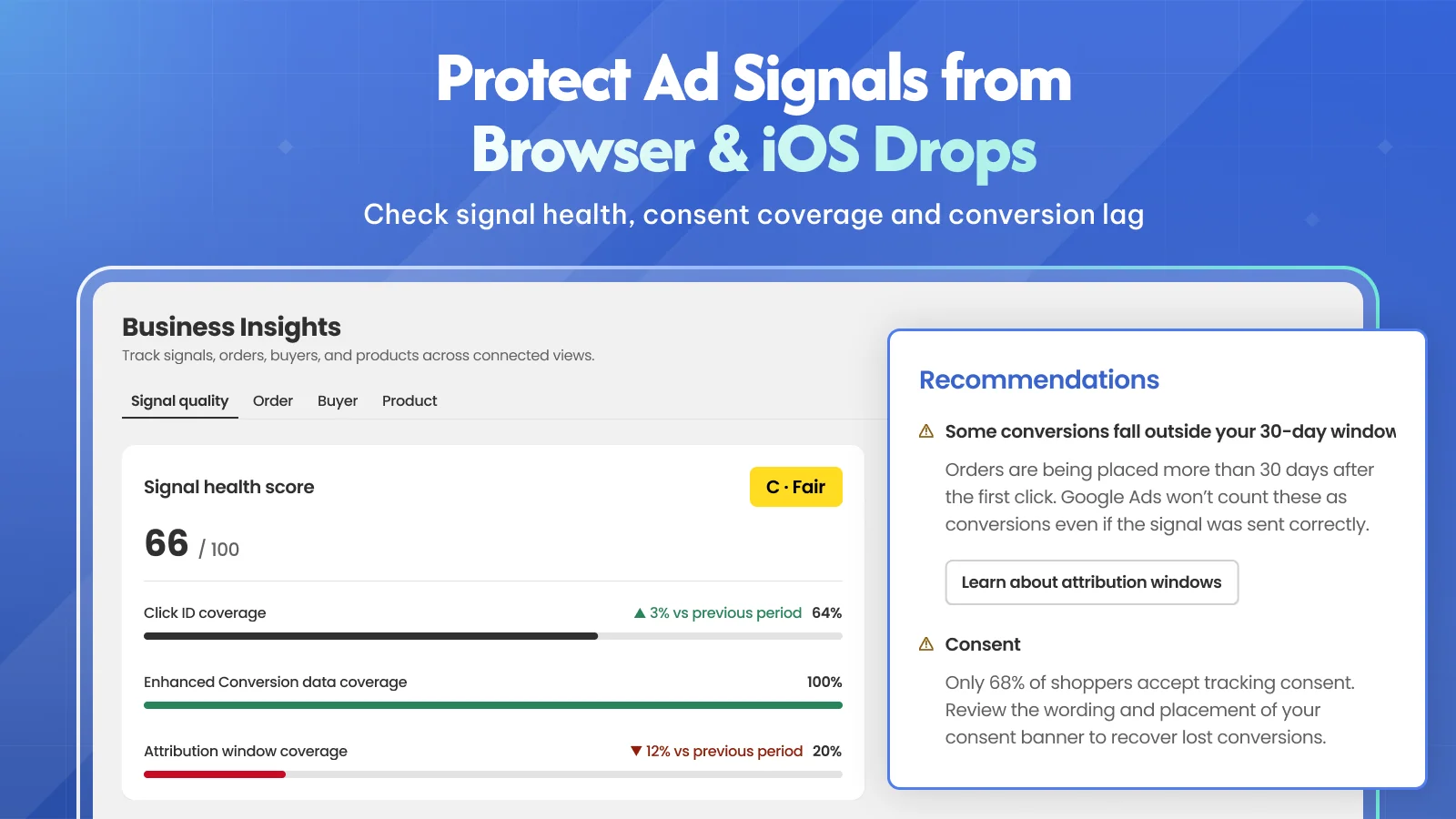
Turning the setting on is the easy part. Check that purchases include usable customer data before you judge the results.
How to set up Google enhanced conversions for leads
Google enhanced conversions for leads are built for businesses where the valuable outcome happens after the form, such as a qualified lead, a booked consultation, or a closed deal. Google describes them as an upgraded version of offline conversion import that uses user-provided data, such as email addresses, to supplement imported offline conversion data and improve accuracy and bidding performance. The setup has two halves: capturing customer data when the form is submitted, and importing the outcome later.
1. Capture customer data on the form. Make sure each lead form collects an email address or phone number, with consent where required, and note the URLs where your forms are located. Then configure the Google tag or Google Tag Manager on the form so it sends hashed customer data when someone submits it.
2. Store the same details in your CRM. Each lead record should keep the email or phone number the person entered, plus the click identifier (GCLID) where available. Google asks you to include GCLIDs with uploaded events whenever possible, and they are required if you are not using a tag to collect user-provided data.
3. Choose the outcomes that represent real value. A form submission is only the start. Import the stages that reflect real progress, so Smart Bidding learns from the leads that matter rather than every inquiry. Google highly recommends choosing either “Qualified lead” or “Converted lead” as the conversion goal.
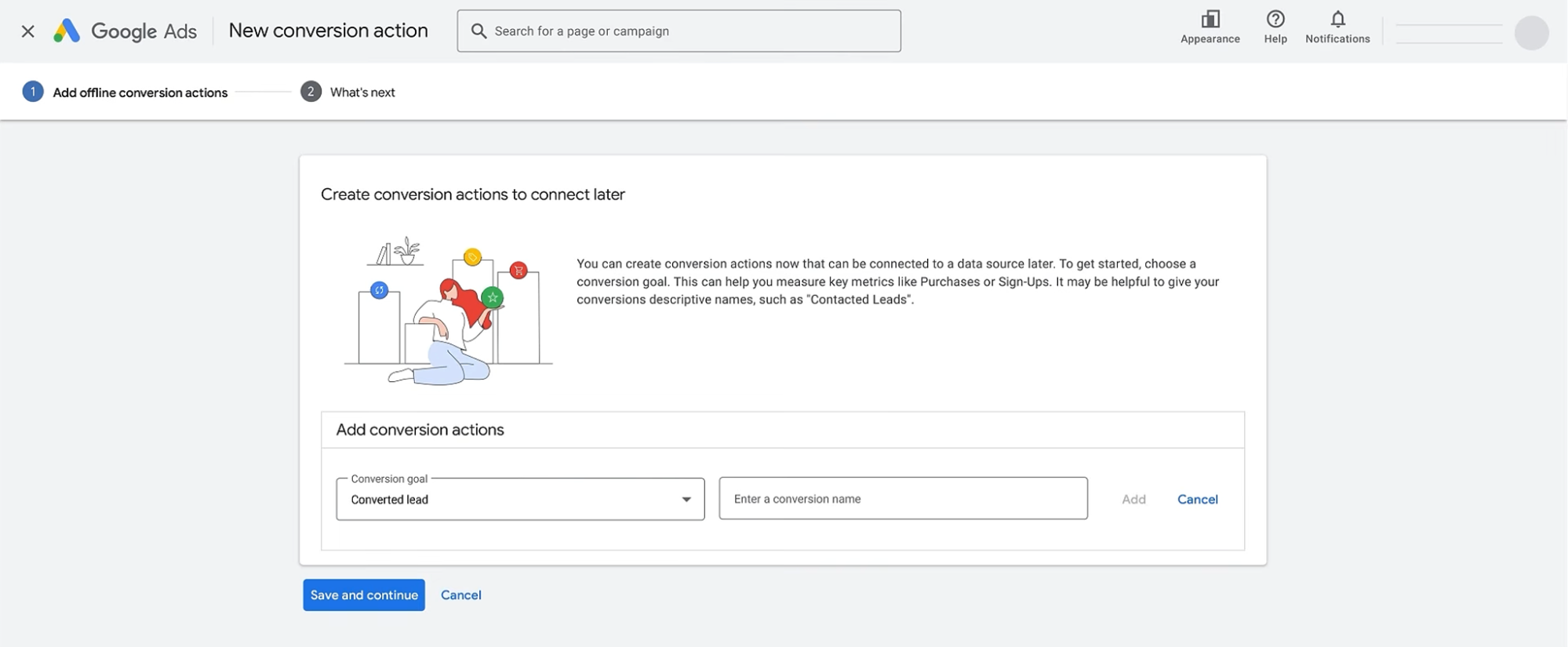
4. Import through Data Manager. Connect your CRM or a file source, such as Google Sheets, through Data Manager (in Google Ads, or via the Data Manager API), and run imports regularly, ideally every day. Import all events that have user-provided data, even if they don’t have a GCLID, but only for leads whose data you are allowed to share for ad measurement.
5. Check the diagnostics. The enhanced conversions for leads diagnostics report rates your data quality as Excellent, Good, Needs attention, or Urgent, with alerts that explain what to fix. Review it after the first few imports, and again whenever your form or CRM fields change.
If you already use offline conversion imports, this is an upgrade rather than a rebuild. You keep importing the same outcomes, with hashed customer data added alongside the click identifiers you already send. Google highly recommends making that upgrade through Data Manager (in Google Ads, or via the Data Manager API). If your lead or offline uploads still run through the Google Ads API, they continue to work, but new connections can no longer be created there, so plan the move to Data Manager.
How can you tell if enhanced conversions are working?
Turning the setting on only tells you enhanced conversions are switched on. To know whether they are working as intended, check four things, roughly in this order:
| What to check | Where to look | What it tells you |
|---|---|---|
| Status of each conversion action | The Status column on the Conversions summary page | Whether Google has flagged a problem, such as “Check enhanced conversions” |
| Diagnostics | The diagnostics report, opened from the status or the Diagnostics tab | Coverage rate, match rate, and conversion uplift, plus the specific issue to fix first |
| Customer data on real pages | Google Tag Assistant or GTM preview mode | Whether each conversion page sends customer data fields, such as email, phone, or address |
| Impact | The status of the conversion action, once training is complete | The impact on reported conversions, shown as a percentage of reported conversions |
- Check status and diagnostics. If there seems to be an issue with enhanced conversions for a conversion action, its status changes to “Check enhanced conversions”, and hovering over it takes you to the diagnostics report. For online purchases, this is the tag diagnostics report. Common problems include tags that do not fire on every conversion page, and pages where customer data is not available, for example when signed-in customers do not re-enter their details.
- Test real pages. A setup can work on the main checkout and still fail on an express checkout, a checkout variant, or a mobile layout. CSS selectors, for example, may not work on all browsers or may behave differently on mobile and desktop. Click through each path that ends in a conversion and confirm the customer data fields are being sent.
- Review the impact. Enhanced conversions need up to 30 days to train before you see their impact in reporting. After that, hovering over the conversion action’s status shows the impact results, but only for 30 days before the status returns to “Recording conversions”, so note the figure while it is visible. When you review it, keep two ideas separate. How many conversions include customer data tells you how complete your setup is. The impact figure tells you how many more conversions Google could attribute. A complete setup can still show a modest impact if most conversions were already attributed through cookies and click IDs, and that does not necessarily mean something is broken.
- Compare with your store records. Reported conversions can rise while store orders stay flat, because enhanced conversions attribute sales that were already happening. What should not happen is Google Ads reporting noticeably more purchases than your store actually recorded. If it does, check for duplicate conversions and recent changes to conversion windows or attribution settings. For Shopify stores, our conversion tracking guide walks through testing purchase events step by step.
When enhanced conversions help, and when they don’t
Enhanced conversions are worth considering for most advertisers with working conversion tracking, but they address one specific problem: conversions that happen but may not be linked back to an ad interaction. Knowing where that problem exists in your account helps you set realistic expectations.
They tend to help most when:
- Tracking gaps are common: customers block cookies, use privacy-focused browsers, or click an ad on one device and buy on another, which makes cookie-based attribution less reliable.
- Smart Bidding can use more signal: bidding strategies learn from the conversions they can see, so attributing more of them may give bidding a fuller picture.
- Leads close offline: for lead campaigns, the upgrade from offline conversion import also enables engaged-view conversions and cross-device conversions.
- Volume is high enough: in its guidance for lead diagnostics, Google says enhanced conversions are most helpful for advertisers who receive at least 20 conversions per week, including organic and ad-driven conversions.
They will not fix problems that sit elsewhere in your tracking. If you see one of these symptoms, look at the cause first:
| Symptom | Likely cause | Fix |
|---|---|---|
| Conversions are counted twice | Duplicate tags, more than one primary purchase action, or the same purchase sent from both the browser and the server without a shared ID | Keep one primary purchase action and send a unique transaction ID with every order |
| Status shows “Check enhanced conversions” | The tag does not fire on some conversion pages, or fires without usable customer data | Test each checkout path and fix the tag or data source |
| Little impact after the training period | Most conversions were already attributed, few customers provide an email or phone number, or conversion volume is low | Confirm checkout and forms collect email or phone; if they do, a small impact can be normal |
| Lead imports show no matches | Imported data is not formatted and hashed the same way as the form data, or GCLIDs are missing or incorrect | Apply the same formatting rules on both sides before hashing, check how GCLIDs are captured, and import conversions within the conversion window |
| Low consent coverage in the EEA, UK, or Switzerland | Many visitors decline consent, so their data is not sent | Review your consent banner and Consent Mode setup, and never send data without consent |
The pattern is the same in every row. Enhanced conversions improve attribution on top of tracking that already works, so fix the base first, then judge the lift.
Final thoughts
Enhanced conversions are one of the simpler ways to give Google Ads a more complete view of the conversions you already earn. They add a second way to match customers when cookies or device switching get in the way, and since 2026 the setup is easier, with one setting covering both online purchases and leads.
The results still depend on the basics underneath. Purchases need to be tracked once, with real order values. Consent has to be in place, and checkouts and forms need to collect an email or phone number. Once those are right, give the feature its training period, then check the impact against your own records rather than the setting alone.
For Shopify stores, Omega Google Ads can send purchases with enhanced conversions and show how many of them include usable customer data, so you can see whether the setting is actually doing its job.
- 1 What are enhanced conversions in Google Ads?
- 2 What changed with enhanced conversions in 2026?
- 3 How do Google enhanced conversions work?
- 4 How to set up enhanced conversions for online purchases
- 5 How to set up Google enhanced conversions for leads
- 6 How can you tell if enhanced conversions are working?
- 7 When enhanced conversions help, and when they don’t
- 8 Final thoughts
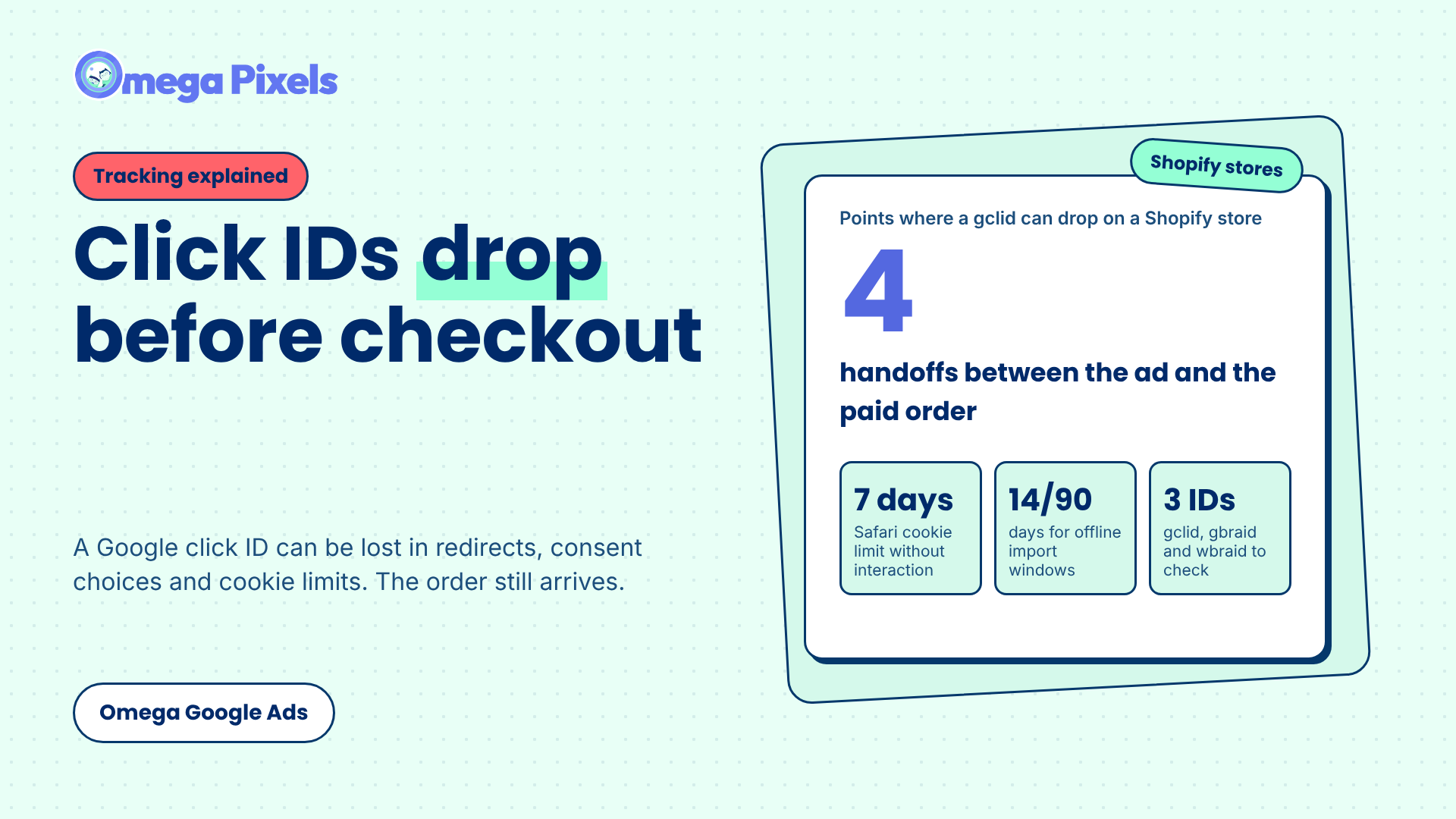
Where Google Click IDs Get Lost Between the Ad and Checkout
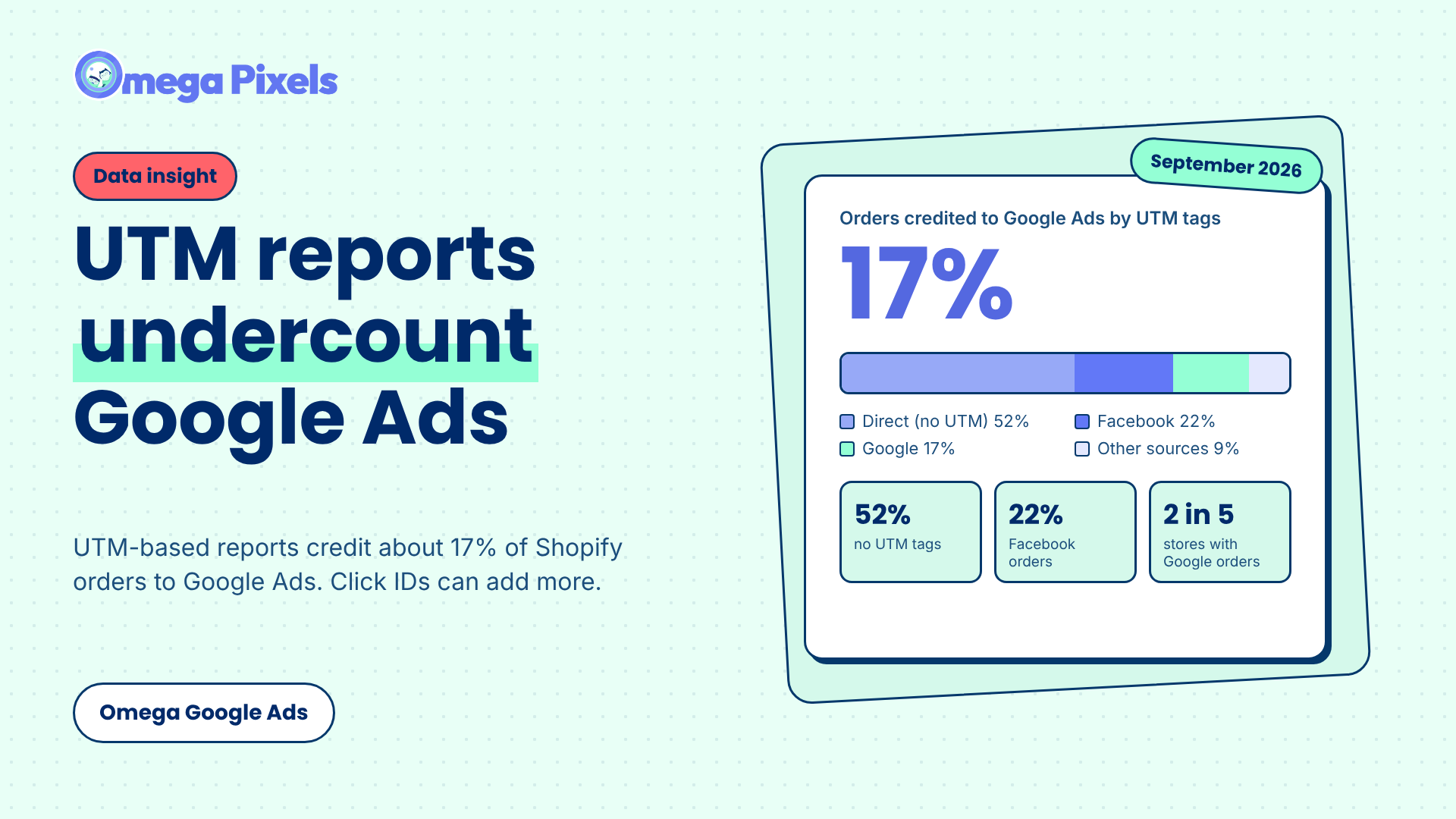
Google Ads Shopify Orders: How Many Are Tracked?
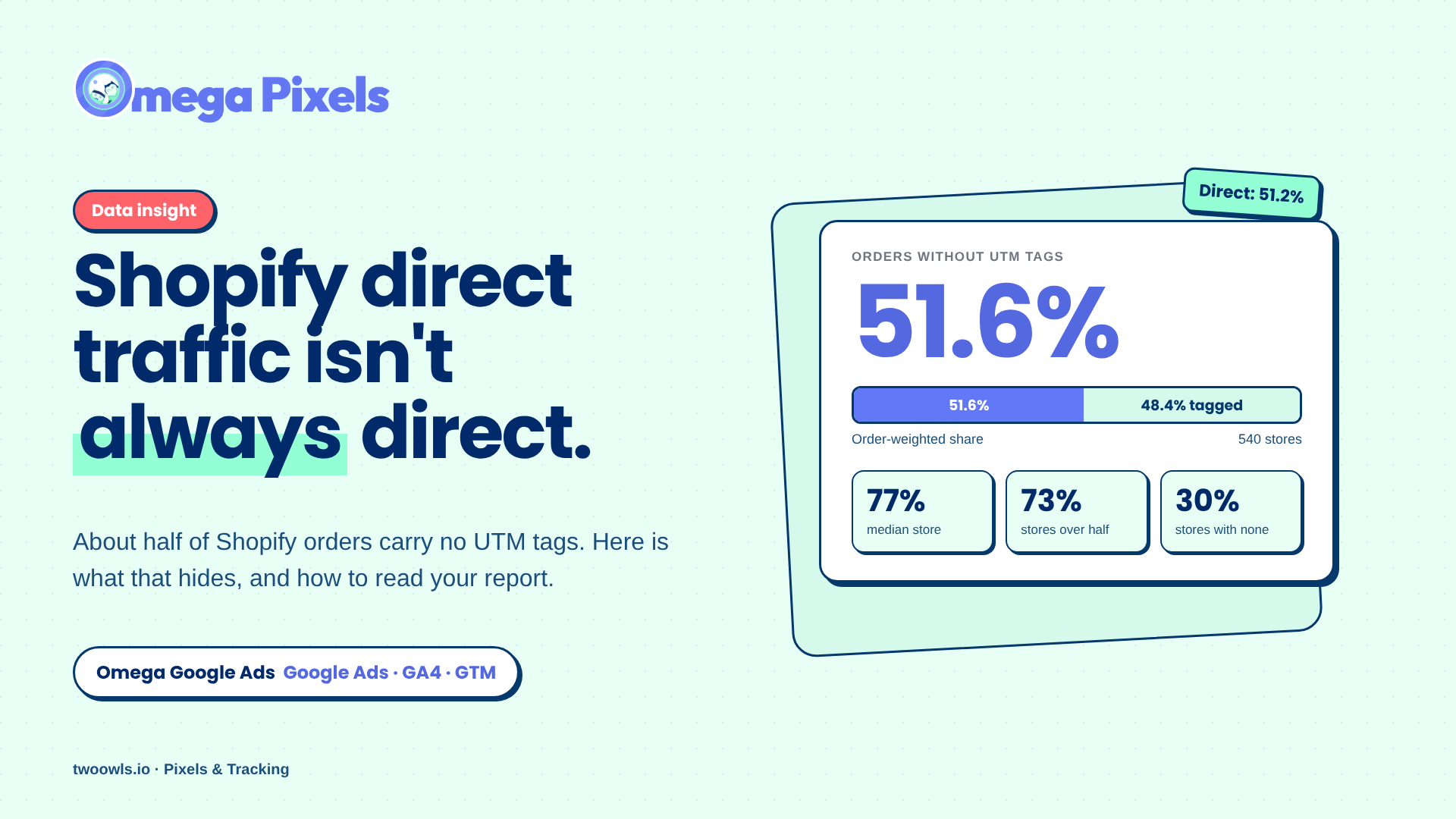
Shopify Direct Traffic Isn't Always Direct
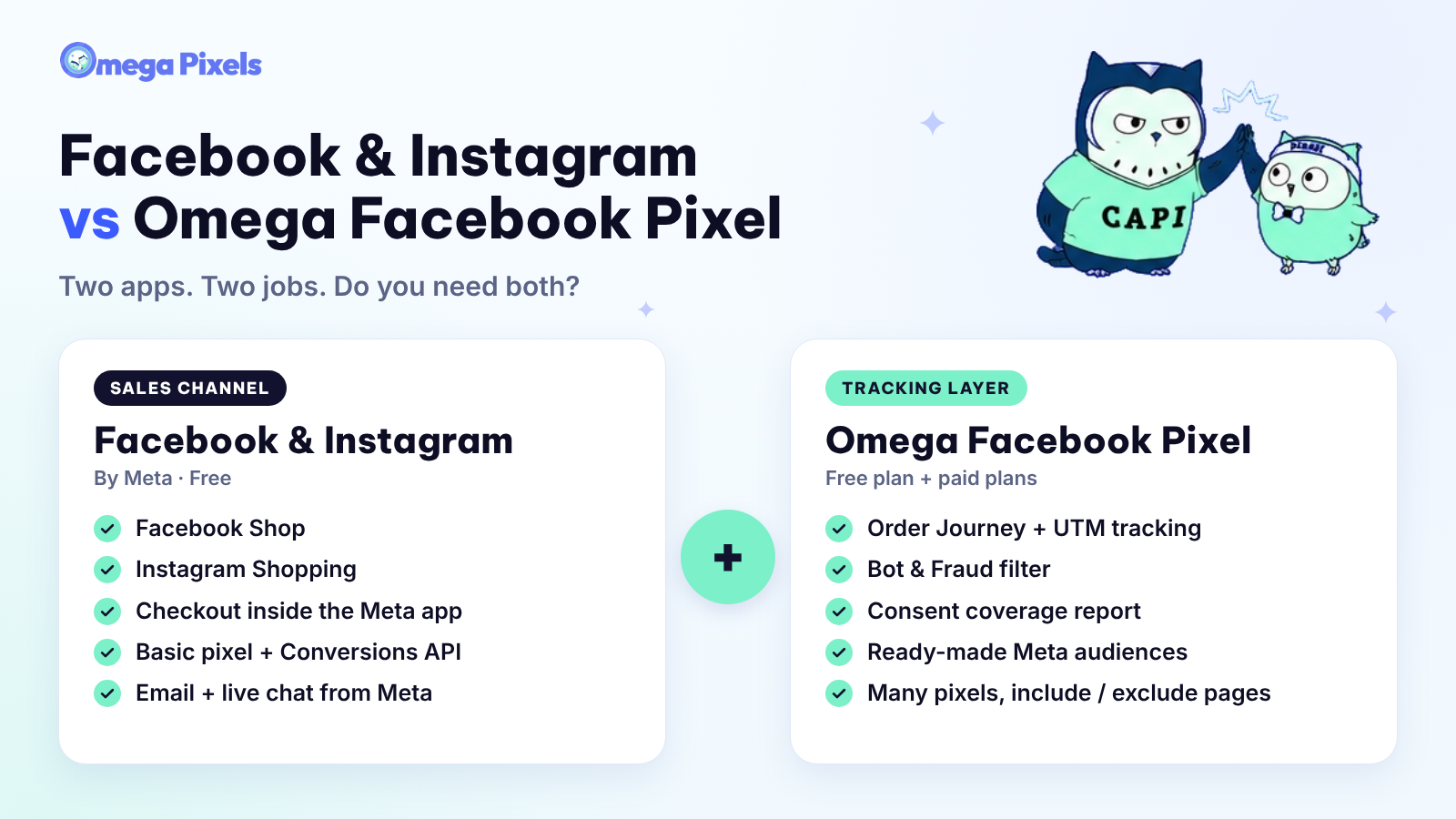
Why Pay for Omega Facebook Pixel When Meta’s Facebook & Instagram App Is Free?
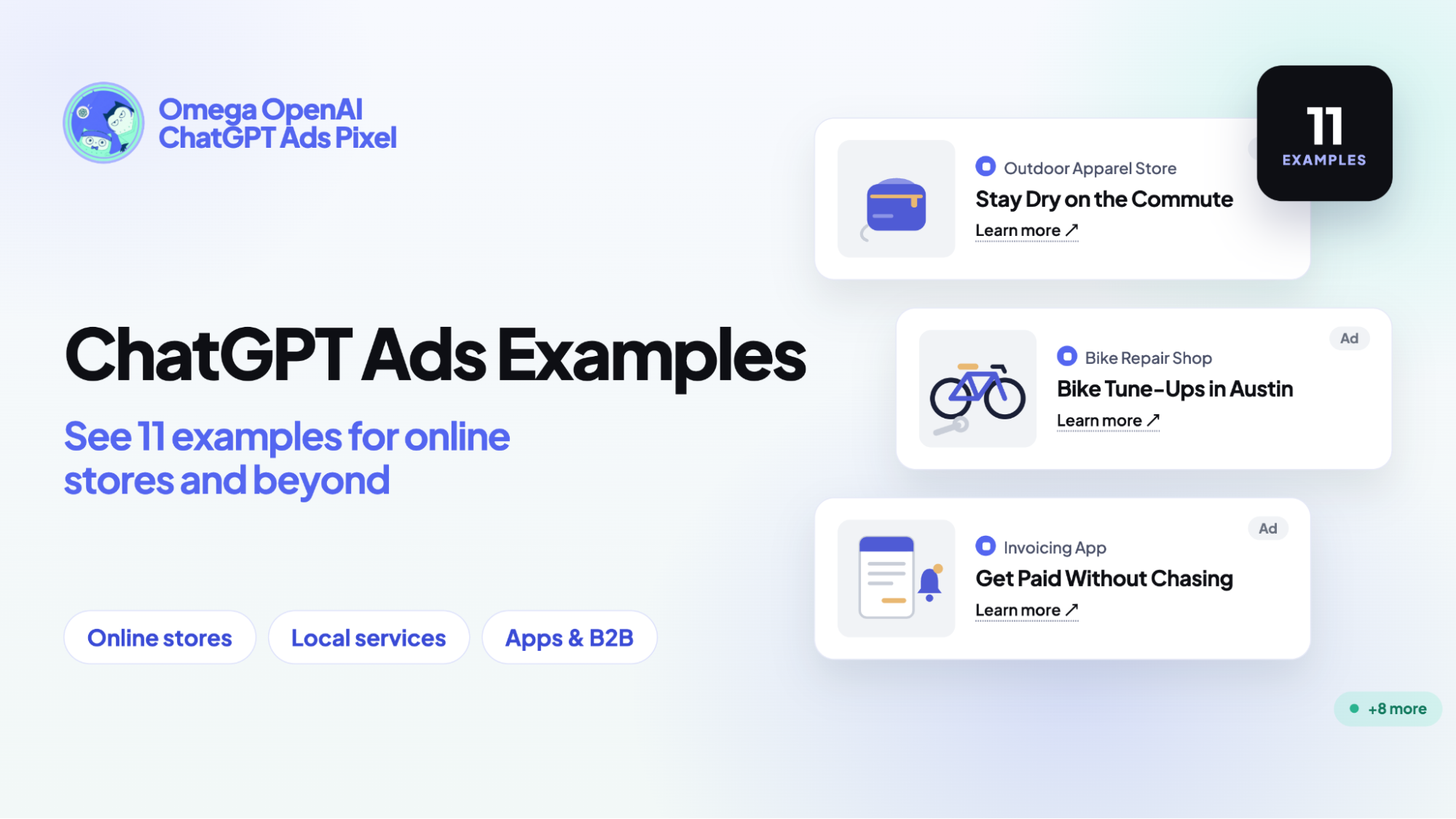
11+ ChatGPT ads examples for online stores (with copy templates)
Where Google Click IDs Get Lost Between the Ad and Checkout
Google Ads Shopify Orders: How Many Are Tracked?
Shopify Direct Traffic Isn't Always Direct
Why Pay for Omega Facebook Pixel When Meta’s Facebook & Instagram App Is Free?