Google Ads Conversion Tracking Not Working? 7 Latest Proven Fixes


Google Ads conversion tracking not working can quietly drain a budget for weeks before anyone notices. A missing trigger, a duplicate event, or an unhandled consent signal all look the same from the outside: numbers that don't match reality.
| What you’ll learn from this article: ● How to Tell if Google Ads Conversion Tracking Is Not Working ● Why Is Google Ads Conversion Tracking Not Working? ● Best Practices to Prevent Future Conversion Tracking Issues ● Streamlining Google Ads Conversion Tracking with Omega Google Ads |
How to Tell if Google Ads Conversion Tracking Not Working
Conversion numbers sometimes stop matching real sales. This gap often signals a tracking problem. A few warning signs point to the issue quickly.
Zero conversions despite active traffic raise the first red flag. Google Ads reports "No recent conversions" even though the campaign spends steadily. Meanwhile, actual sales continue coming through the website normally.
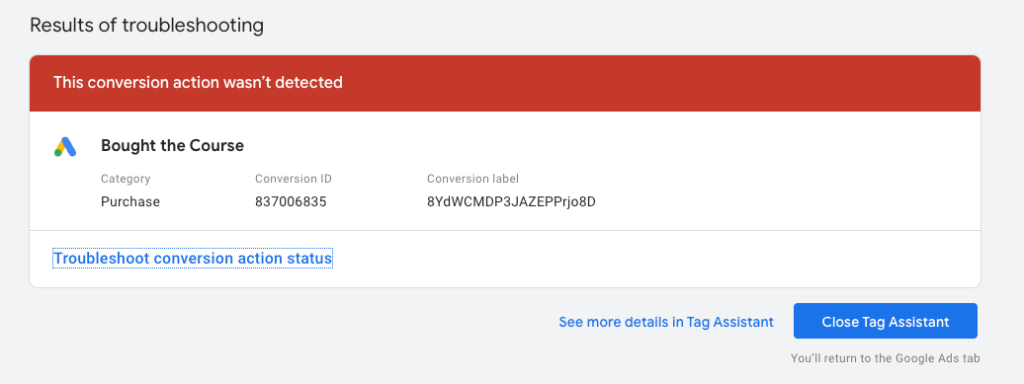
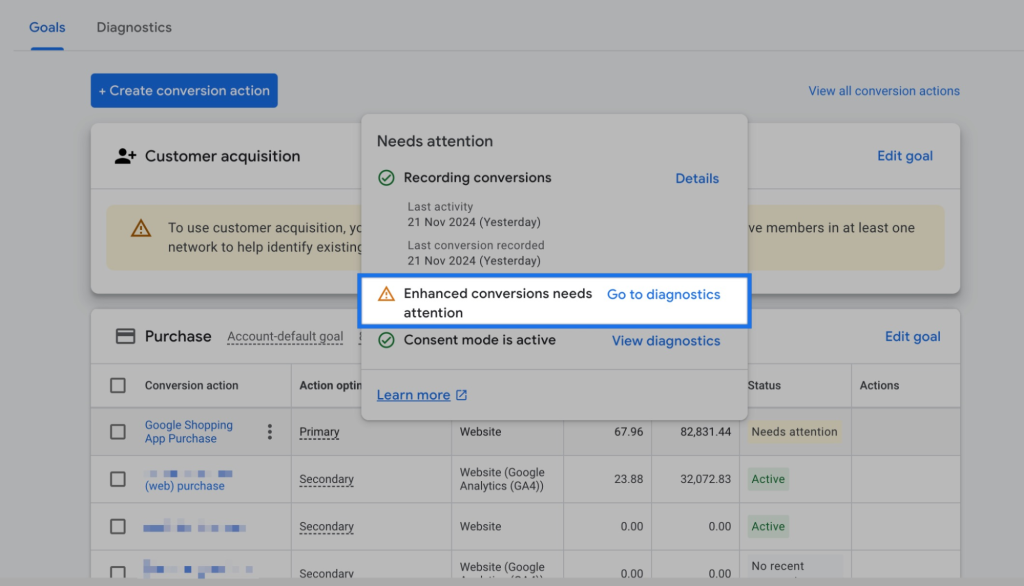
Diagnostics warnings inside Google Ads confirm the problem directly. The platform flags issues under Tools, then Conversions. Common alerts include "Tag not detected" or "No recent conversions recorded." Checking this panel regularly prevents data gaps from going unnoticed.
Why Is Google Ads Conversion Tracking Not Working?
Several root causes explain most tracking failures. Some involve tag setup, while others trace back to browser restrictions or consent settings. Here's a breakdown of the seven most common culprits.
Google Tag or GTM Tag Isn't Firing
The Google tag sometimes fails to load on the conversion page entirely. Incorrect trigger conditions in GTM cause this most often. A tag placed on the wrong page, or blocked by a script conflict, produces the same result.
How to fix it:
- Open GTM Preview mode and reload the conversion page
- Confirm the Google Ads tag fires under the "Tags Fired" section
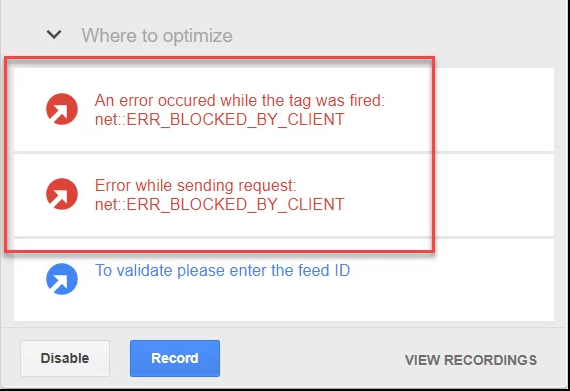
- Check for JavaScript errors in the browser console that might block the tag
Incorrect Conversion ID or Conversion Label
A mismatched Conversion ID or Conversion Label sends data nowhere useful. This typically happens after copying the wrong snippet, or after duplicating a conversion action without updating the label. Google Ads then shows the conversion as inactive, even though the tag technically fires.
How to fix it:
Cross-checking the ID and label against the value in Google Ads Conversions settings resolves this quickly.
Shopify Checkout Changes Break Legacy Tracking Setups
Many older Shopify tracking guides rely on checkout.liquid or Additional Scripts to fire conversion tags after a purchase. These methods no longer work for most stores. Shopify now runs customer events inside the Web Pixels sandbox, limiting how third-party scripts access checkout pages and customer data.
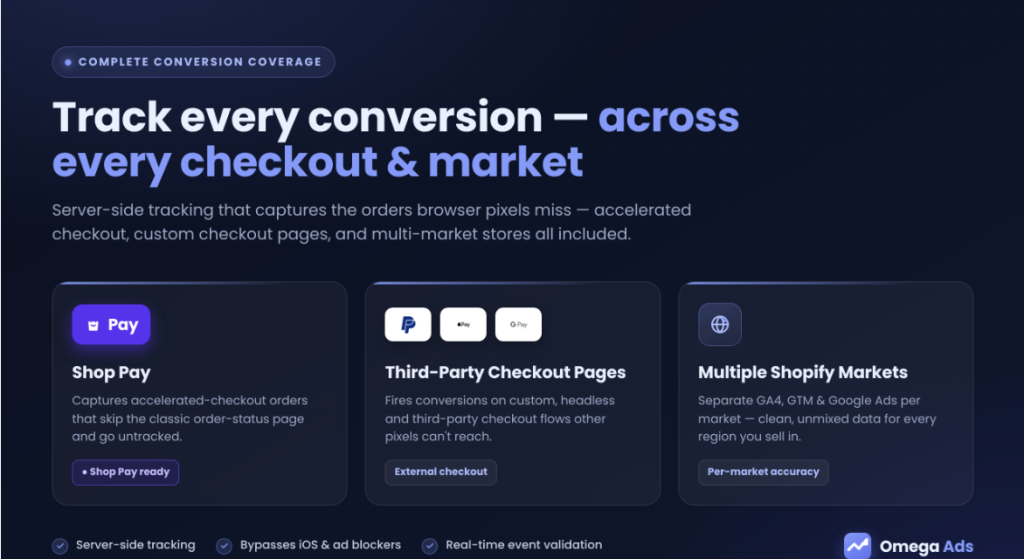
As a result, Google Ads conversion tags that previously fired on the order status page may stop working after a Shopify upgrade or checkout migration. Stores using Shop Pay or third-party checkout extensions can also miss conversions if their tracking setup isn't compatible with Shopify's latest architecture.
How to fix it:
- Replace legacy checkout.liquid or Additional Scripts implementations with Shopify Web Pixels or server-side tracking where appropriate.
- Verify that purchase events are received in Google Tag Manager Preview and Google Ads Diagnostics after checkout.
- If you use Shop Pay, third-party checkout pages, or multiple Shopify Markets, use a tracking solution that supports these scenarios and validates events in real time.
💡 Our Omega Google Ads supports these advanced Shopify scenarios through a combination of server-side tracking, Shopify Web Pixels, and built-in validation tools to help reduce missed conversions.
Conversion Linker Is Missing or Misconfigured
Conversion Linker reads the GCLID from the URL and stores it as a first-party cookie. Without this tag, Google Ads loses the ability to connect a click to a later conversion. Sites using GTM sometimes skip this tag entirely, assuming the main conversion tag handles it alone.
How to fix it:
- Add the Conversion Linker tag in GTM if it's missing
- Set the trigger to "All Pages" so it fires sitewide
- Publish the container and verify the cookie appears in browser DevTools
Consent Mode or Cookie Restrictions Block Tracking
Visitors who decline cookie consent block tracking scripts from running at all. Browser-level restrictions add another layer of loss, and this affects a meaningful share of traffic.
Safari alone accounts for roughly 16 to 18 percent of global browser market share, according to StatCounter's browser statistics, and its Intelligent Tracking Prevention limits how long tracking cookies survive. Together, consent declines and browser restrictions often explain conversion numbers that sit well below actual sales.
How to fix it:
Aligning Consent Mode signals with actual visitor choices closes part of this gap. Connecting a consent management platform to GTM, then confirming the consent state passes correctly before the tag fires, prevents silent data loss.
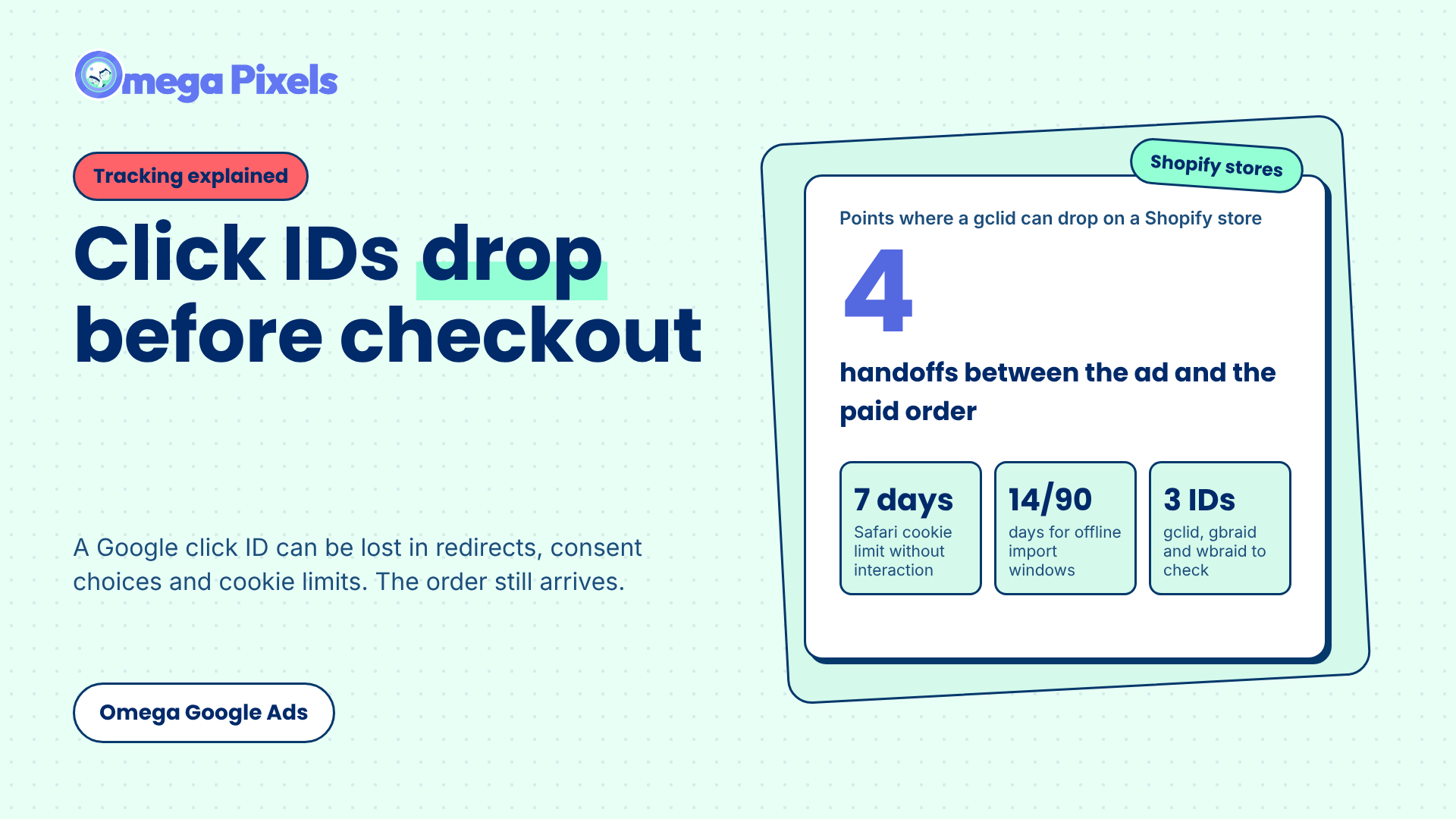
Auto-Tagging or GCLID Isn't Working Properly
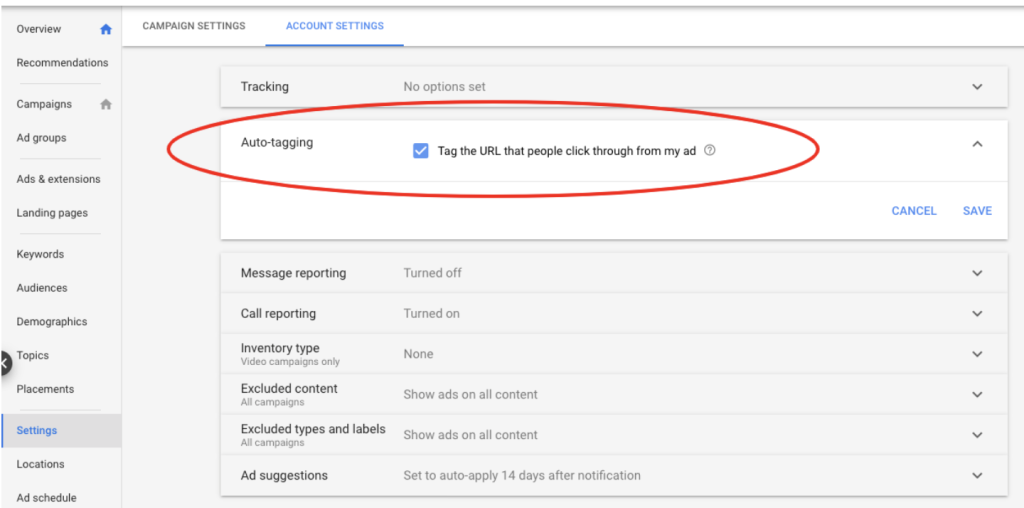
Auto-tagging appends the GCLID parameter to the destination URL automatically. When auto-tagging turns off, or when a redirect strips the parameter, the GCLID never reaches the landing page. Conversion Linker then has nothing to capture.
How to fix it:
Checking the "Auto-tagging" setting under Google Ads account settings confirms whether it's enabled. Testing a live ad click and inspecting the landing URL for the "gclid=" parameter confirms whether the value survives the redirect.
If you use a third-party tracking app such as Omega Google Ads Conversion Tracking, the app can automatically detect and preserve GCLID values, then associate them with the correct conversion events to help prevent attribution loss caused by redirects or browser restrictions.
Enhanced Conversions Aren't Set Up Correctly
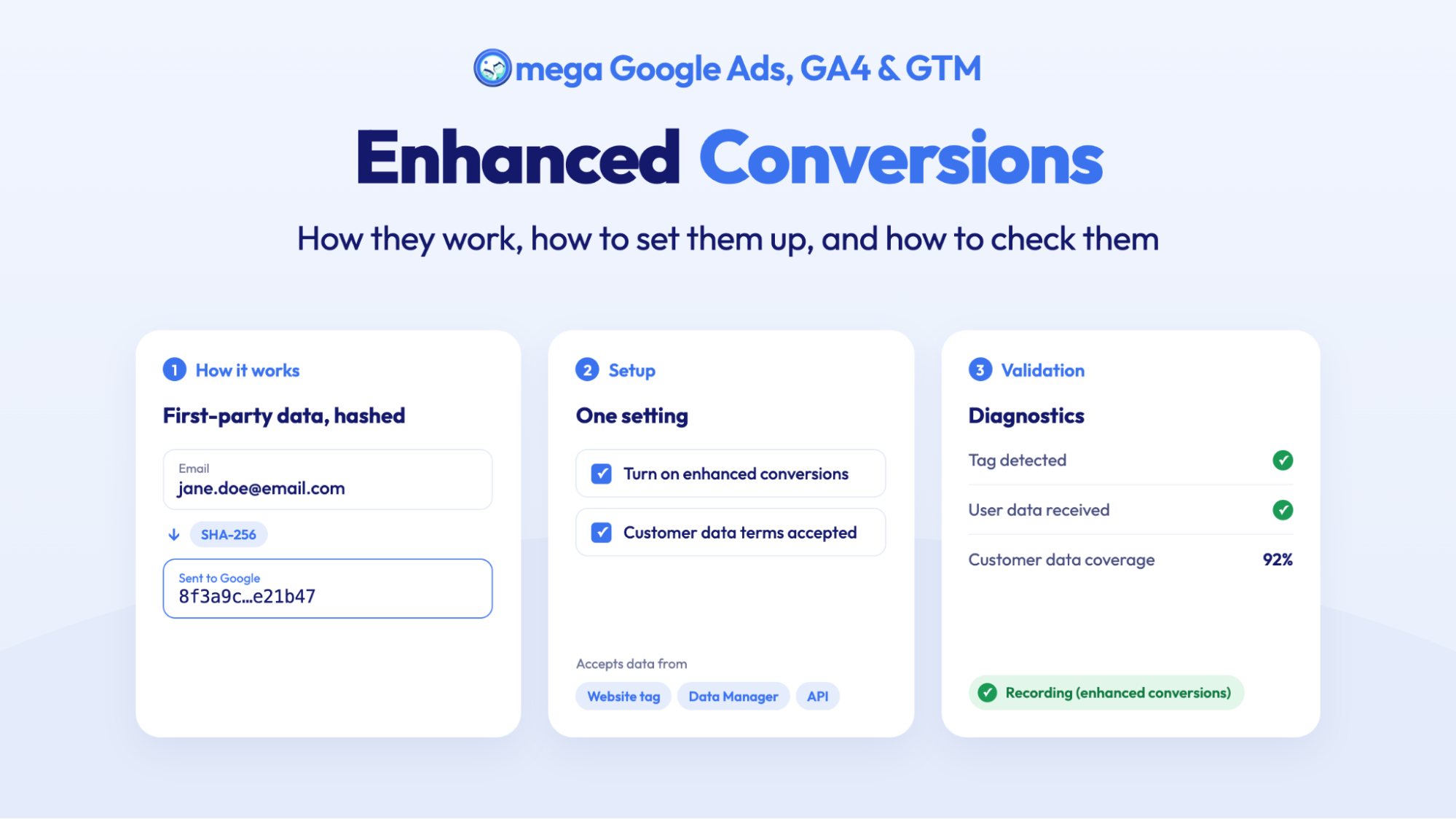
Enhanced Conversions supplement standard tracking with hashed first-party data like email or phone number. Incomplete implementation often shows up as a low coverage rate in the diagnostics report. A coverage rate around 30 percent, for instance, means most conversions still rely on cookie-based tracking alone.
How to fix it:
- Confirm customer data fields capture correctly before the conversion event fires
- Add additional match keys, since Google's own guidance recommends sending email, address, and phone number together to raise match rates
- Review the Enhanced Conversions diagnostics report weekly for new alerts
Reporting Delays and Attribution Differences
Sometimes tracking works correctly, but the numbers still look off. Google Ads applies conversion delay windows before finalizing counts, so same-day comparisons rarely match. Attribution models also differ between Google Ads and other analytics tools, which explains why GA4 and Google Ads rarely show identical totals.
How to fix it:
Waiting 24 to 72 hours before comparing reports usually resolves apparent discrepancies. Beyond that window, a genuine tracking issue becomes far more likely.
Best Practices to Prevent Future Conversion Tracking Issues
Most tracking problems don't happen during setup. They happen weeks later, quietly, after something else changes. Here's what actually prevents that, based on patterns that show up again and again in live accounts.
Audit Your Tracking After Website Changes
Theme updates break tags more often than any other single cause. A new checkout page, a redesigned thank-you page, or a switch to Shopify's new checkout extensibility framework can all shift where the conversion tag needs to fire.
The tag itself doesn't disappear. It just stops firing on the right page, and nobody notices until conversions drop for two weeks straight.
Run this check every time the theme, checkout flow, or app stack changes:
- Open GTM Preview mode and complete a real test order
- Confirm the purchase tag fires exactly once, on the actual order confirmation page
- Check that the transaction ID and value pass correctly, not just that the tag "fired"
Enable Enhanced Conversions
Standard cookie-based tracking alone misses a growing share of conversions. Safari's ITP, ad blockers, and users declining consent all chip away at what a browser-only tag can see. Enhanced Conversions adds a second matching path using hashed customer data, so a conversion still gets credited even when the cookie never survives.
The setup matters more than the toggle. Sending only an email address produces a modest match rate. Sending email, phone, and address together produces a noticeably stronger one, since Google has more identifiers to match against a signed-in account.
Check the coverage rate in the diagnostics report weekly during the first month. A coverage rate stuck below 50 percent usually means the data fields aren't capturing before the conversion event fires, not that the feature isn't working.

Avoid Duplicate Conversion Events
Duplicate events are the single most common cause of an inflated ads ROAS that later gets "corrected" downward, and it's an ugly conversation to have with a client or a boss.
It usually comes from one of two places: the same GTM container ID pasted into both a theme file and an app, or a Purchase event firing on both the checkout page and a thank-you page that reloads on refresh.
Prevent it with a few habits:
- Search the theme's checkout and order-status liquid files for any hardcoded GTM or gtag snippets before assuming GTM alone controls tracking
- Set the Purchase trigger to fire once per transaction ID, not once per page load
- If running Pixel and Events API together, pass a shared event_id so the platform can deduplicate on its own
Monitor Conversion Status Regularly
A conversion action can sit in "No recent conversions" for days before anyone checks the account. By the time someone notices, the campaign has often already lost Smart Bidding momentum and needs time to relearn.
Build a standing weekly habit instead of relying on someone to notice a dip. Check the Diagnostics tab under Conversions every Monday. Compare Google Ads conversion counts against actual Shopify order counts for the same week.
Streamlining Google Ads Conversion Tracking with Omega Google Ads
Manual GTM setup gives full control, but every theme update or new conversion action means going back in to adjust tags by hand. One misconfigured trigger can quietly cost weeks of accurate conversion data.
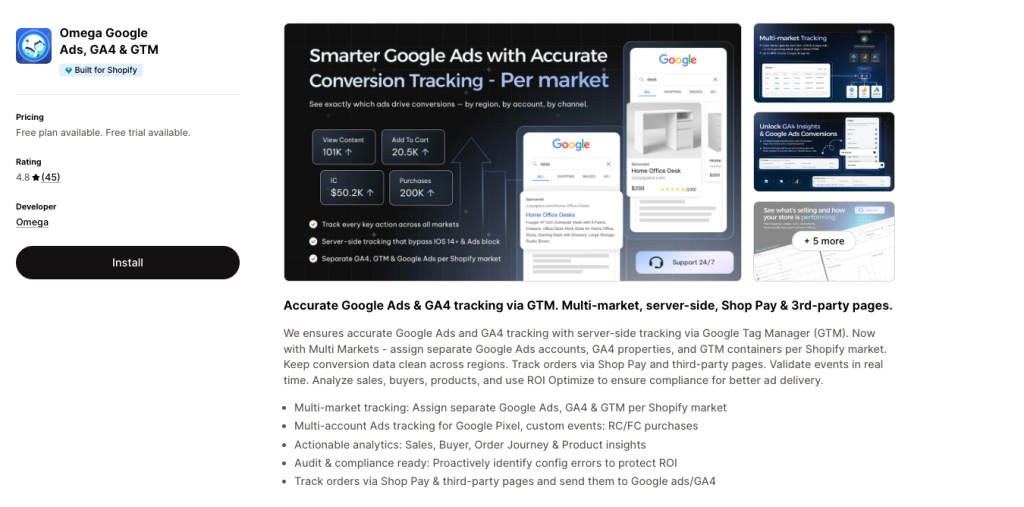
Omega Google Ads closes that gap. The app connects directly to Google Ads, GA4, and GTM, handling setup through a guided dashboard instead of raw code, with one focus: clean, accurate conversion data without a developer maintaining the pipeline.
Key features for Google Ads-focused stores:
- Server-side tracking via GA4, GTM: Captures conversions browser-only pixels miss, including orders through Shop Pay or third-party checkout pages, which are often missed by many standard tracking integrations.
- Multi-Market support: Assign separate Google Ads accounts, GA4 properties, and GTM containers per Shopify Market.
- Real-time event validation: Test and verify conversion events instantly before launching or scaling campaigns.
- Exclusive audit checklist & compliance: Ready to protect ROI, consent Mode v2 signals for EU & US.
- Actionable analytics: Analyze sales, buyers, products, and order journeys alongside conversion tracking data.
FAQs About Google Ads Conversion Not Tracking
Why Is Google Ads Showing Clicks but No Conversions?
The conversion tag likely isn't firing. Auto-tagging may be off, or the tag could be missing from the confirmation page entirely.
Why Are GTM Tags Firing but Conversions Aren't Recorded?
A tag firing only confirms it loaded, not that Google Ads accepted the data. Check the Conversion ID and Label match what's set in Google Ads.
How Long Does Google Ads Conversion Tracking Take to Update?
Most conversions appear within hours, though Google Ads applies a 24 to 72 hour delay before numbers finalize. Enhanced Conversions can take a few days longer.
Why Does Google Ads Report Fewer Conversions Than Shopify?
Cookie restrictions and cross-device purchases cause undercounting. A phone click followed by a laptop purchase often shows as a Shopify sale with no matching conversion.
Should I Use GTM or a Shopify App for Google Ads Conversion Tracking?
Manual GTM suits teams with developer support and specific needs. An app fits merchants who want accuracy without maintaining tags after every theme update.
Conclusion
Google Ads conversion tracking not working almost always traces back to a handful of causes. Catching these early, through regular audits and weekly diagnostics checks, prevents small gaps from turning into weeks of distorted ROAS.
Enhanced Conversions and proper deduplication close most of what cookie-based tracking alone misses. Whether that setup runs through manual GTM or a dedicated app, the goal stays the same: Google Ads conversion tracking that reflects real sales, so campaigns can actually optimize on data worth trusting.

- 1 How to Tell if Google Ads Conversion Tracking Not Working
- 2 Why Is Google Ads Conversion Tracking Not Working?
- 2.1 Google Tag or GTM Tag Isn’t Firing
- 2.2 Incorrect Conversion ID or Conversion Label
- 2.3 Shopify Checkout Changes Break Legacy Tracking Setups
- 2.4 Conversion Linker Is Missing or Misconfigured
- 2.5 Consent Mode or Cookie Restrictions Block Tracking
- 2.6 Auto-Tagging or GCLID Isn’t Working Properly
- 2.7 Enhanced Conversions Aren’t Set Up Correctly
- 2.8 Reporting Delays and Attribution Differences
- 3 Best Practices to Prevent Future Conversion Tracking Issues
- 4 Streamlining Google Ads Conversion Tracking with Omega Google Ads
- 5 FAQs About Google Ads Conversion Not Tracking
- 5.1 Why Is Google Ads Showing Clicks but No Conversions?
- 5.2 Why Are GTM Tags Firing but Conversions Aren’t Recorded?
- 5.3 How Long Does Google Ads Conversion Tracking Take to Update?
- 5.4 Why Does Google Ads Report Fewer Conversions Than Shopify?
- 5.5 Should I Use GTM or a Shopify App for Google Ads Conversion Tracking?
Where Google Click IDs Get Lost Between the Ad and Checkout
Enhanced Conversions in Google Ads: Turned On Isn’t the Same as Working
Bulk Import Product Info to TikTok Shop from Wix
Google Ads Shopify Orders: How Many Are Tracked?
Enhanced Conversions in Google Ads: Turned On Isn’t the Same as Working
Bulk Import Product Info to TikTok Shop from Wix
Google Ads Conversion Adjustment for Refunds on Shopify
Shopify Direct Traffic Isn't Always Direct
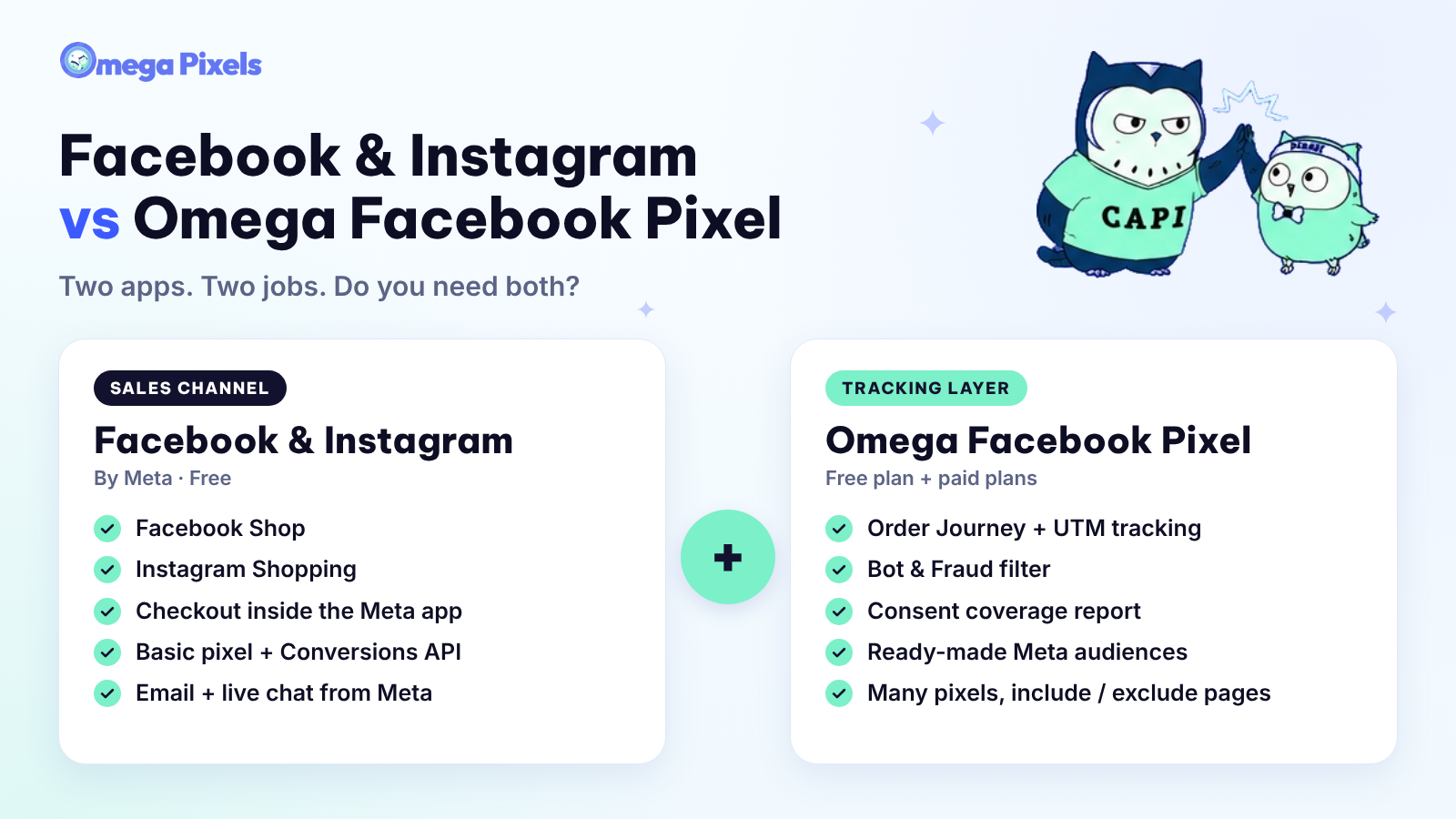
Why Pay for Omega Facebook Pixel When Meta’s Facebook & Instagram App Is Free?
Enhanced Conversions in Google Ads: Turned On Isn’t the Same as Working
Bulk Import Product Info to TikTok Shop from Wix
Google Ads Conversion Adjustment for Refunds on Shopify
Shopify Direct Traffic Isn't Always Direct